CHAPTER 4: OPERATIONS
69
3. A list of devices will display. In the Find field, click name to search by name.
- or -
Click UID to search by UID.
NOTE:
If a name has not been set for the device, a default name will be displayed. Clicking the Reset name button
sets the device name back to its default.
4. Select the device you wish to edit and click the Edit Device button. The Edit Device
screen displays.
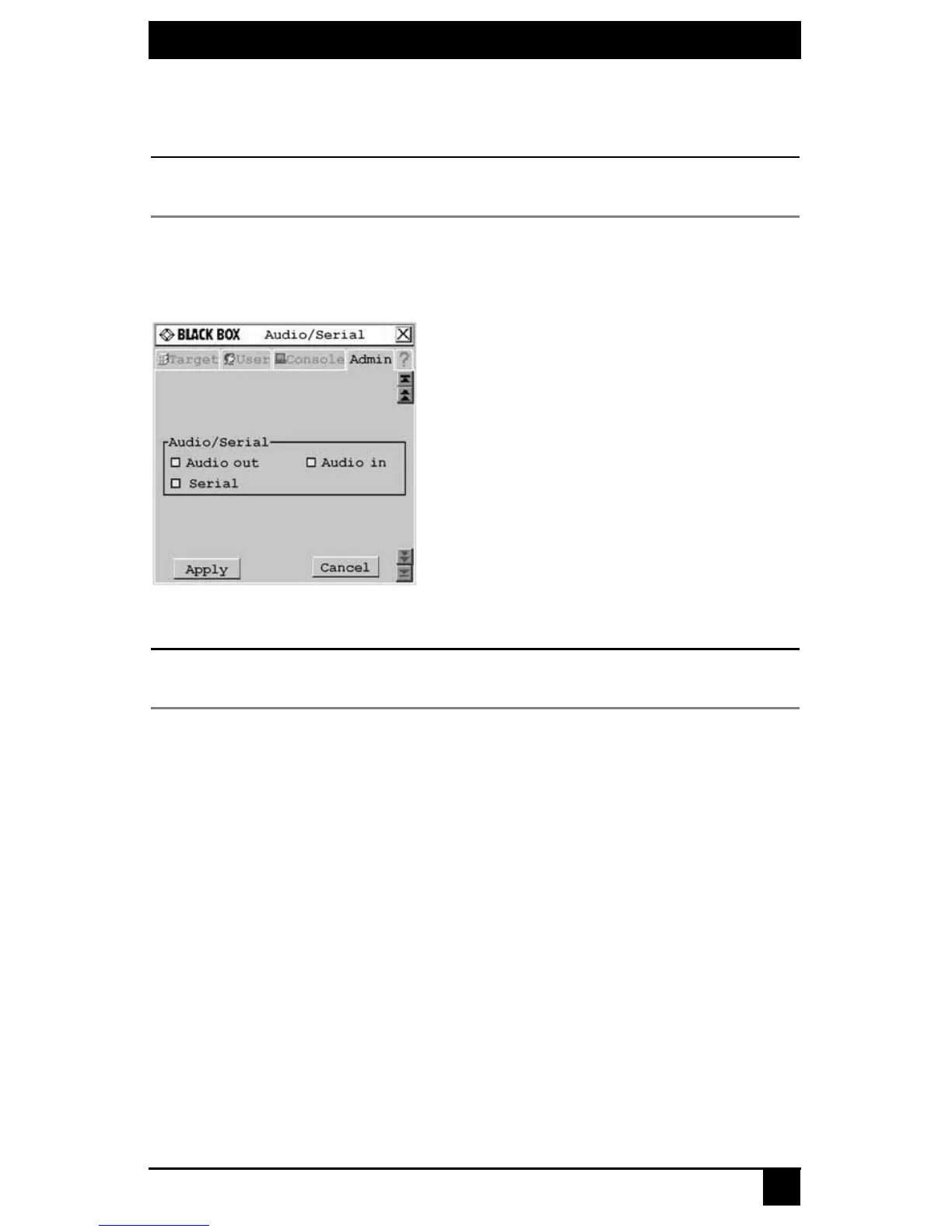
5. Click the down arrow button to display the Audio/Serial screen.
Figure 4-20. Audio/Serial Screen (Admin Tab)
NOTE:
The first time this screen is accessed, the Audio out, Audio in and Serial checkboxes will be checked
(enabled) for devices that are multimedia-capable.
6. Click the Audio out (speakers), Audio in (mic) or Serial checkboxes to enable or dis-
able as required for the selected device.
7. To save changes, click Apply. To exit the OSD, click Cancel or X.
4.6 Viewing Octet Server Access Module
Version Information
When Flash upgrading your Octet switching system, check the Octet server access module
version to determine if firmware updates are needed.
To view Octet server access module information:
1. Press Ctrl+Ctrl to launch the OSD.
2. Click the Admin tab. The Device Admin screen displays.
3. Select the Octet server access module for which you wish to view version, configura-
tion and connection information.
4. Click the Edit device button. The Edit Device screen displays.
5. Click the Info button. The Information screen displays.









 To Next Page