SERVSWITCH™ OCTET INSTALLER/USER GUIDE
68
4.5 Using Audio and Serial Data Emulation
Some Octet user stations and devices support audio and serial data emulation. In order for
a user to receive audio and serial data, the following conditions must exist:
• The user must be logged into a user station that supports audio and serial emulation,
such as the KV1713A/E user station.
• The user must be accessing a device that has been enabled by the Administrator to
output audio and serial data.
• The target device must be connected to an SAMDM module.
Each user can configure the audio and serial settings that will be available when he or she
logs in.
To view and modify audio and serial settings for a user:
CAUTION:
Switching to an audio source that is set at high volume might harm your hearing.
1. Press Ctrl+Ctrl to launch the OSD.
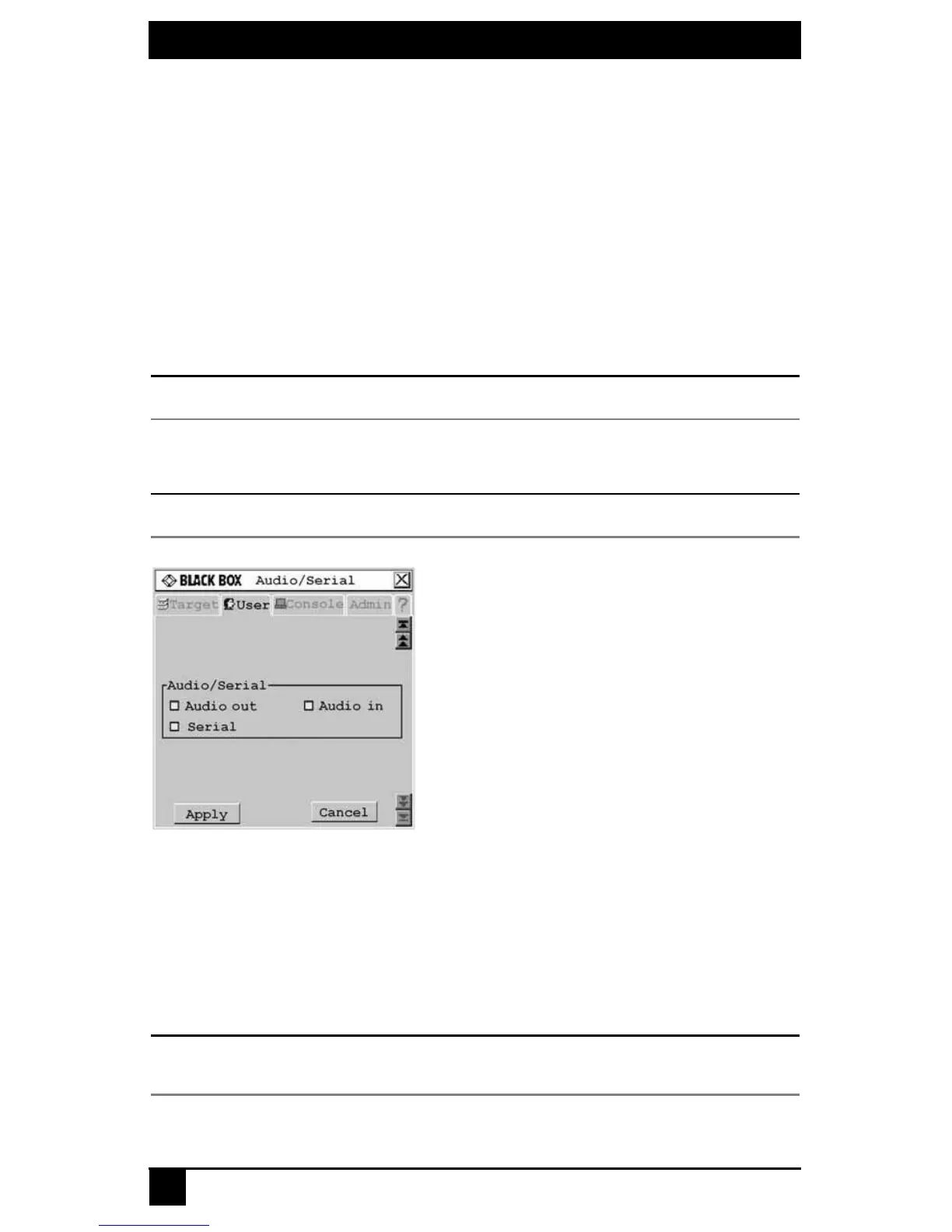
2. Click the User
tab. Click the down arrow button to display the Audio/Serial screen.
NOTE:
Selected settings in the Audio/Serial screen indicate a default status of on (enabled).
Figure 4-19. Audio/Serial Screen (User Tab)
3. Click the checkboxes to enable or disable speakers, microphone or serial emulation.
4. To save changes, click Apply. To exit the OSD, click Cancel or X.
To view and modify admin audio and serial settings for a device:
1. Press Ctrl+Ctrl to launch the OSD.
2. Click the Admin tab. The Device Admin screen displays.
NOTE:
The Device Admin screen will display only the devices that are currently attached to the switching system
and powered. Only the Administrator can edit Device attributes.









 To Next Page