CHAPTER 4: OPERATIONS
61
Administering security settings
To modify security settings, users must be logged as the Administrator. You may also use
the Octoware software to administer settings.
By default all user stations are automatically logged in using the Administrator username
and password. To restrict access to security settings, enable Force User Login to require
all users to log in with a username and password each time the user station is accessed.
To edit a user:
1. Press Ctrl+Ctrl to launch the OSD.
2. Click the Admin tab.
3. Click the down arrow button to display the User Admin screen.
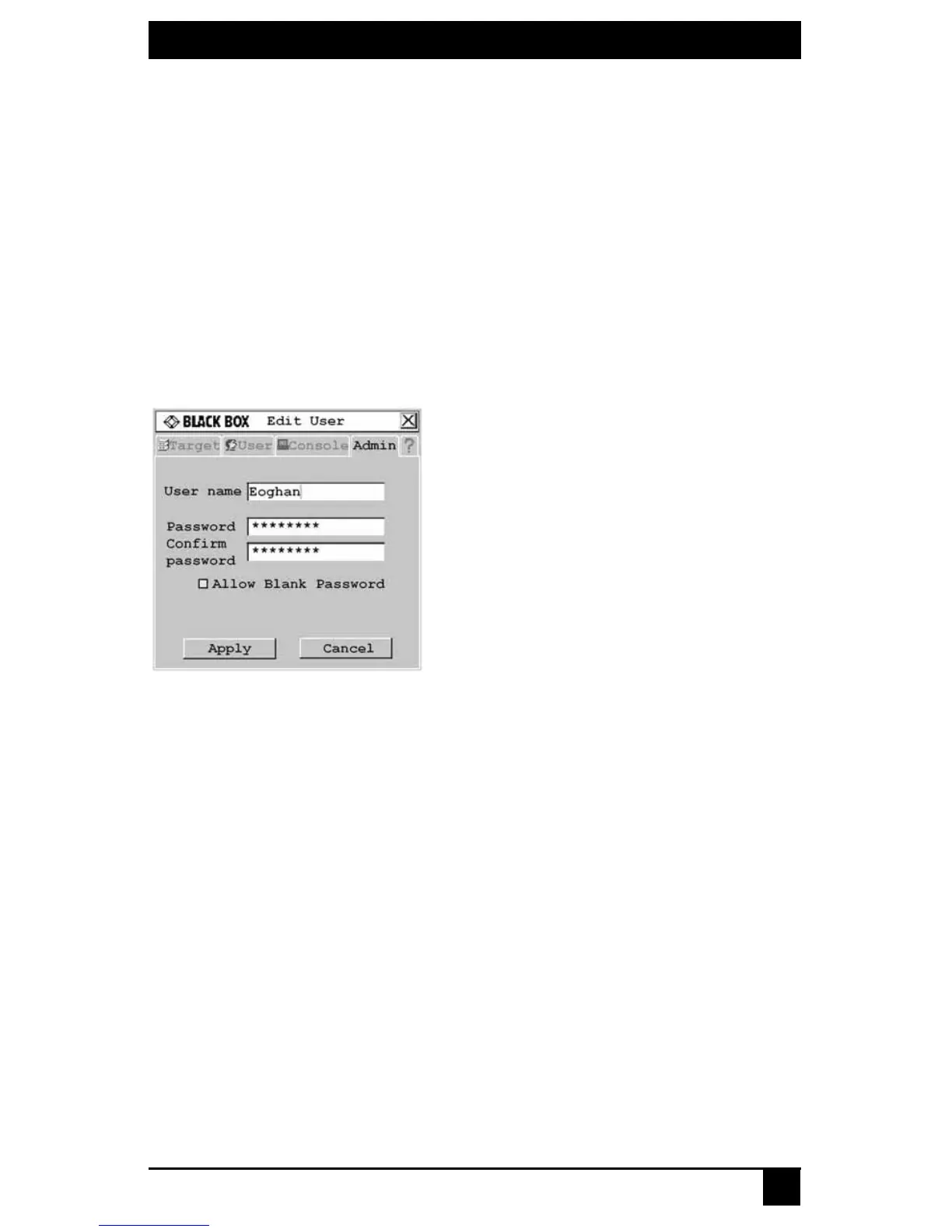
4. Select the user you wish to edit. Click the Edit User button. The Edit User
screen displays.
Figure 4-14. Edit User Screen - Normal User
5. You may change the user’s name or password or allow blank passwords.
6. To save changes, click Apply. To exit the OSD, click Cancel or X.
To set user access rights:
1. Press Ctrl+Ctrl to launch the OSD.
2. Click the Admin tab. Click the down arrow button to display the User Admin screen.
3. Select the user for which you wish to grant access rights.
4. Click the User rights button. The User Rights screen displays.









 To Next Page