SERVSWITCH™ OCTET INSTALLER/USER GUIDE
78
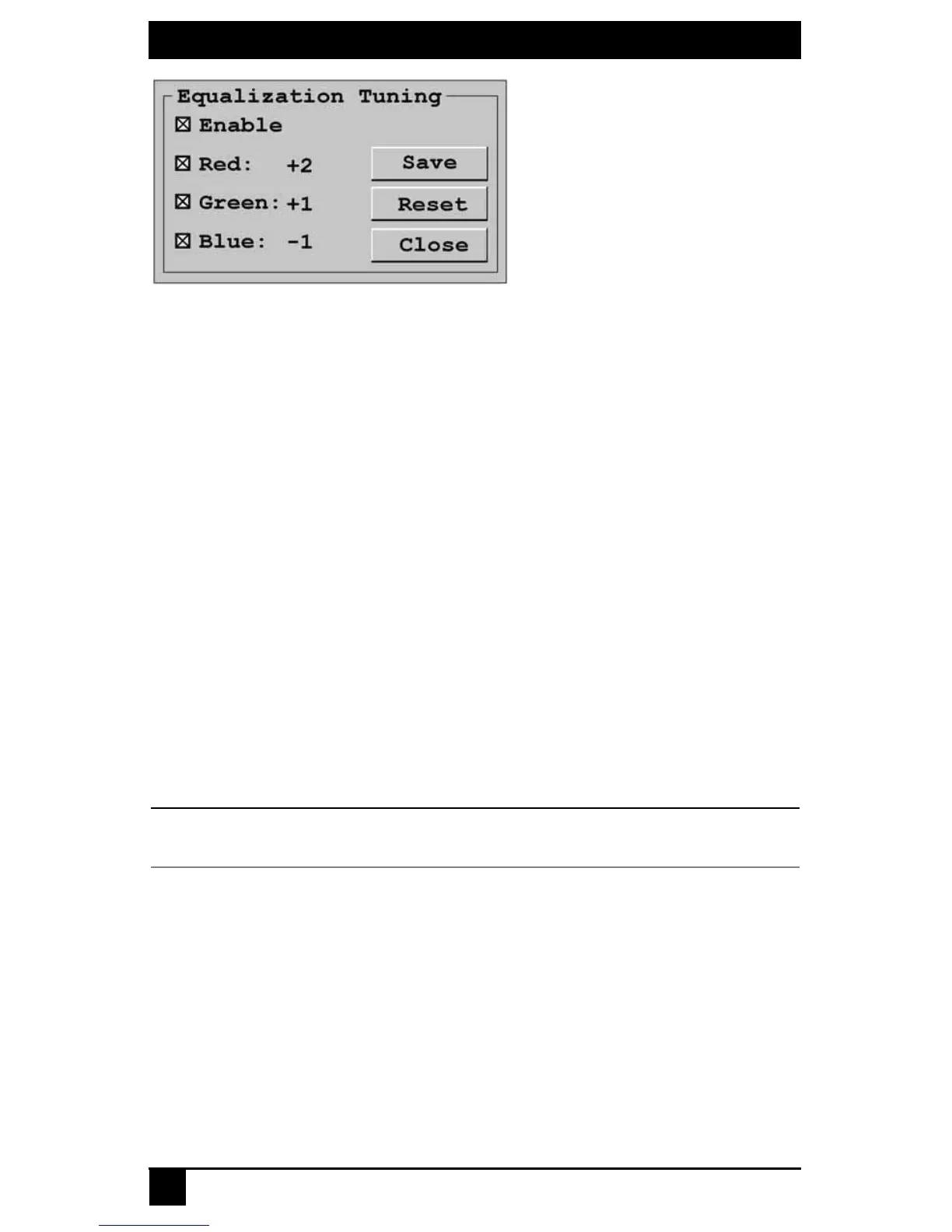
Figure 4-31. Equalization Tuning Screen
3. Select Enable to allow manual adjustment of equalization offset values.
4. Select the color(s) you wish to adjust. You may adjust colors individually or as a
group.
5. To increase the offset value of the selected color(s) by increments of one, use the Up
key or Plus key.
6. To decrease the offset value of the selected color(s) by increments of minus one, use
the Down key or Minus key.
7. If you are currently connected to a target device, the offset values will be immedi-
ately applied to the video signal.
8. If you wish to save the current equalization tuning settings, click Save. The equaliza-
tion tuning settings will be permanently stored on the user station and will be applied
to the video signal each time you connect to a target device.
-or-
If you do not wish to save changes to the user station, click Close. The equalization
tuning will apply to the video signal of the currently connected target device until the
connection is closed.
-or-
If you want to reset the equalization tuning values to zero and disable equalization
tuning, click Reset.
NOTE:
If equalization tuning is not supported on your user station, you will not be able to access the Equalization
Tuning screen.
Deskew tuning
To adjust the video quality of the monitor connected to your user station, you may
manually adjust the deskew values that are applied during video compensation.
To edit deskew values:
1. Press the default Command Line hotkey sequence to display the Command Line.
2. Type deskew tuning and press Enter. The DeSkew Tuning screen will
be displayed.









 To Next Page