CHAPTER 4: OPERATIONS
77
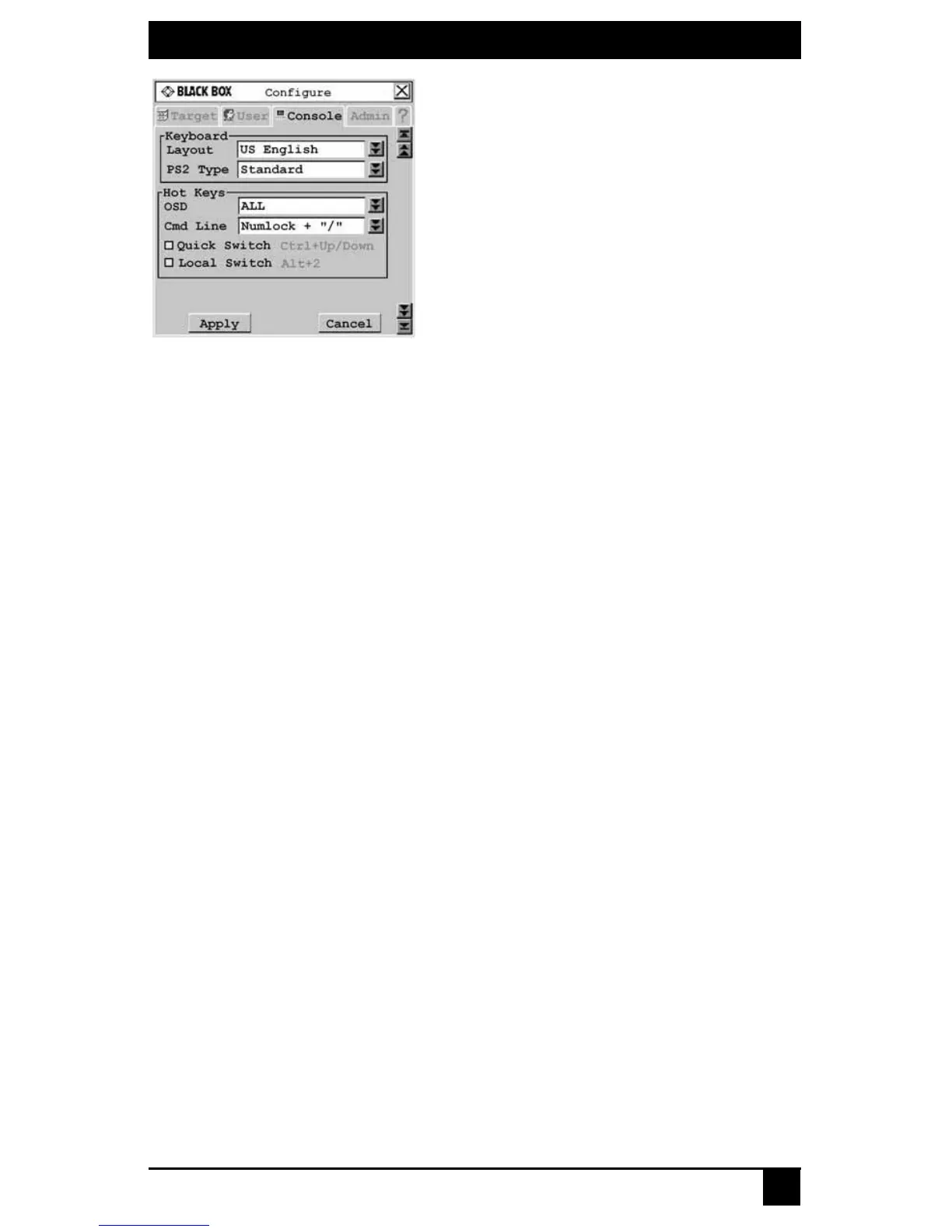
Figure 4-30. Configure Screen
3. Click the Cmd Line drop-down menu and select a command line.
4. To save changes, click Apply. The selected sequence changes from black to blue text.
To exit the OSD, click Cancel or X.
Resetting the keyboard and mouse
Should you lose keyboard and mouse connectivity, you can use the Command Line to
quickly restore default settings for the keyboard and mouse attached to the user station you
are currently logged in to.
To reset the keyboard and mouse:
1. Press the default Command Line hotkey sequence to display the Command Line.
2. Type rk and press Enter to reset the keyboard.
- or -
Type rm and press Enter to reset the mouse.
Disabling Auto User Login
Auto User Login at the user station can only be enabled by the Administrator, but it can be
disabled by any user.
To disable auto user login:
1. Press the default Command Line hotkey sequence to display the Command Line.
2. Type disable auto user login and press Enter.
See Locking user station settings on page 70 for more information about Auto User
Login settings.
Equalization tuning
To adjust the video quality of the monitor connected to your user station, you may
manually tune the equalization values that are applied during video compensation.
To edit equalization offset values:
1. Press the default Command Line hotkey sequence to display the Command Line.
2. Type equalization tuning and press Enter. The Equalization Tuning screen will
be displayed.









 To Next Page