CHAPTER 4: OPERATIONS
49
4. Operations
4.1 OSD Overview
Use the intuitive OSD graphical user interface to configure the switching system and
select target devices. The OSD is easily accessed and always available at the desktop.
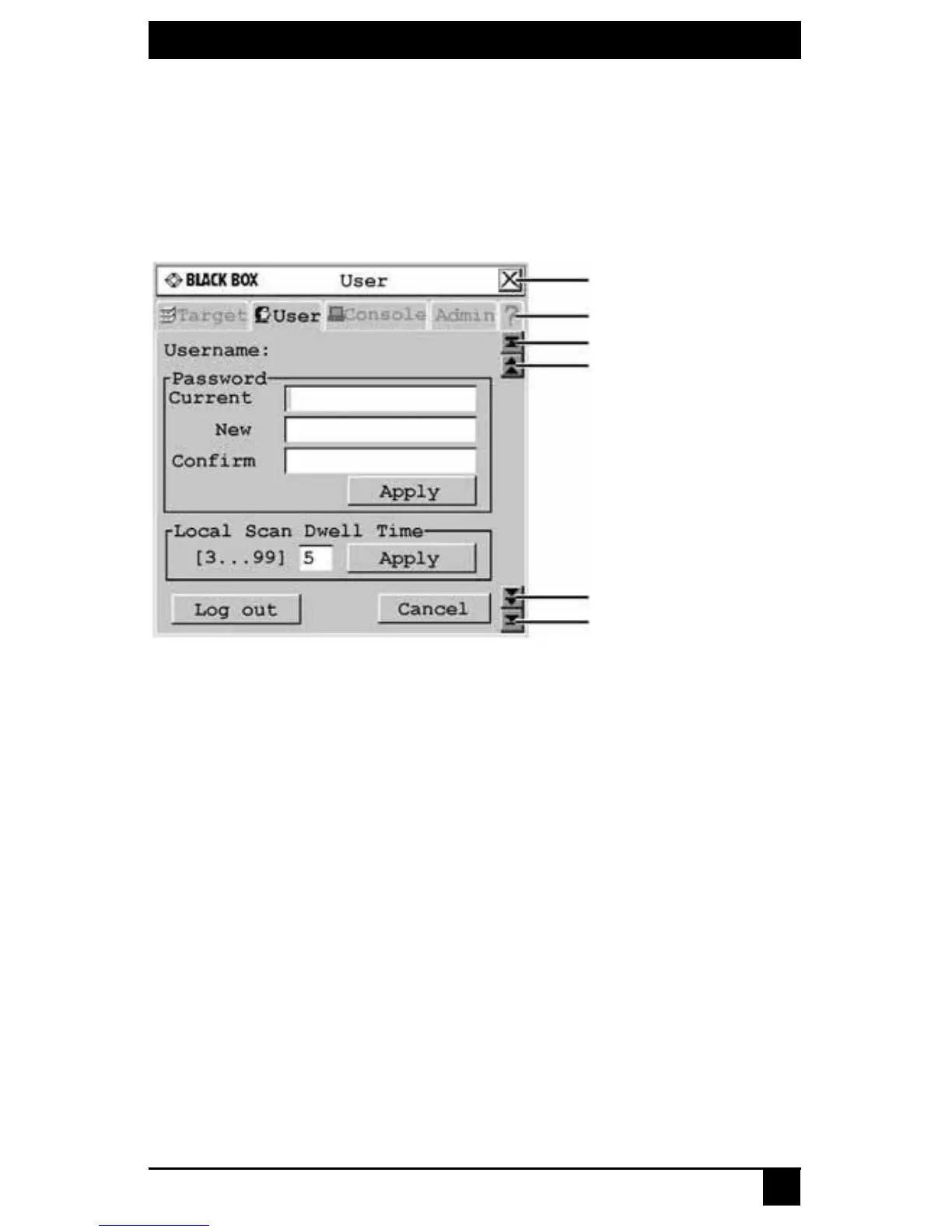
Figure 4-1 illustrates an example OSD screen.
Figure 4-1. Example of the OSD
Accessing the OSD
To launch the OSD, press the left or right Ctrl key twice within one second. Alternatively,
you may press the Alt or Shift key twice or press Print Screen to launch the OSD. You
may use any of these hotkey sequences instead of pressing Ctrl+Ctrl in any procedure in
this document. To specify which hotkey sequence or set of sequences may be used to
launch the OSD, see Changing the OSD hotkey sequence on page 49.
Changing the OSD hotkey sequence
You can set the hotkey sequence used to launch the OSD for each user station.
To change the OSD hotkey sequence:
1. Press Ctrl+Ctrl to launch the OSD.
2. Click the Console tab, then click the down arrow button to access the
Configure screen.
3. Select a new hotkey sequence under the hotkey drop-down menu, or choose All to
select all sequences. Selecting All will allow you to use any of the sequences in the
list to launch the OSD.
4. To save changes, click Apply. The selected sequence changes from blue to black text.
To exit the OSD, click Cancel or X.
Close
OSD Tabs
First Subscreen Button
Previous Subscreen Button
Next Subscreen Button
Last Subscreen Button










 To Next Page