CHAPTER 4: OPERATIONS
71
To enable lockdown settings:
1. Press Ctrl+Ctrl to launch the OSD.
2. Enable Force User Login, if necessary. See Administering security settings on
page 61 for more information.
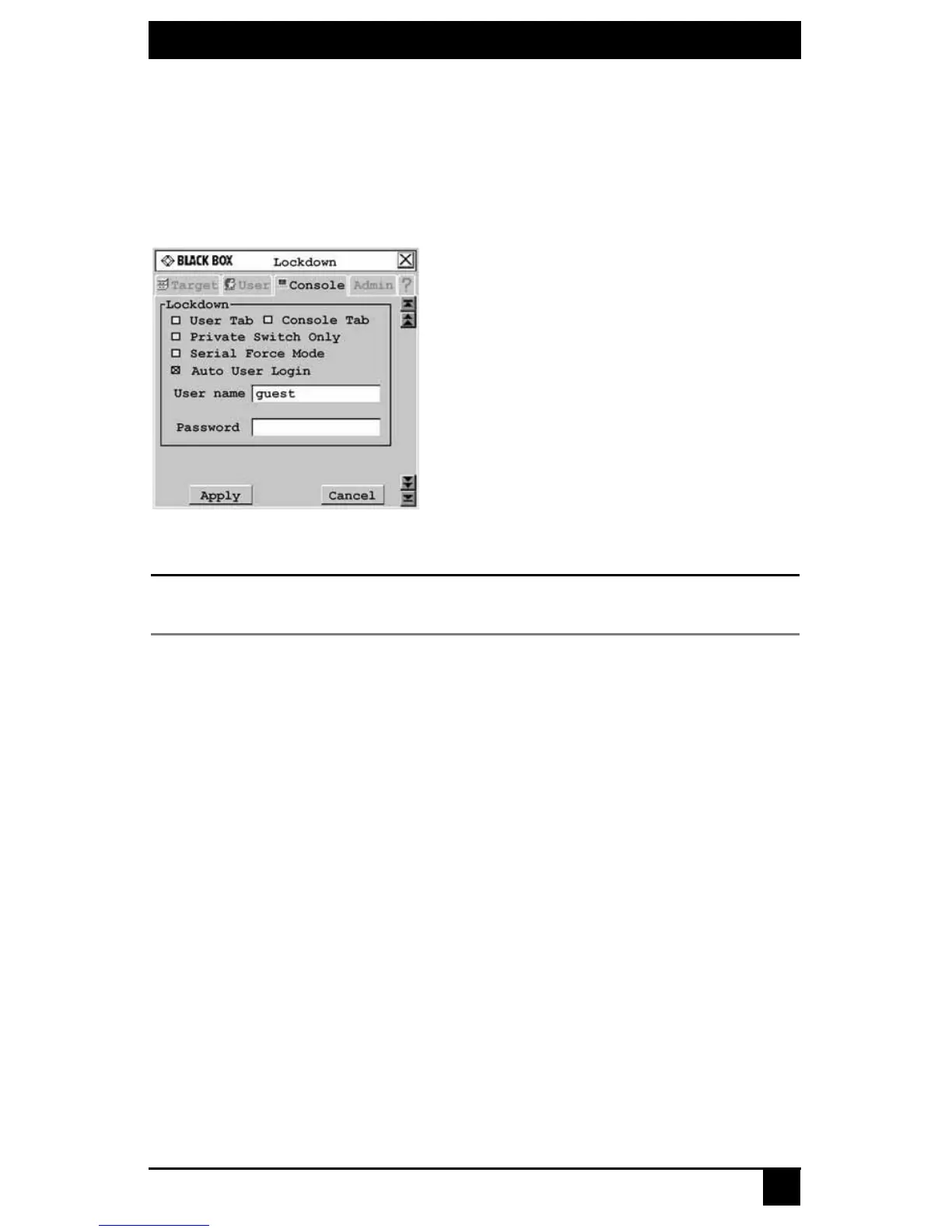
3. Click the Console tab, then click the down arrow button to display the
Lockdown screen.
Figure 4-23. Lockdown Screen (Settings for the KV1713A/E User Station Shown)
NOTE:
Available lockdown settings vary by user station model. Only the lockdown settings supported on the user
station you are configuring will be displayed.
4. Select or deselect any of the following settings as needed:
• Select User Tab to prevent changes to the User tab.
• Select Console Tab to prevent changes to the console data.
• Select Private Switch Only to force Private mode connections to target devices.
• Select Serial Force Mode to allow forced connections through the serial port. Using
force connect commands, you can force a user station to connect to a target device
through the serial port. See Forcing a Connection to a Target Device on page 80 for
more information.
• Select Auto User Login to force the user station to automatically log in a specific
username each time there is a power cycle or hotplug. Enter the username and
password in the fields provided to specify which user is automatically logged in.
• Any user can disable auto user login by entering disable auto user login at the
Command Line. See OSD Command Line Operations on page 76 and Disabling Auto
User Login on page 77 for more information.
5. To save changes, click Apply. To exit the OSD, click Cancel or X.
Persistent mode
Persistent mode allows a user station to attempt to re-establish a connection to the last
known target. When you enable persistent mode, the currently displayed target UID and
connection type is stored as the persistent mode settings. If there is no established









 To Next Page