CHAPTER 3: INSTALLATION
45
specific setup procedures for your nVision router, see the nVision help documentation that
came with the router.
To configure the nVision router in the Octoware software:
To properly operate the nVision router in the Octet switching system, you must configure
the nVision router using Octoware software. For more information and procedures, refer
to the Resource Switching Router section in the Octoware software online help program.
3.14 Flash Upgrading the Octet Switching System
Before you begin using the Octet switching system, it’s best to update firmware to the
most current version available. Check the Black Box web site at www.blackbox.com for
new firmware updates. Flash upgrades allow you to update the firmware of your Octet
switch and incorporate new features into your existing switching system. For more
information on Flash upgrading, including how to verify your firmware version, see the
Octoware software online help program.
NOTE:
You must use Octoware software to Flash upgrade the Octet switch.
3.15 Unit LEDs
Once you have installed and powered up the Octet switching system, you may check the
LEDs to ensure that each unit is receiving power and that all connections are working.
Octet switch
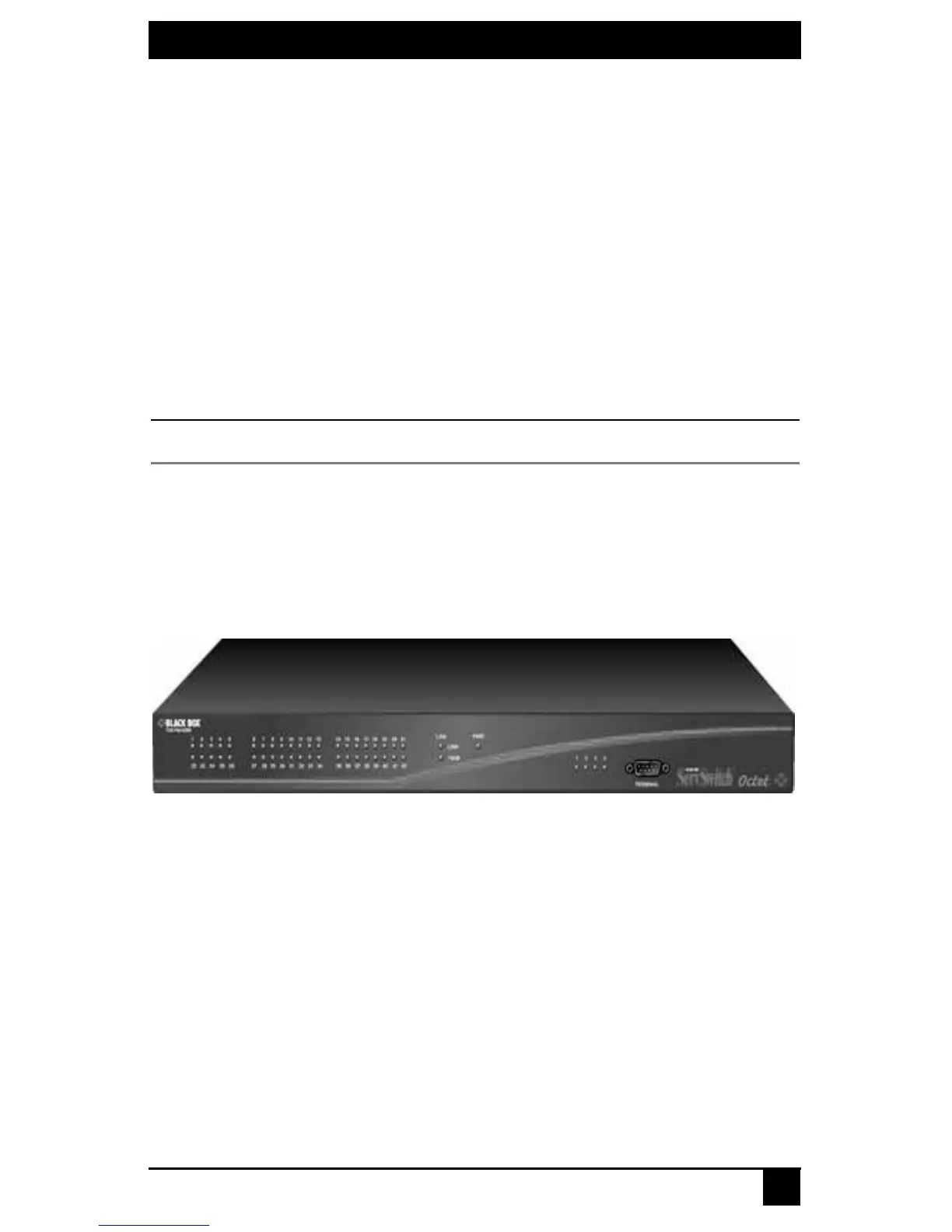
There are three groups of LEDs on the front panel of an Octet switch.
Figure 3-13. Octet Switch LEDs (KV1701A/E Switch Shown)
• Server port LEDs – Each LED corresponds to a server port and illuminates in green
when the server or cascaded Octet switch is attached and powered up.
• LAN and Power LEDs – The green LAN LINK LED illuminates when a valid
connection is made to the network port of the Octet switch. The amber LAN 100M
LED indicates the speed of the attached LAN. This LED illuminates when a 100Mb
connection is made or remains unlit when a 10Mb connection is made. The green/
amber PWR LED is amber when the Octet switch is powered up and green when the
Octet switch is operating.
• User port LEDs – Each LEDs correspond to a user port and illuminates in green when
the Octet user station or cascaded Octet switch is attached and powered up.
User Port
LEDs
Server Port
LEDs
LAN and
Power LEDs









 To Next Page