SERVSWITCH™ OCTET INSTALLER/USER GUIDE
66
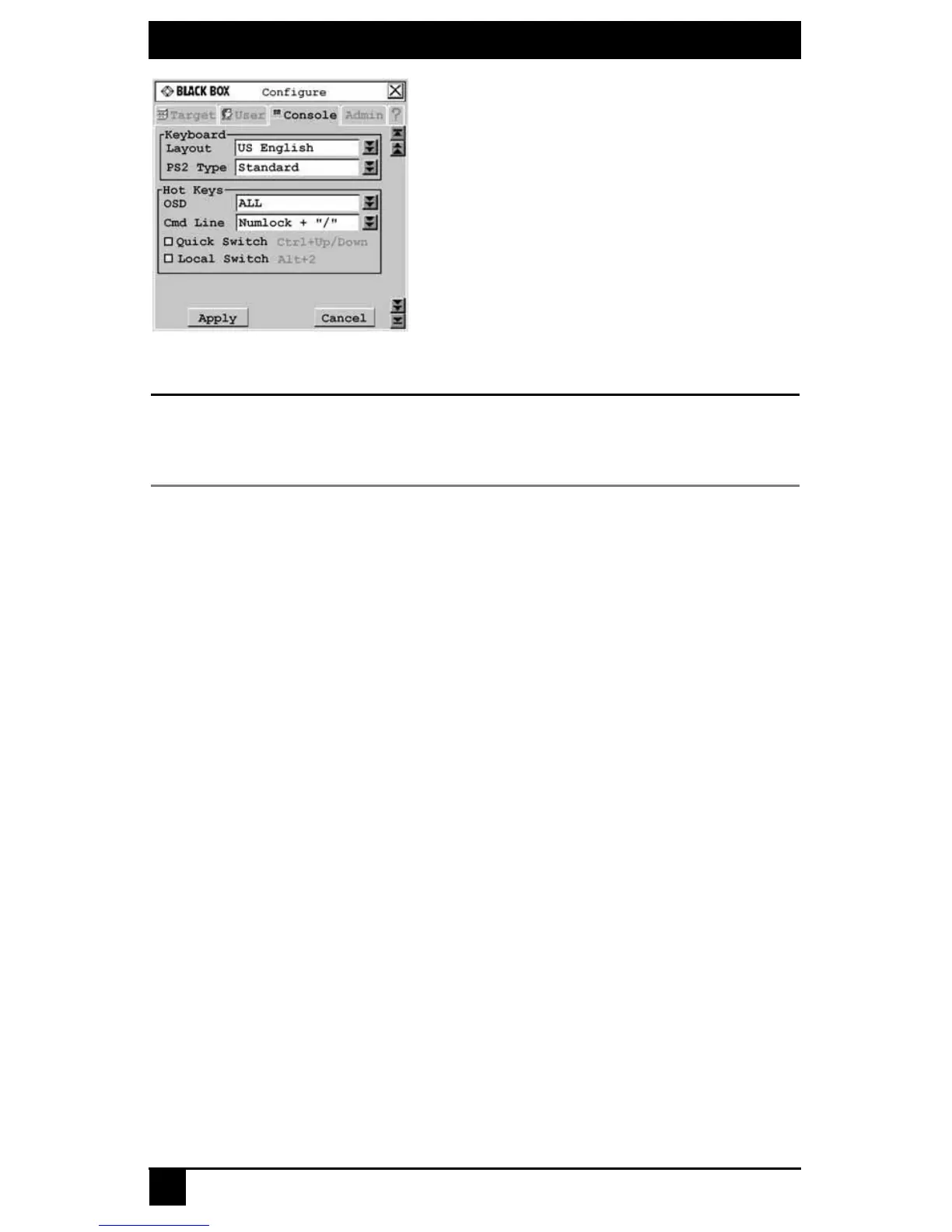
Figure 4-18. Configure Screen
NOTE:
Standard refers to any keyboard. If your KV1713A/E user station is connected to a Pinnacle FAK or Chyron
Duet keyboard, you must select Pinnacle FAK or Chyron Duet in the PS/2 Type field to enable support for
this keyboard. If your Octet switching system has connections to both PS/2 and USB keyboards, the USB
keyboard takes precedence when both keyboards are used simultaneously.
Select the appropriate keyboard type from the Type drop-down menu. The drop-
down menu only allows you to select keyboard types that the connected user station
supports.
4. Click Apply to save changes.
-or-
Click Cancel to exit the OSD without saving changes
5. If you connected a Pinnacle FAK keyboard, complete the following steps:
a. Click the Admin tab.
b. Select the target device that will be running software that requires Pinnacle FAK
support.
c. Click Edit device.
d. Select Pinnacle FAK from the Emulation drop-down menu. You can only edit
the emulation mode if the device-type is PS/2. (If you are using a Chyron Duet
keyboard, the Emulation mode should be Standard.)
6. To save changes, click Apply. To exit the OSD, click Cancel or X.
Keyboard translation
The Octet user station allows you to use PS/2 or USB keyboards to operate any type of
attached target device. However, when crossing platforms, certain keys will need to be
remapped in order to provide all of the functions available on the keyboard native to that
platform.
For example, if you access a Sun workstation with a PS/2 keyboard, you will notice that
the PS/2 keyboard does not have the Stop and Again keys that are on a true Sun
keyboard. By enabling the Scroll Lock mode by pressing Ctrl-Alt-Shift and Scroll
Lock at the same time, the F1 and F2 keys on the PS/2 keyboard function as the Sun
Stop and Again keys. With Scroll Lock mode disabled, F1 and F2 function normally.









 To Next Page