CHAPTER 4: OPERATIONS
55
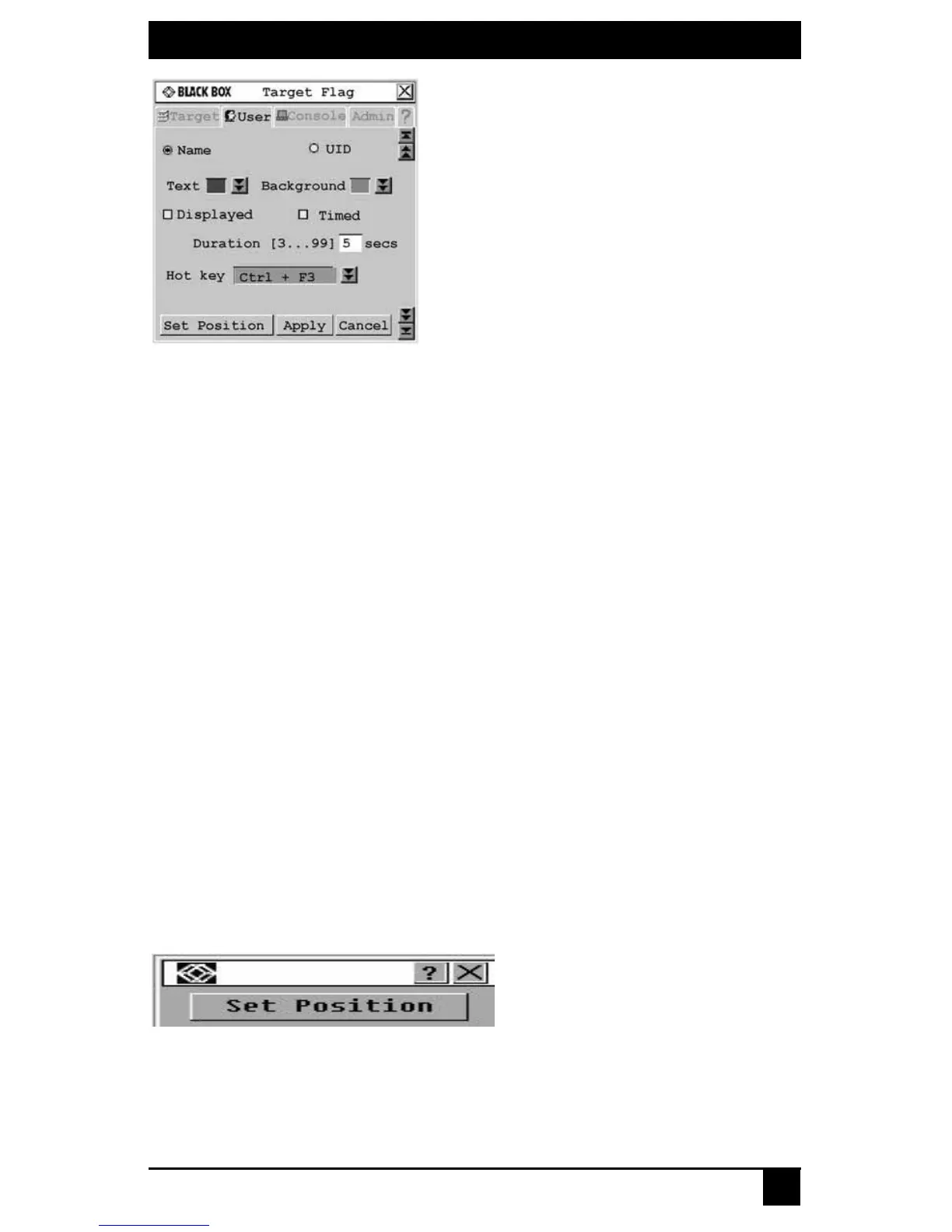
Figure 4-6. Target Flag Screen
4. Configure the target flag settings as needed.
a. To set information – Select Name to display the connected target device name
on the target flag.
-or-
Select UID to display the connected target device UID on the target flag.
b. To set the text color – Select the text color for the target flag from the Text
drop-down list.
c. To set the background color – Select the background color for the target flag
from the Background drop-down list.
d. To set display properties – If you want the target flag to be displayed, select
Displayed. If you do not want the target flag to be displayed, clear the
Displayed checkbox.
e. To set display time – If you want the target flag to be displayed for a certain
amount of time, select Timed and type the desired target flag duration between 3
and 99 seconds.
-or-
If you want the target flag to flash briefly on screen, clear the Timed checkbox.
The target flag will appear for less than three seconds.
f. To set a hotkey – Select a hotkey from the Hotkey drop-down list. If the target
flag is displayed, entering this hotkey will hide the flag. Conversely, if the target
flag is hidden, entering this hotkey will display the flag.
g. To set the flag position – Click Set Position. The Set Position screen displays.
Figure 4-7. Set Position Screen
Move the target flag by dragging and dropping the title bar of the Set Position
screen to a desired position.









 To Next Page