CHAPTER 4: OPERATIONS
57
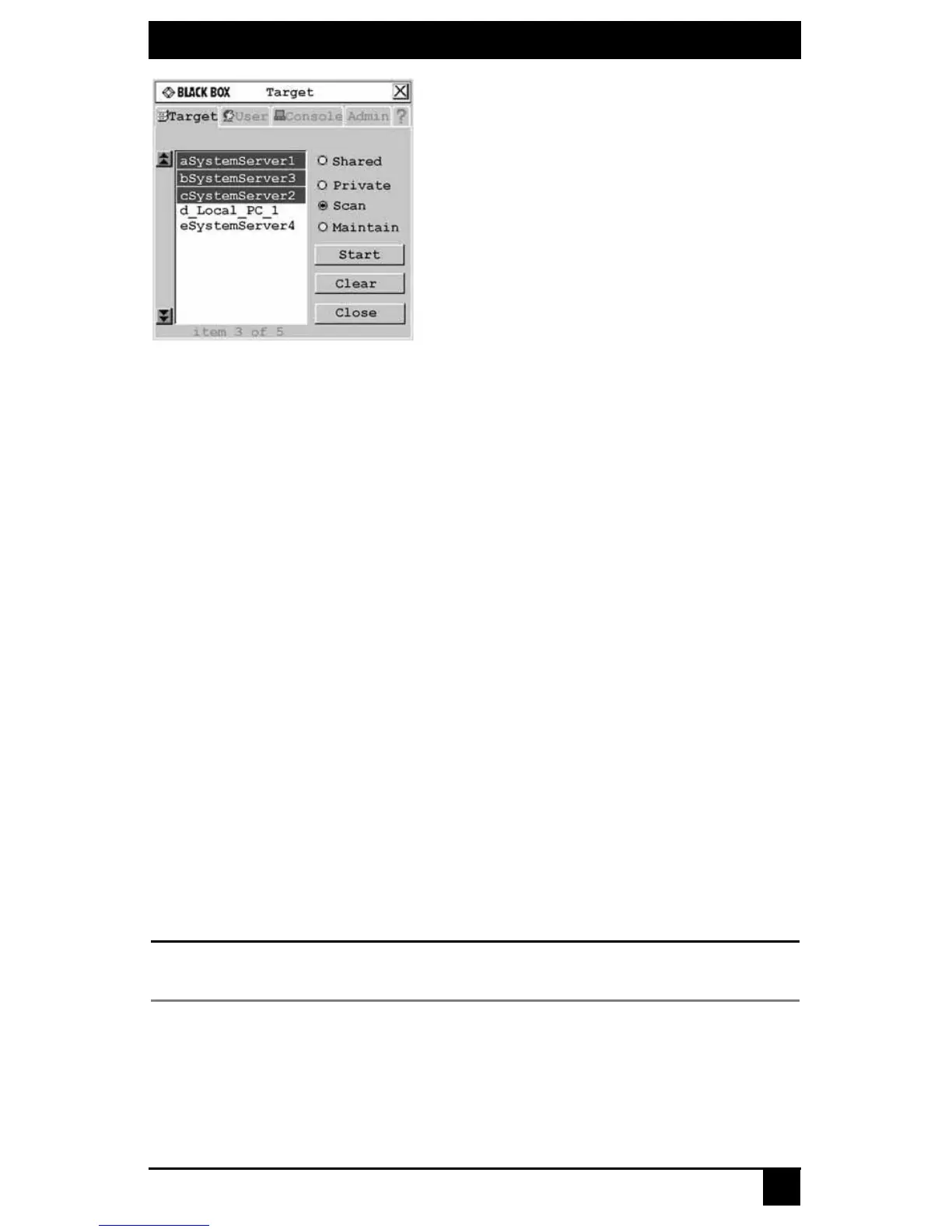
Figure 4-9. Target Screen
3. Press and hold the Ctrl key while you individually select the target devices that you
would like to scan. Alternately, if you wish to select a group of target devices in
sequence, you can click the first target device in the sequence, press and hold the
Shift key and select the last target device to highlight the group. Clicking Clear will
deselect all of target devices in the list.
4. Click the Start
button to begin scanning.
Once scanning is initiated, the Octet switch will cycle through the selected target devices
in alphabetical order.
If the user has full access rights to the current target device and the Octet user station
detects keyboard or mouse activity, scanning is suspended. This allows the user to work
with the target device. When mouse and keyboard activity stops, scanning resumes with
the next channel in sequence. If the user has view only access rights to the current target
device, scanning will not be suspended if the user types on the keyboard or moves
the mouse.
Dwell time, the length of time each server channel remains on screen, is configurable and
can be changed at any time through the User tab. Default dwell time is three seconds.
To stop scanning the switching system:
1. Press Ctrl+Ctrl. The Target tab screen redisplays.
2. Click the Stop button.
3. Click Close or X to exit the OSD.
To change the scan dwell time:
NOTE:
If the lockdown mode is on, none of the fields in this screen will be active, with the exception of the log
out button.
1. Press Ctrl+Ctrl to launch the OSD.
2. Click the User tab.









 To Next Page