2 A window will appear prompting you to enter a common name and subject alternative name
forthe HyperDeck. Adjust any other details as required using the table below.
Information Description Example
Common Name The domain name you will use hyperdeck.melbourne.com
Subject Alternative Name An alternate domain name hyperdeck.melbourne.net
Country Country for your organization AU
State Province, region, county or state Victoria
Location Town, city, village etc. name Port Melbourne
Organization Name Name of your organization Blackmagic Design
3 Once you have filled in the certificate details, press ‘generate’.
When you generate a .csr you will also be creating a public key and private key at the same
time. The public key will be included with the signing request while the private key will remain
with the unit. Once the CA or IT department have verified the information in the CSR with your
organization, they will generate a signed certificate with the above details along with your
public key.
Once imported, the HyperDeck Shuttle HD will use the public and private key to confirm the
identity of the HyperDeck and to encrypt and decrypt data share via HTTPS or via HyperDeck
Ethernet Protocol when using an SSL program.
Importing a signed certificate:
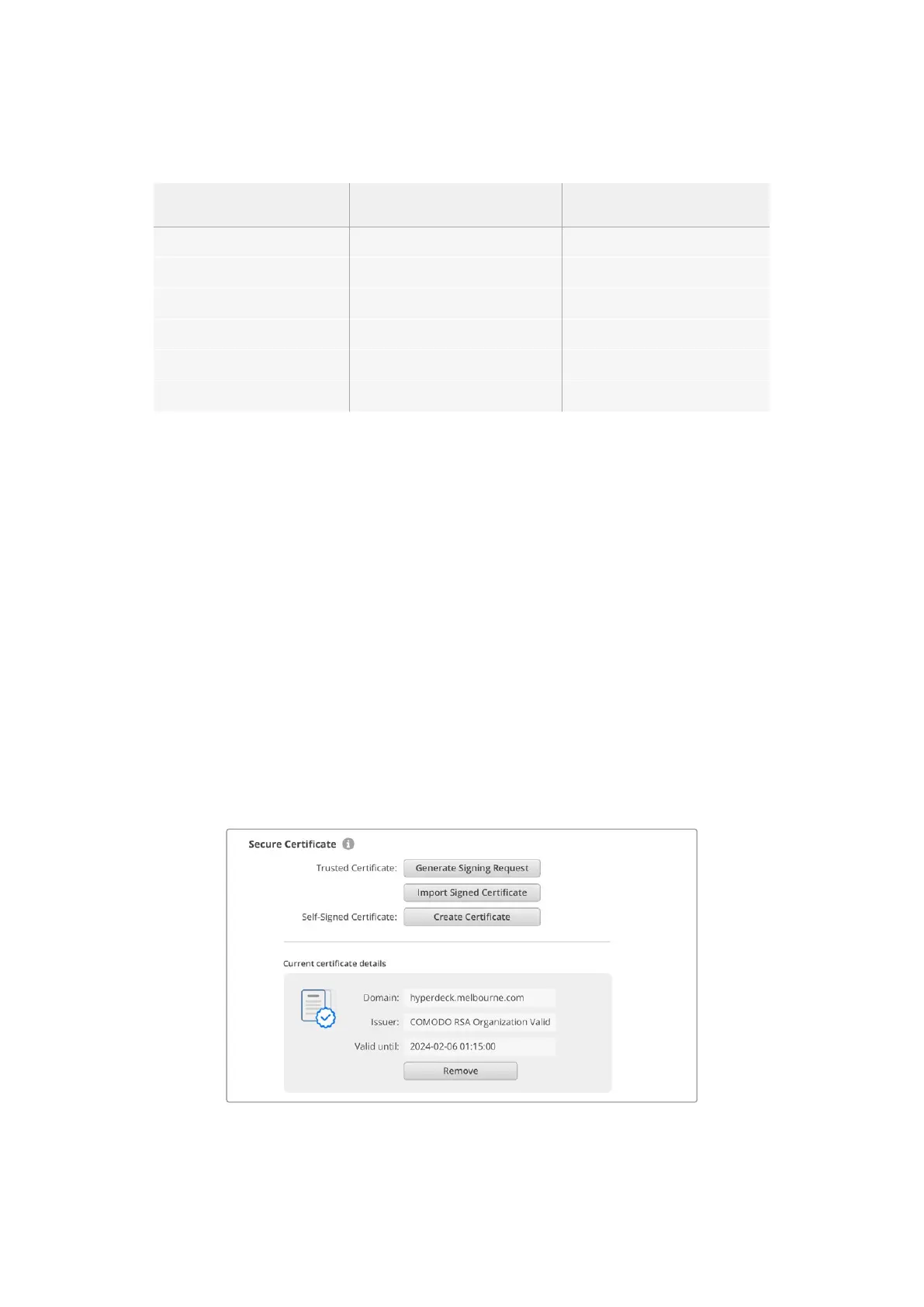
1 Click on ‘import signed certificate’.
2 Navigate to the location of the signed certificate using the file browser and once the file is
selected click on ‘open’.
The domain, issuer and valid until fields will update with the information from your CA.
Generally, a signed certificate will be valid for about a year so the process will need to be
repeated as you reach the expiration date.
33Blackmagic HyperDeck Setup


 To Next Page
 Loading...