Connecting to Sentry
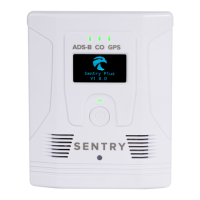
To connect to Sentry, power the device on by holding the power button for approximately two
seconds. When powered on, Sentry creates its own wireless network capable of connecting to
five devices simultaneously.
With Sentry powered on, open the iPad/iPhone Settings app and select Wi-Fi. Locate Sentry’s
wireless network and tap to connect. Sentry’s network name is “Sentry_” followed by a
sequence of random letters and numbers (e.g. Sentry_AV53).
Once you connect to Sentry, your iPad and iPhone will automatically reconnect, provided the
following conditions are met:
•
Sentry is powered on.
•
iPad/iPhone Wi-Fi is enabled.
•
Sentry network name and password have not changed.
•
iPad/iPhone is not already connected to another network.
•
Auto-Join is enabled in iPad/iPhone Wi-Fi > Sentry settings.
Sentry Network Name (SSID)
The default Sentry network name is generic (e.g., Sentry_AV53). The network name can be
changed if desired. Wireless network names must be unique and between 1 and 32
characters. The network name may contain only letters, numbers, spaces, and underscores.
How to change the network name
To change the wireless network name (SSID), select More > Devices > Sentry > Sentry
Network. Tap the SSID field and enter a network name between 1 and 32 characters. Tap
Done when complete. Once complete, reboot Sentry for the changes to take effect.
How to hide the SSID broadcast
If you don’t want Sentry to broadcast its network for all devices to see, you can disable the
SSID broadcast. Disabling the SSID broadcast hides the network from devices that have not
yet connected to Sentry.
To hide the Sentry network, toggle the SSID Broadcast off in Sentry settings on the Devices
view or Map Settings. Once your iOS device has connected to Sentry, it will automatically
reconnect when the device is powered on, provided auto-join was enabled in Wi-Fi > Sentry
settings. To connect a new device to Sentry with the SSID broadcast disabled
1. Open Wi-Fi settings on your iPad/iPhone.
2. Select Other… from the OTHER NETWORKS section.
3. Manually enter the Sentry network name (SSID) and password (if applicable).


 To Next Page