Connecting to Sentry
Whether you’re connecting to Sentry, Sentry Mini, or Sentry Plus, start by powering the device
on. Sentry and Sentry Plus can be powered on by holding the power button for approximately
two seconds until the LEDs illuminate. Power Sentry Mini on by connecting the provided USB-
C cable to a 5 volt, 2 amp power source.
Once powered on, Sentry receivers create their own
wireless network. Open your iPad or iPhone Settings
app and select Wi-Fi.
Locate Sentry’s wireless network in the Other
Networks section and tap to connect.
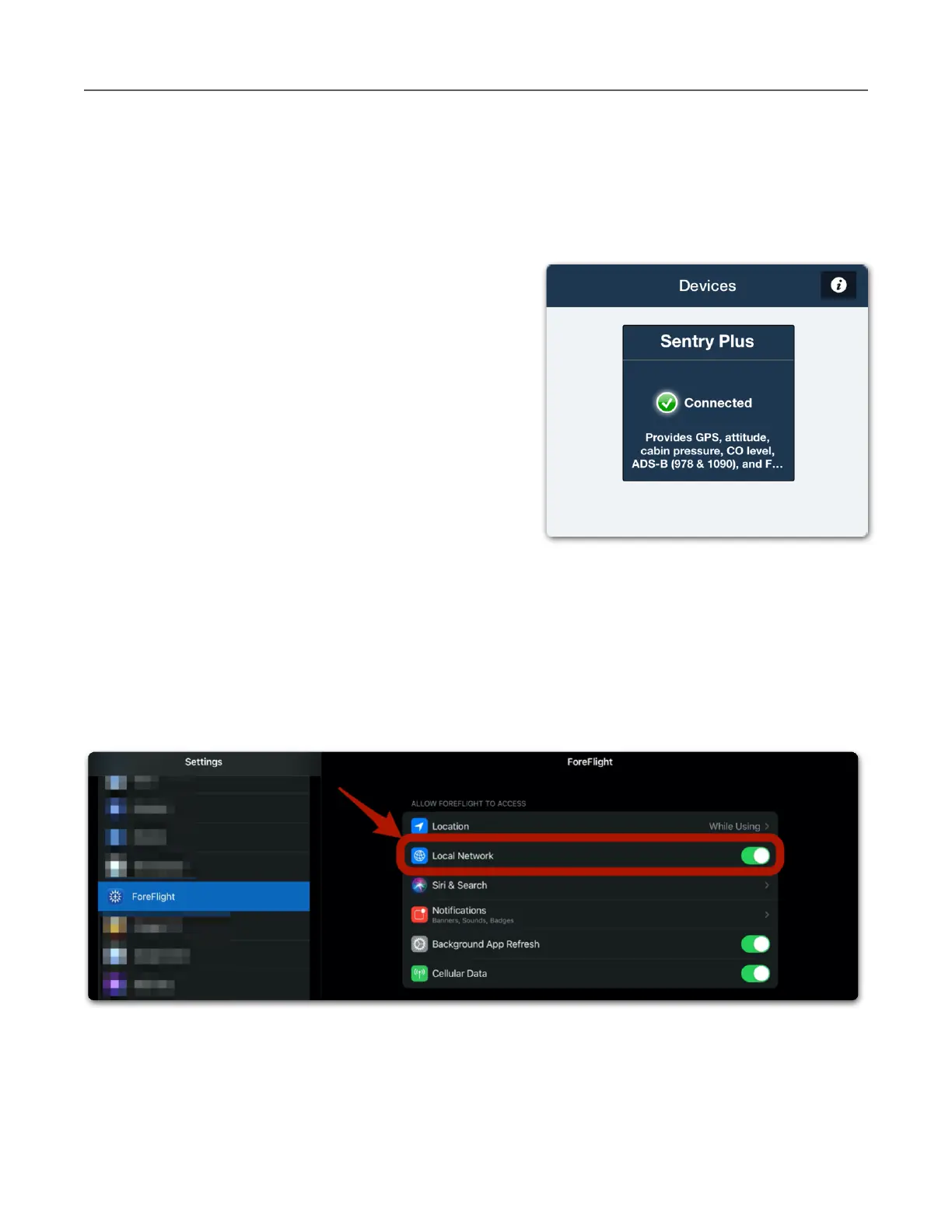
Once the iPad or iPhone is connected to Sentry,
open ForeFlight Mobile and select More > Devices to
ensure the Sentry tile appears. If the Sentry tile does
not appear, verify the Wi-Fi connection and ensure
Local Network settings are enabled.
Local Network Setting
Devices with iOS 14 or later require special permission to connect to external devices like
Sentry. If Sentry does not appear in ForeFlight, open the iPad/iPhone Settings app and select
ForeFlight from your list of installed apps. Verify the Local Network Setting is enabled.


 To Next Page