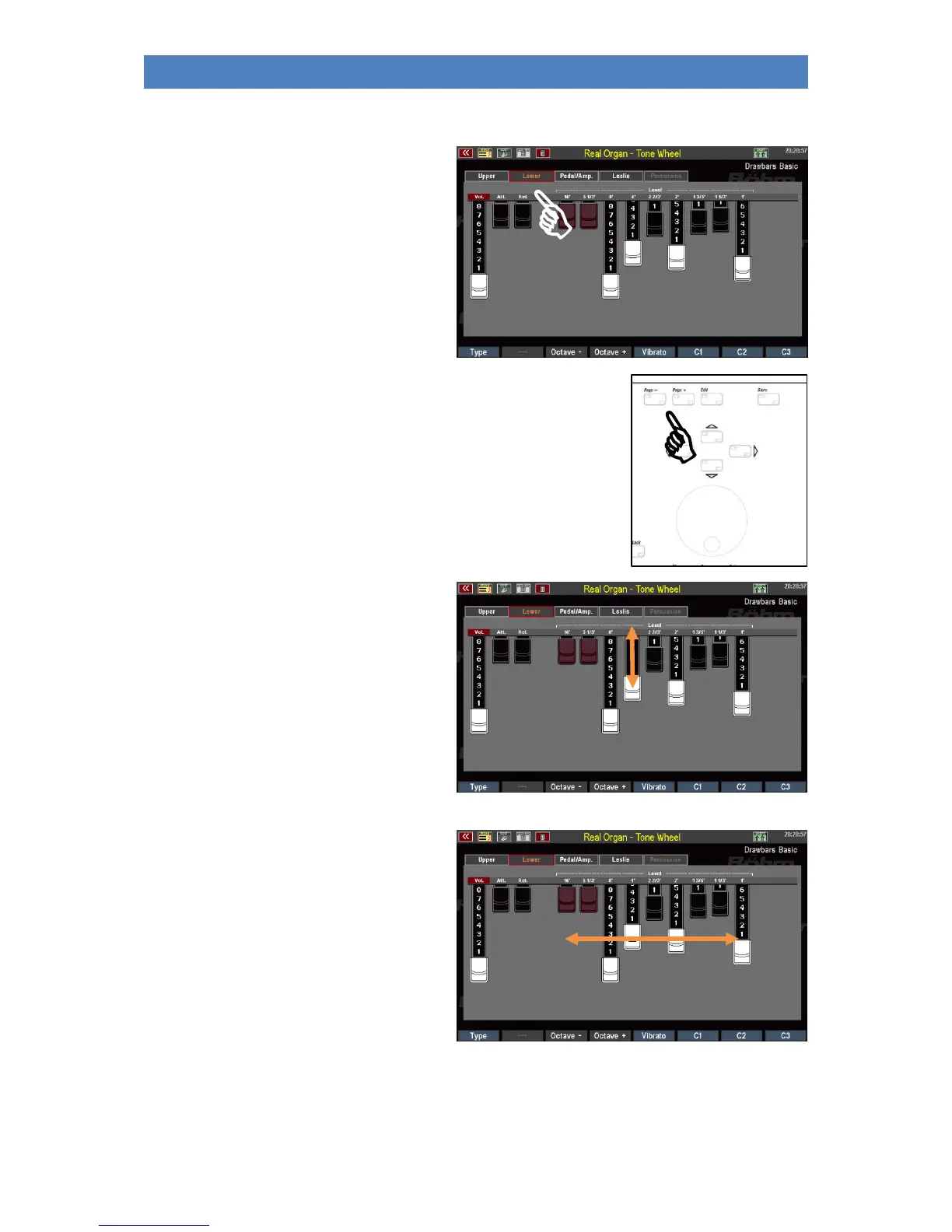
You can also adjust the drawbars via the display.
• In the upper row of the display, you
can select the manual/pedal for
which you want to change the
settings. For example, tap Lower to
switch to the drawbar display for the
lower manual drawbars.
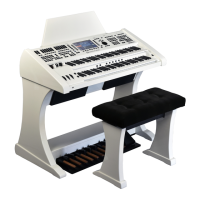
• Alternatively you can change the display pages with the buttons
[Page-] / [Page+] to the right of the display.
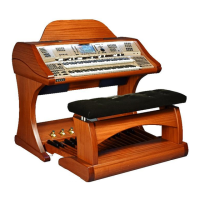
• To change a drawbar, place the
fingertip on it and slide the finger up
or down on the display. The
corresponding drawbar follows your
movement and is pulled further out
or pushed in.
• You can also change the drawbars
particularly quickly by moving your
finger from right to left (or in the
opposite direction) over all drawbars
and allowing your finger to make a
movement that corresponds
approximately to the desired position
of the 9 drawbars.


 To Next Page