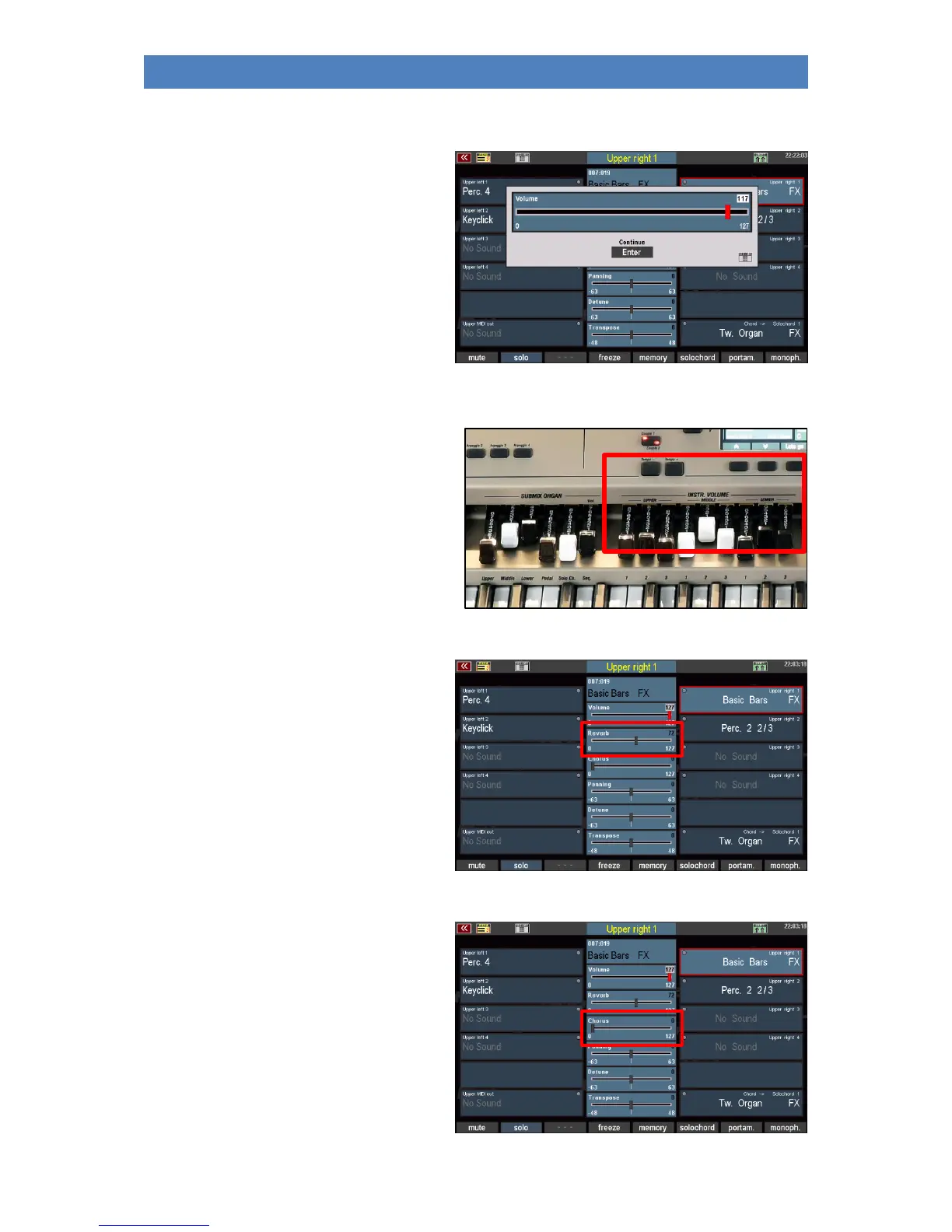
Alternatively, you can make the setting directly on the display:
• Tap the selected controller again. This
is now shown enlarged in the display.
Here you can now adjust the slider to
the desired value by sliding your
finger to the left or right.
• Confirm the setting by tapping the
Enter field or pressing the [Enter]
button. The setting is accepted and
the large slider disappears.
Setting Part Volumes
You can adjust the individual volume for the
part selected in the display as described
directly via the display slider or the data wheel.
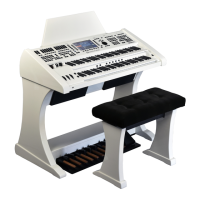
Alternatively, when the part editor is called up,
the part volumes can also be adjusted using the
6 volume drawbars of the [INSTR. VOLUME]
drawbar group, as described on page 71.
Reverb
Use this slider to set the reverb intensity for
the part.
The setting is carried out as described directly
via the display controller or the data wheel.
Chorus
This control determines the intensity with
which this part is influenced by the Chorus
Effect DSP of the Crystal Mixer (digital
preamplifier of the SEMPRA).
The setting is carried out as described directly
via the display controller or the data wheel.
More about the Chorus DSP follows in the
chapter "Mixer / Effect DSP".


 To Next Page