168
With Windows
8
Export the WAV or AIFF file to the computer.
1) Click the “BOSS_BR-600” (or “Removable disk
(*:)”) icon.
2) Drag the WAV or AIFF file in the “USB” folder in
the “ROLAND” folder to the computer’s folder
and drop it in the folder.
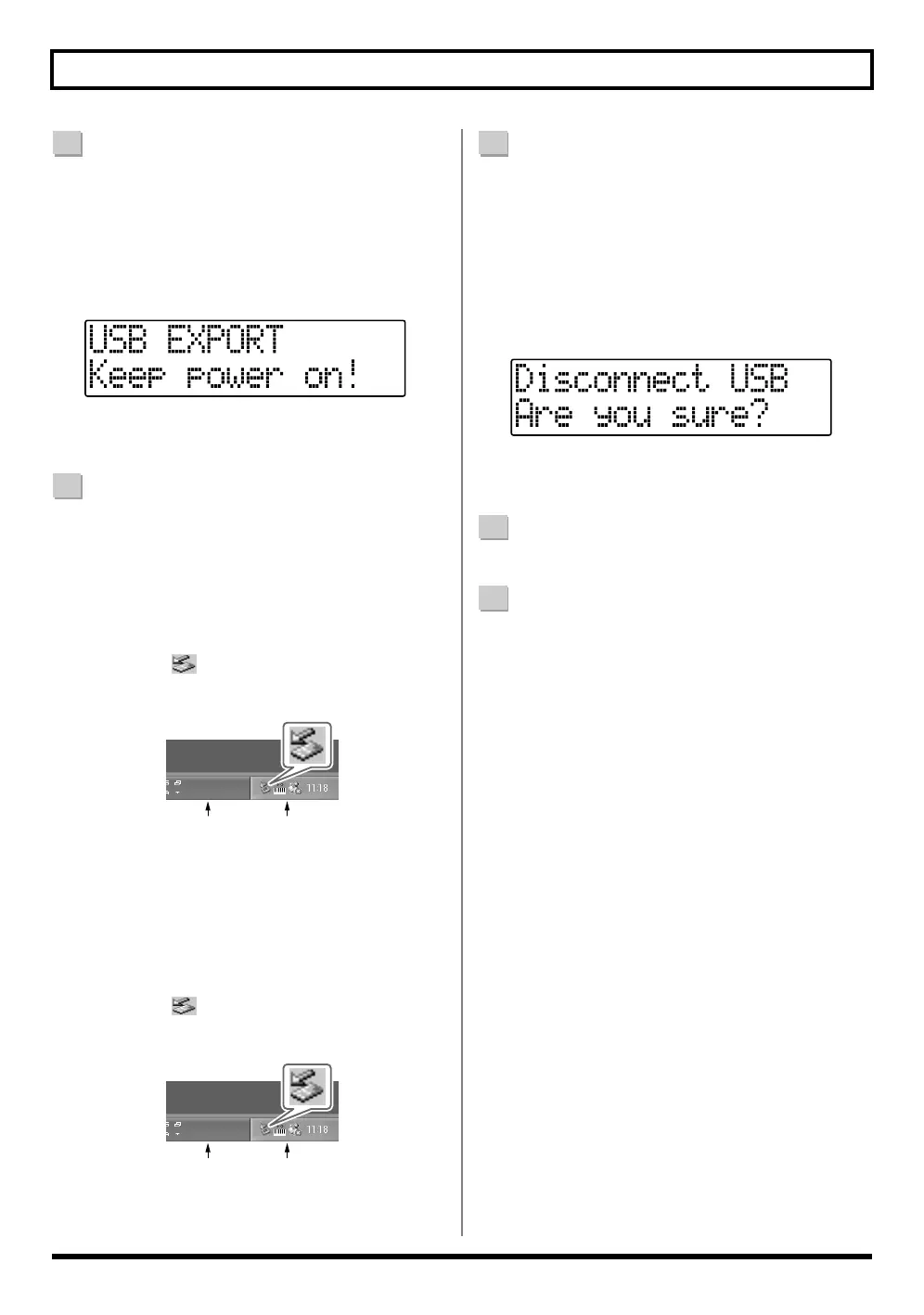
fig.05-150
When you have finished exporting the data, the Idling
screen returns to the display.
9
Quit the connection to the computer.
With Windows XP
In My Computer, right-click on the “BOSS_BR-600”
icon (or “Removable disk (*:)” icon) to “Eject” the disk.
* If this procedure fails to eject the disk, use the procedure
below.
1)
Click the icon in the task tray, then click the
“Stop USB Disk–drive (*:)” message displayed there.
fig.05-080
2) Click [OK] in the “Safe To Remove Hardware”
dialog box that appears.
With Windows 2000/Me
1) In My Computer, right-click on the “BOSS_BR-
600” icon (or “Removable disk (*:)” icon) to
“Eject” the disk.
2)
Click the icon in the task tray, then click the
“Stop USB Disk–drive (*:)” message displayed there.
fig.05-080
3) Click [OK] in the “Safe To Remove Hardware”
dialog box that appears.
10
Press [EXIT].
The file format selection screen returns to the display.
The contents of the “USB” folder are automatically
deleted the instant the [EXIT] button is pressed.
* If you press [EXIT] without quitting the connection to the
computer, the following screens appear.
In this case, pressing [ENTER] returns the file format
selection screen to the display.
fig.05-180
At this point, you can safely disconnect the USB cable
from the BR-600 and the computer.
11
Repeat Steps 5–9 as needed.
12
When you have finished exporting the WAV or AIFF
file(s), press [EXIT] several times to return to the Play
screen.
Task Tray
Task Bar
Task Tray
Task Bar


 To Next Page