88
Organizing the Songs You’ve Recorded
When a new song is created, it is automatically given a
name such as “SONG 0001.” With your 600, you can use
“Song Name” to give each song a name, which helps you
manage and organize your songs.
1
Confirm that [PAD] is not lit, then press [UTILITY].
2
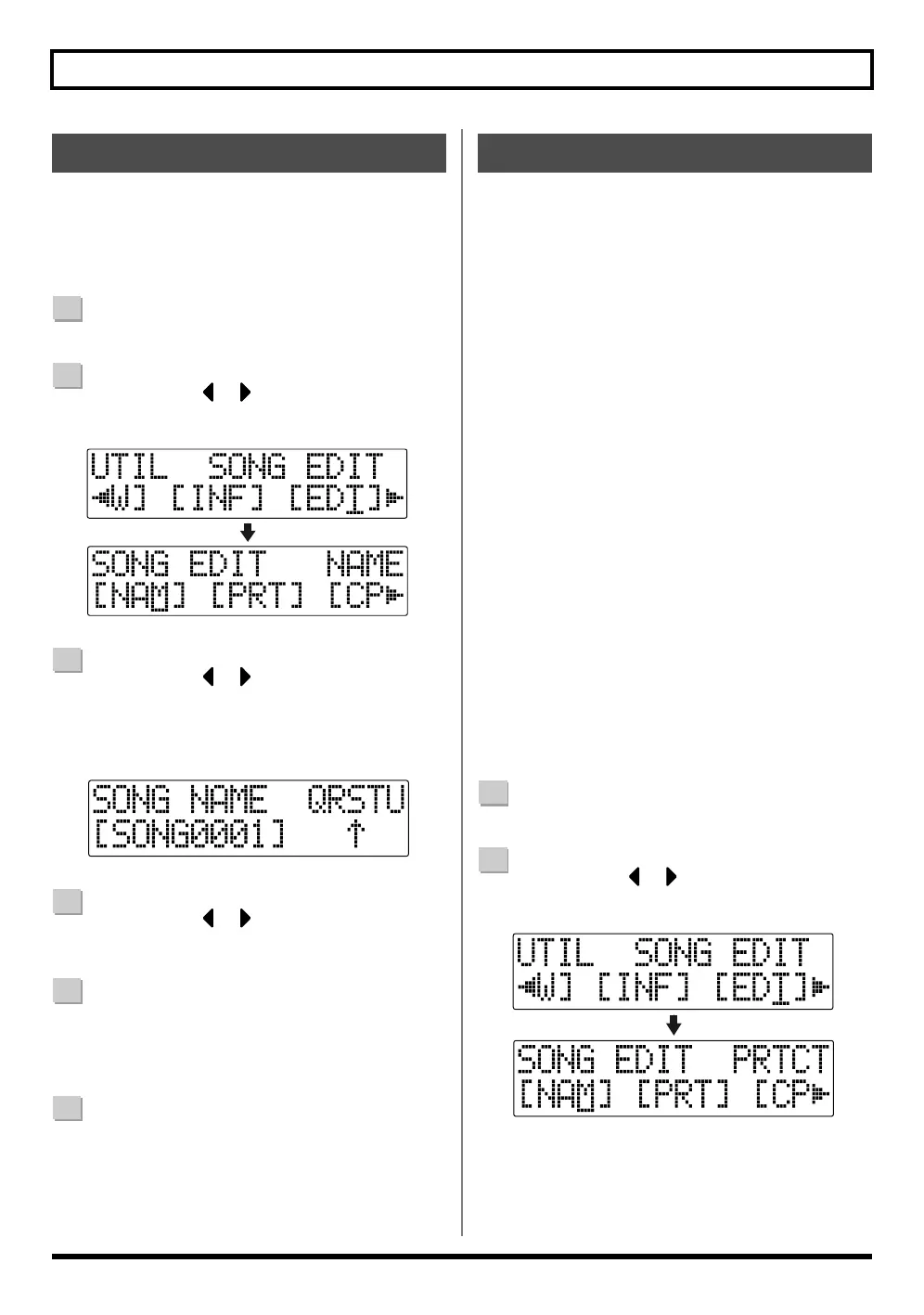
Press CURSOR [ ] [ ] to move the cursor to
“EDT,” and press [ENTER].
fig.02-680
3
Press CURSOR [ ] [ ] to move the cursor to
“NAM,” and press [ENTER].
The name of the song (Song Name) appears in the
display.
fig.02-690
4
Press CURSOR [ ] [ ] to move the cursor to the
character you want to change.
5
Rotate TIME/VALUE dial to select the character.
* You can switch between upper case and lower case
characters by pressing [ENTER].
6
After the name is properly entered, press [UTILITY]
(or press [EXIT] repeatedly) to return to the Play
screen.
You can imagine situations where, after taking care to create
a song, you accidentally overwrite it with a recording,
deleting the performance itself.
To prevent such accidents, you can protect song data so that
it cannot be rewritten accidentally (Song Protect).
* The following operations are not available when a song is
protected.
•Recording
•Track Edit
•Editing a song name
•Erasing a song
•Song Optimize
•Initializing and Editing the Rhythm
(arrangements/patterns/drum kits)
•Initializing effects (song patches)
•Initialize All
•Tone Load
•Importing SMFs
•USB Import
•Writing effects to song patches
•Undo/Redo
1
Confirm that [PAD] is not lit, then press [UTILITY].
2
Press CURSOR [ ] [ ] to move the cursor to
“EDT,” and press [ENTER].
fig.02-700
Naming a Song (Song Name)
Protecting a Song (Song Protect)


 To Next Page