39
Getting Started
Printing a Label
BMP
®
21-PLUS/BMP
®
21-LAB User’s Manual
Printing a Label
To print a label:
1. Press PRINT .
A printing icon displays on the screen indicating that the label is printing. When the icon
disappears, you can cut the label.
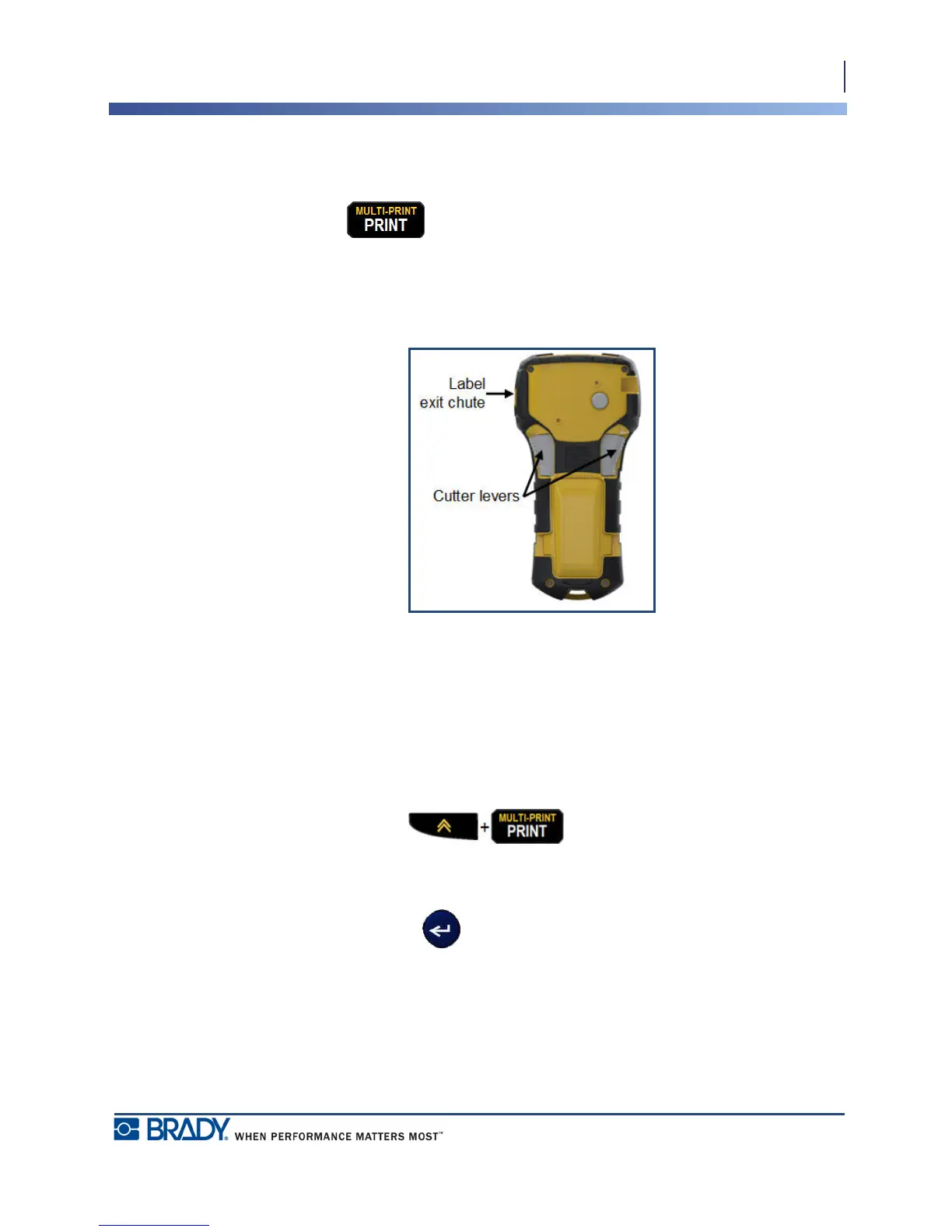
2. Squeeze the cutter levers to cut the label.
The label exit chute contains plastic grips that hold the label in place after cutting so it will not
fall off.
3. Gently pull the label away from the label exit chute.
Multi-Print
Multi-Print allows you to print multiple copies of a label file. To print multiple copies:
1. Press MULTI-PRINT .
2. In the Copies: field, enter a numeric value for the number of copies desired OR use left/
right navigation keys to decrease or increase the number of copies.
3. When ready, press Enter .
The label copies will immediately print.



 To Next Page