11 - 6 WALK-UP PHOTOCAPTURE CENTER
™
Printing images
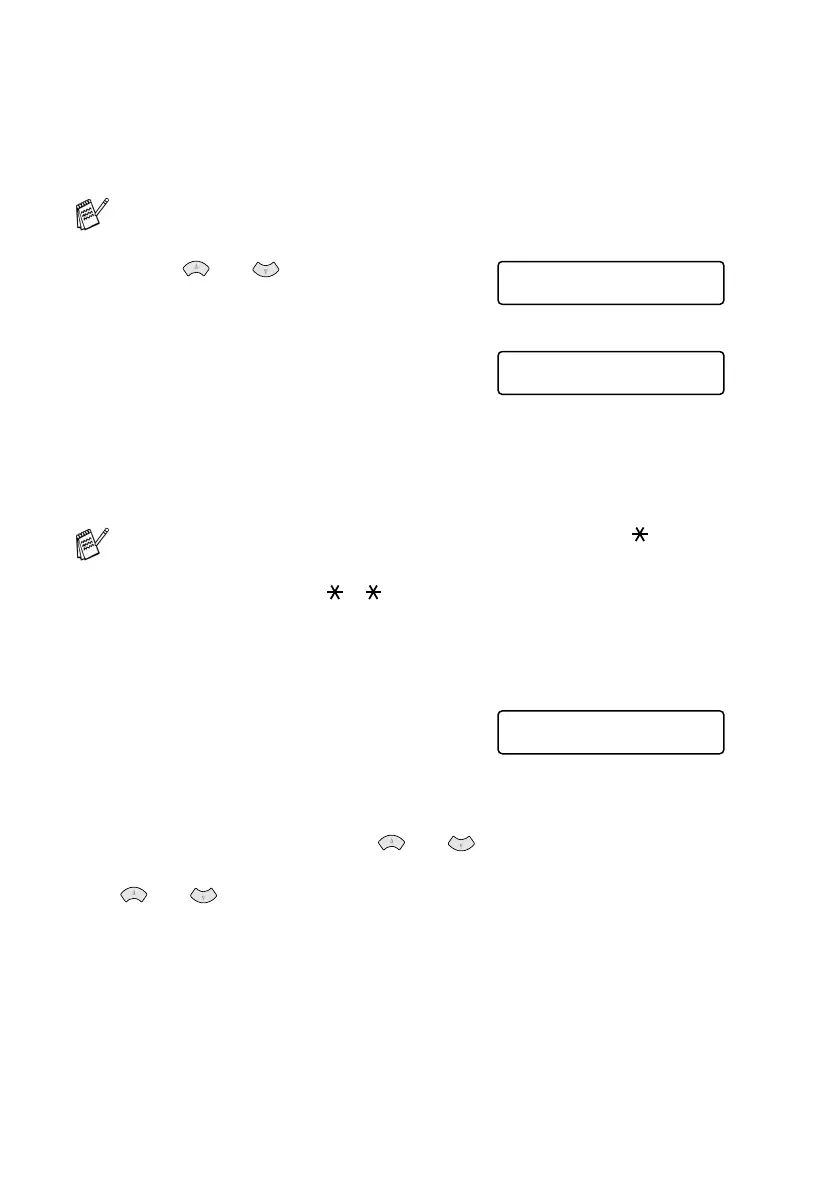
Before you print an individual image, you have to know the image
number.
5
Press or to choose
PRINT IMAGES.
Press
Menu/Set
.
6
Use the dial pad to enter the image
number that you want to be printed
from the Index page (Thumbnails).
Press
Menu/Set
.
Repeat this step until you have entered all the image numbers
that you want to print.
7
After you have selected all the
image numbers.
Press
Menu/Set
.
The LCD shows:
8
To print, press
Colour Copy
.
—OR—
To change settings, press or the LCD scrolls through
the settings again. You can select these options by pressing
or and
Menu/Set
. (See Changing the settings for
printing images on page 11-7.)
After you select all the options you want.
Press
Colour Copy
.
Print the Index first. (See Printing the Index (Thumbnails) on
page 11-5.)
You can enter all the numbers at one time by using the key for
a comma or the
#
key for hyphen.
(For example, Enter
136
- to print images No.1, No.3 and
No.6. Enter
1#5
to print images No.1 to No.5.)
PHOTOCAPTURE
PRINT IMAGES
ENTER & SET KEY
IMG:1,3,6
PRESS COLOUR CPY
OR
↑↓
FOR OPTION





 To Next Page