Troubleshooting
75
14
The tape or tube is jammed. Feeds the tube backward.
In the [Device Settings] menu bar in the "Printer Setting Tool", click
[Maintenance] - [Feed Tube] - [Backward].
If you are unable to clear the tube jam by feeding the tube backward,
remove the roller cover and remove the tube. For more information about
removing the roller cover, see Replacing the Platen Roller and Conveyance
Rollers on page 67.
If the tape or tube is jammed, remove the tape cassette or tube, and then
pull out the jammed tape or tube and cut it. For the tape cassette, check that
the end of the tape passes through the guide before reinstalling the tape
cassette.
When the tube is jammed, the ribbon of the ribbon cassette will be
damaged. Because the ribbon may break if you use it in this condition, pull
out approximately 10 cm of ribbon from the cassette and wind the damaged
portion completely onto the spool. You can use the ribbon to print starting
from the portion that is not damaged.
The ink ribbon is broken. Insert a new ribbon cassette.
If you use the P-touch in an environment with a temperature of 20°C or lower,
we recommend setting [Print Speed] to [Better Quality]. For more
information, see Tube Settings Tab on page 25.
Although some ink ribbon remains
and the tube is not jammed, a
message appears indicating that
there is no ink ribbon remaining,
there is a tube feeding error, or there
is a tube jam error.
If the P-touch cannot feed the tube correctly because the tube is twisted or the
tube is caught on something outside of the P-touch, this error may occur.
Check that the tube is not twisted and that the tube can be fed smoothly outside
of the P-touch.
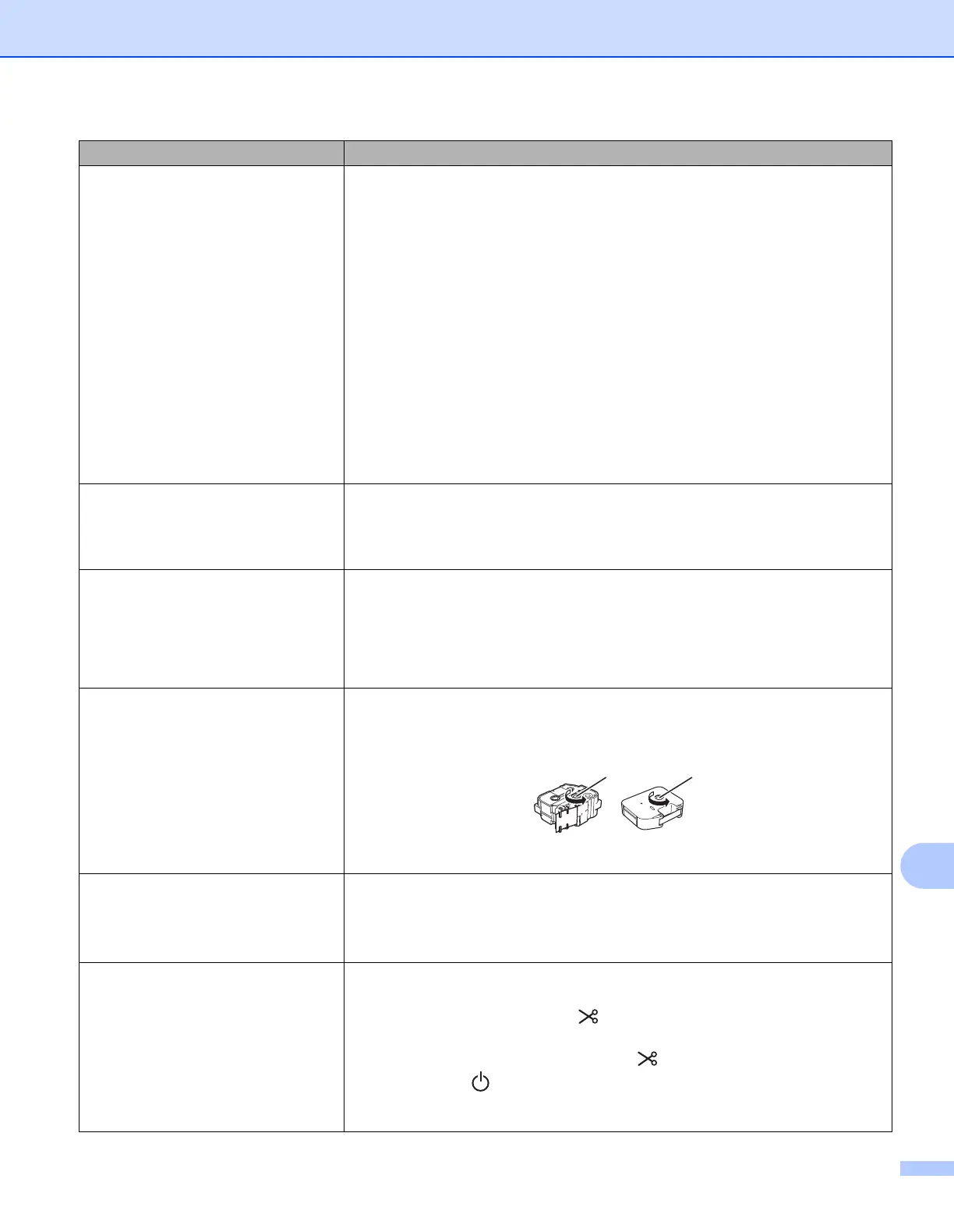
The ink ribbon is separated from the
ink roller.
If the ink ribbon is broken, replace the tape cassette or ribbon cassette. If not,
leave the tape uncut and remove the tape cassette or ribbon cassette, then
wind the loose ink ribbon onto the spool as shown in the figure.
1 Spool
The P-touch stops while printing a
label or tube.
Replace the tape cassette if striped tape is visible, as this indicates that you
have reached the end of the tape.
Connect the AC adapter directly to the P-touch, or charge the rechargeable
Li
-ion battery.
The label or tube is not cut
automatically.
For labels, check the Cut Option setting using the printer driver. For more
information, see Cutting Options on page 12.
To cut labels manually, press the (Feed and Cut) button to feed and cut the
tape.
To cut tubes manually, press and hold the (Feed and Cut) button for 2 to 10
seconds until the (Power) indicator changes from being lit in green to
flashing in green, and then release it. The tube will be cut when the button is
released.
Problem Solution
11












 To Next Page