28
BRAVO Analyzer - User Manual Bruker Optik GmbH
Operation 4
4.2 Logging in
i
For your username and password, ask the responsible OPUS administrator.
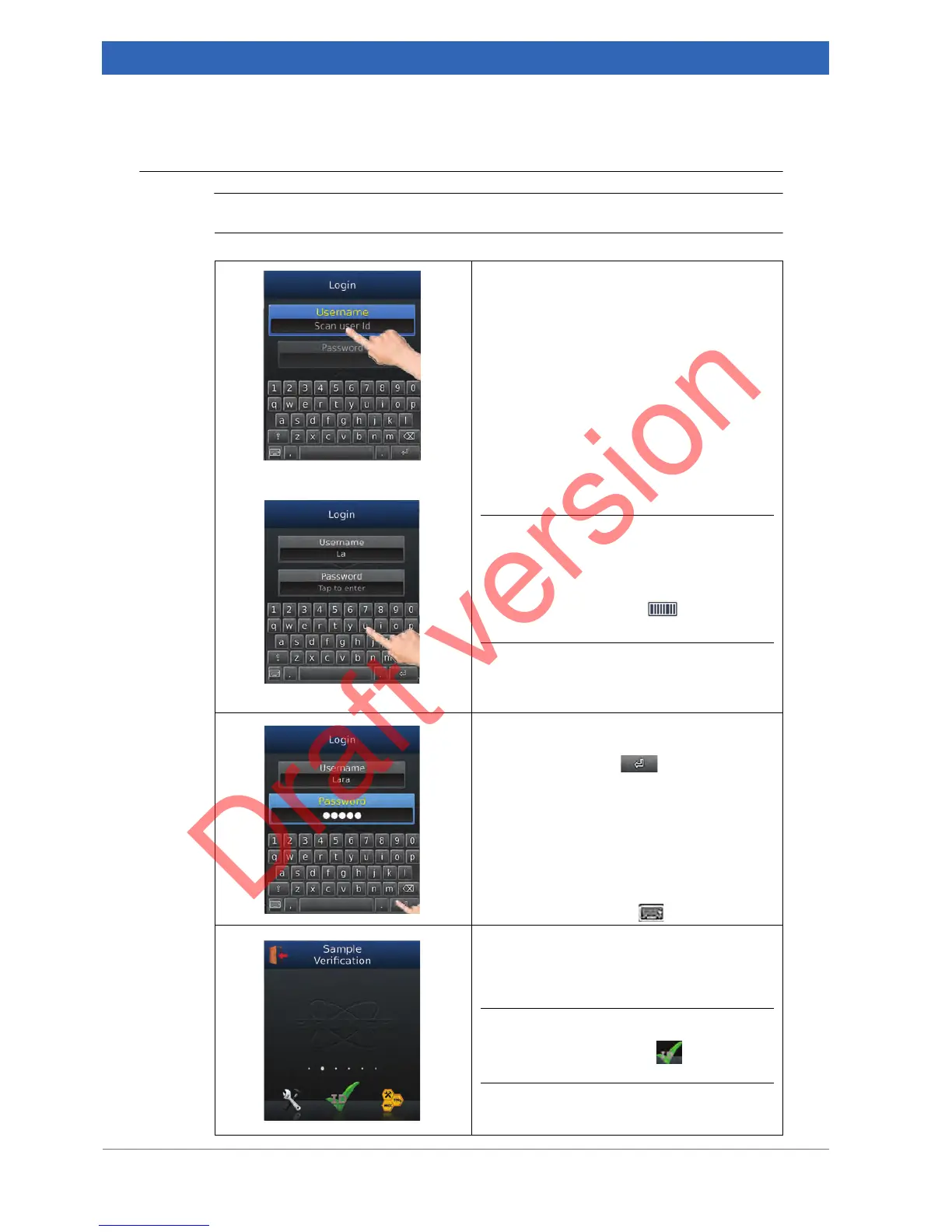
1. Entering the user name and password
a) Tap the Username entry field.
➣ The on-screen keyboard pops up.
b) Enter your user name using the on-
screen keyboard.
i Alternatively, you can scan the user ID,
provided the user name is available as
barcode. In this case, place the user ID
barcode in front of the barcode reader
and press the button at the BRAVO
button panel.
c) Tap the Password entry field and enter
your password using the on-screen key-
board.
2. Confirming the entered username and
password
Touch the return key on the on-screen
keyboard.
➣ The on-screen keyboard disappears and
the start screen of the BRAVO software
program is displayed.
➣ Note: For closing the on-screen key-
board without confirming the entered
data, press the key .
➣ After you have logged in, the on-screen
keyboard disappears and the start
screen of the BRAVO software program
is displayed.
i To proceed with scanning the barcode of
the sample tap the icon in the naviga-
tion bar.
For information about how to scan the sam-
ple barcode, see the following section 4.3.


 To Next Page