SMART MATRIX CUBE Operation
MATRIX CUBE - 29 -
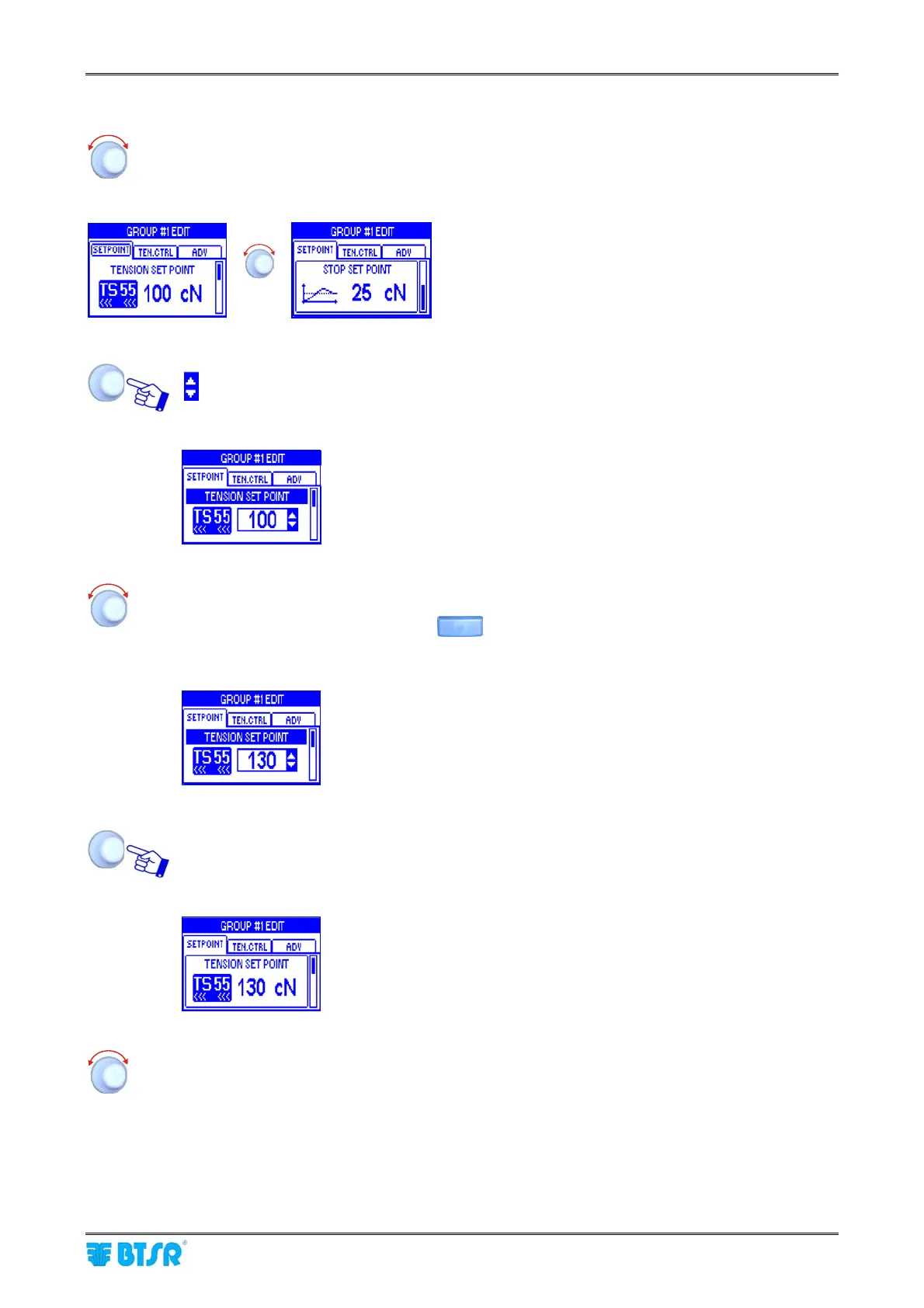
2.2.1 Navigation inside the Selected Window (SETPOINT)
Turn the selector to “Point” in sequence the various items of the window
(SETPOINT → TENSION SET POINT → STOP SET POINT).
The frame indicates the “Pointed” field.
Î
Click to “Select” the pointed item. The field name will be shown in reverse and the symbols:
appear to the right of the field value.
Example:
TENSION SET POINT field selected (reverse)
Turn the selector either to Clockwise direction to increase the value, or to Counterclockwise
direction to decrease it (resolution 0.1).
Turn the selector holding the button
pressed to increase/decrease the value more
quickly.
Example:
New value of TENSION SET POINT = 130
Once you have set the desired value (e.g. 130), click to confirm.
Example:
TENSION SET POINT field no more selected
Turn the selector to select the next field (STOP SET POINT) and so on……





 To Next Page