100 ARTEMIS Digital Broadcast Production Console Routing Audio
The joystick is not motorised and will not
snap to reflect a path’s pan position when
the currently assigned path is changed.
Instead, the display above shows both the
true pan position of the path as a red dot,
and the actual position of the joystick as a
white cross-hair.
If the joystick is in a different position to
the true pan setting, it must be moved into
the true position by moving the cross-hair
over the red dot before it can have any
effect on the pan settings. Alternatively,
pressing MATCH AUDIO TO STICK will
change the true pan position to match
that of the stick and give the joystick
instant control.
Note that output pan controls are only
available on mono & stereo paths.
Surround paths are made up of mono
and stereo channels which default to
the correct pan positions to provide the
surround output. If required, panning can
be changed on the individual legs of the
surround master, either by use of rotary
controls or the joystick.
To change the parameters of the elements
that make up a surround path, first select
the assign button for the surround path,
then select the element to be adjusted
by pressing the relevant assign button
on the surround spill faders. For more
information on accessing the elements
that make up a surround path, see
“Stereo/Surround Spill” on page 82.
Pan control menu
The button cell at the top left of this
section contains the PAN CTRL menu.
These controls allow for the left-right and
front-rear pans to be switched in, as do
the buttons alongside the rotaries. The
PAN CTRL menu also allows for the front
L-R pan to be switched to L-C-R, creating
a centre channel output from the path.
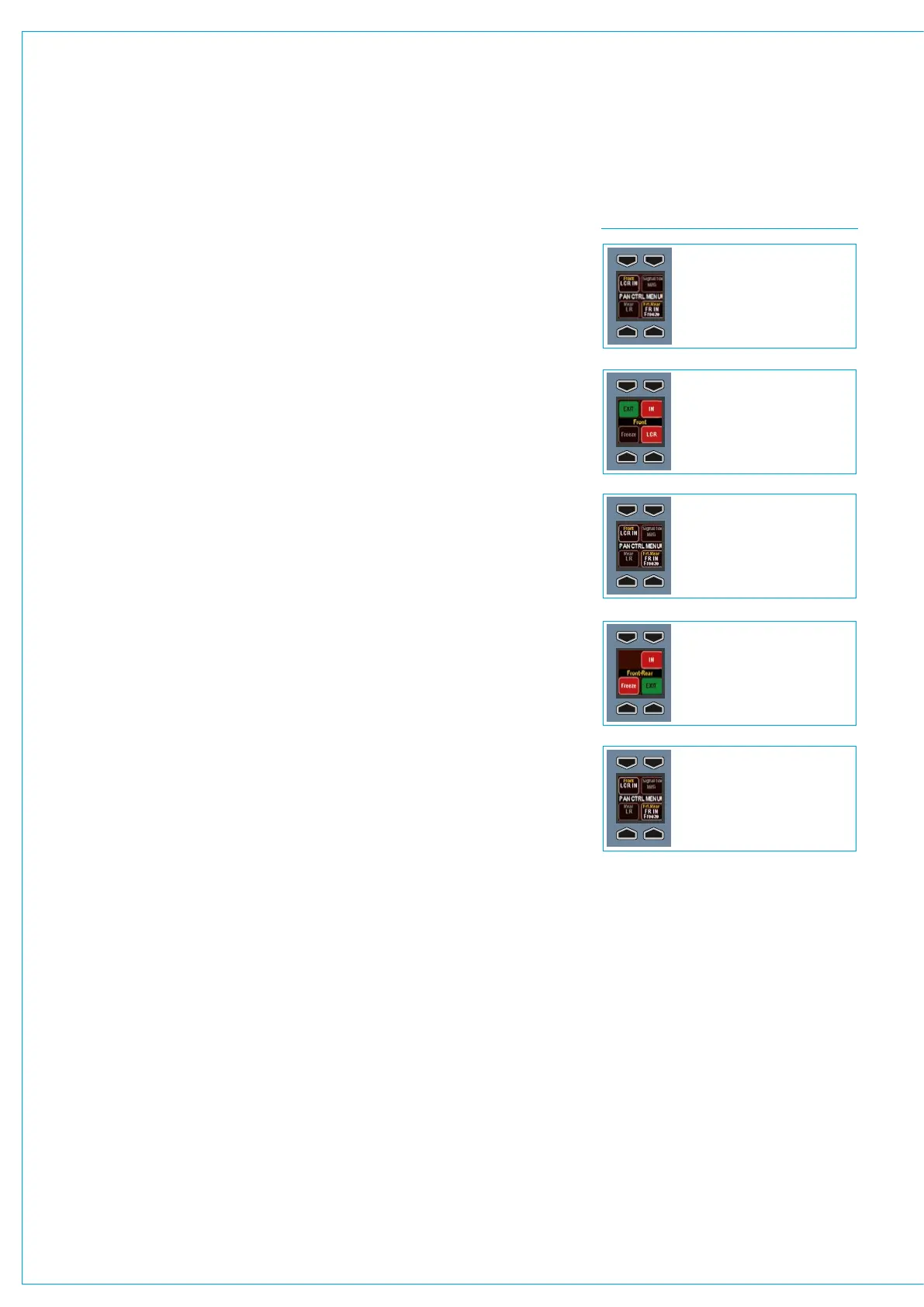
The operation of the menu is shown in
Fig 2.
Freezing axes
Both pan controls can also be
independently frozen from this control
cell, locking them to the position they are
in. For example if the Front-Rear pan is
frozen, the pan setting on that axis will
remain constant. Moving the joystick will
still affect the L-R pan, but not the front-
rear.
FIG 2 - PAN CONTROL MENU
The menu is in its default state
The menu is in its default state
Press the upper left FRONT button
Press the lower right FRT-REAR button
Press the EXIT button
The menu is in its default state
Press the EXIT button
The menu is now editing settings for
front pan. Three options exist; IN,
FREEZE and LCR. They switch front
pan in, freeze the front axis and set it
to LCR instead of LR respectively.
Press EXIT to return to the default
state.
The menu is now editing settings for
front-rear pan. Two options exist; IN,
and FREEZE. They switch front-rear
pan in and freeze the front-rear axis
respectively. Press EXIT to return to
the default state.



 To Next Page