CALREC Putting Sound in the Picture 107
To make the pre-fader send follow the spill
faders (but not the overall path fader) to
produce the correct downmix, select the
destination bus in SENDS-ROUTES mode
and press the FOLLOW SPILL FADER
LEVELS button. This button will only be
visible if the send or route is pre-fader.
Setting downmix defaults
Users with technician access can set
up five different downmix defaults (with
an additional default set up by Calrec).
One of these defaults can be selected by
operators to act as the default for their
show. To enable technician mode, see
“Technician Mode” on page 166.
Users logged in to the main application as
Technicians can edit the settings within
each downmix set other than the Calrec
default from >System Settings>Down
Mix page, as shown in Fig 2. Each value
can be altered by clicking on it to highlight
then using the buttons to the right to
adjust.
Changes take effect immediately and
are applied to all user memories within
the current show. As well as downmixing
for internal system routing, surround main
outputs, and surround channel / group
direct outputs have downmixed versions
available for patching to output ports.
Globally applied downmix settings
can be adjusted on a path by path
basis if the console is fitted with a
full-featured dedicated monitor panel.
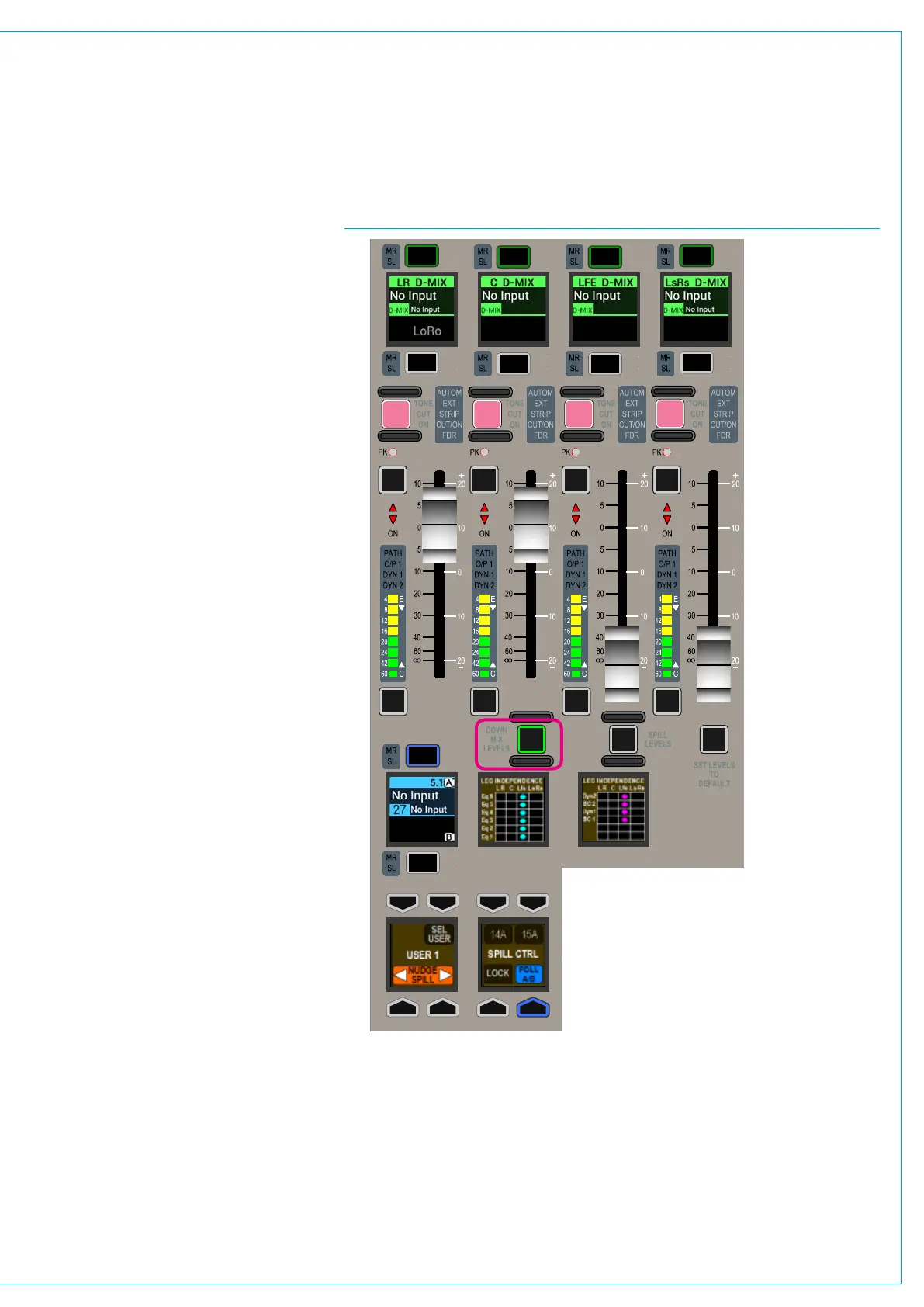
With a surround path assigned, selecting
the DOWN MIX LEVELS mode using the
button located beneath the second fader
on the monitor panel changes the faders
to reflect the contribution made from
each element of the surround path to a
downmixed feed.
Unless previously adjusted on that path,
the faders should show the levels as
dictated by the globally set downmix set.
Adjusting the faders in downmix mode
alters the downmix contributions from the
currently assigned path.
FIG 3 - AREA OF MONITOR PANEL IN DOWNMIX MODE
CUT CUT
CUT
CUT
AFL
PFL
AFL
PFL
AFL
PFL
AFL
PFL
Selecting the required downmix
default
To select a different downmix set, click
on the relevant button below the table
to select the required set, then click on
‘Apply Levels and Update all Downmix
Faders’ to make it the active set. The
active downmix set is saved as part of the
user memory.
Applying default levels to downmix
faders
To revert back to the global set, press and
hold SET LEVELS TO DEFAULT and then
press the assign buttons above the faders
for the elements to be reset.
Note that although patchable Main Lt/Rt
outputs conform to the global downmix
set, they are NOT affected by downmix
fader adjustments. Only LoRo feeds are
affected by the adjustments. A Main
output set to Lt/Rt will still use Lo/Ro for
internal routing, for example Main to Main
and such a path would be affected by
downmix fader adjustment.



 To Next Page