42 ARTEMIS Digital Broadcast Production Console Getting Signals Into Artemis
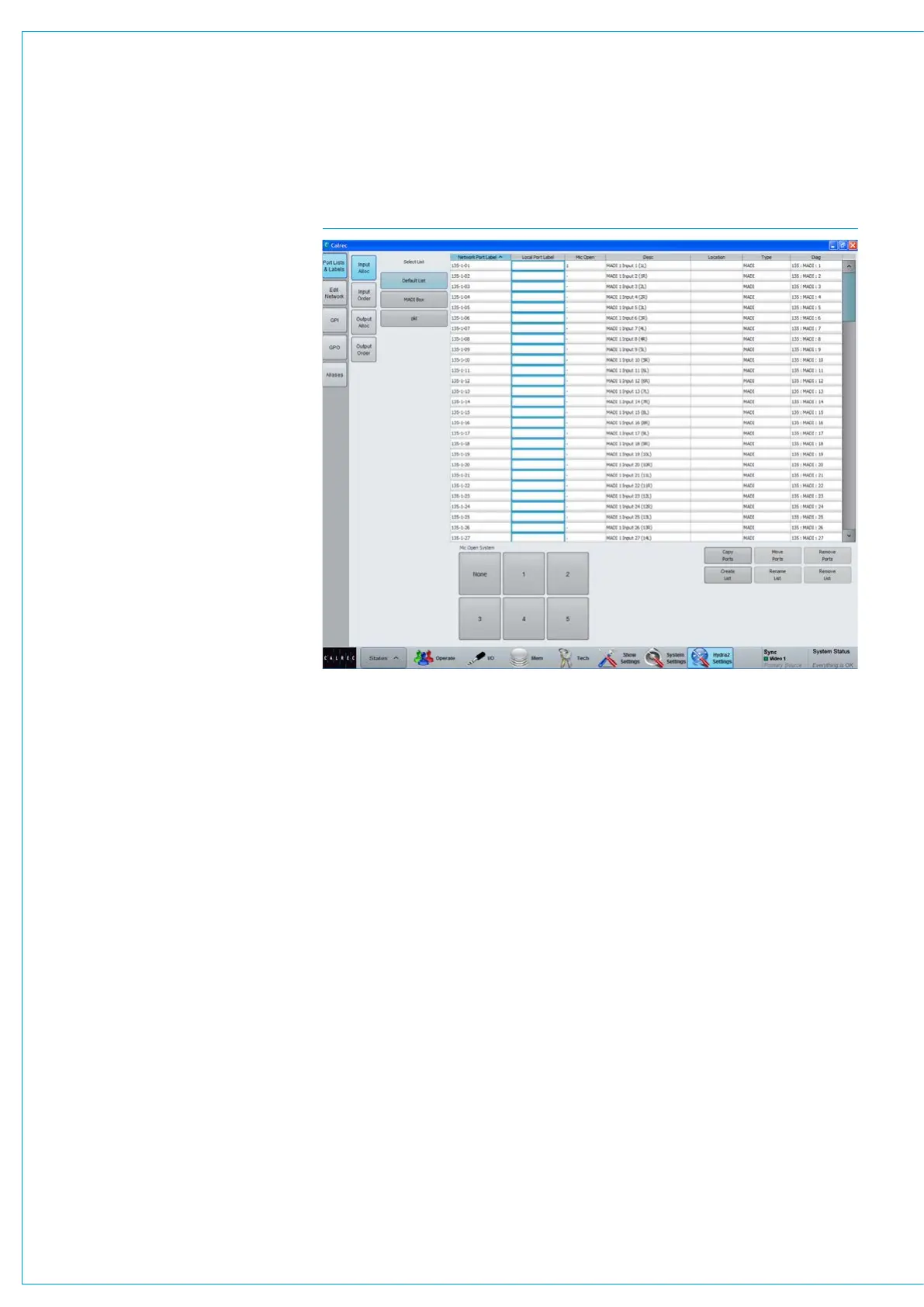
Console port labelling is performed from
>Hydra2 Settings>Port Lists & Labels
see Fig 2. In this screen, touch the ‘Input
Alloc’ or ‘Output Alloc’ button to access
the available input or output ports.
Double click an port name to provide a
new name. Each label is updated as soon
as it hey are edited. If the port list is being
viewed alphabetically in label order, editing
them will cause them to move position in
the list and they can disappear from view.
The list view can be filtered by any of the
columns.
To prevent ports moving as they are
labelled, click on the ‘Diag’ column header
to view them in their physical order.
Note that up to 20 characters can be
entered as port labels. All 20 characters
are visible in the main application, and
H2O, however the control surface has
limited text fields. Fader displays only
show the first 10 characters of a port
label, TFT meter labels will show 14.
This should be considered when entering
labels.
When viewing port lists in the patching
screens, the ports are displayed
alphabetically. This should be considered
when labelling ports. Ports can be
grouped together even if they are not in
alphabetical order using sets which are
described later in this section.
Port lists
Ports can be assigned to lists. Lists
provide a way of filtering the information
shown when patching ports.
To access ports lists, go to the
>Hydra2 Settings>Port Lists & Labels
screen see Fig 2. Select the ‘Input Alloc’
or ‘Output Alloc’ button at the left of the
screen to work with input or output ports
respectively. The screen will show all
available port lists just to the right of the
‘Input Alloc’ button. The ‘Default List’ is
created automatically and contains all
available input or output ports.
Creating lists
To create a new list, select the required
ports from the default list (or any other
list that already exists) and touch the
‘Create List’ button. A popup will appear
prompting for the name of the new list,
which can be six characters or less. Enter
the name and touch OK. The new list
will appear below the default list and will
contain the selected ports. Touch the new
list to confirm this. It is possible to make a
new list which is empty, by ensuring that
no ports are selected when touching the
‘Create List’ button.
Copying and moving ports to lists
Ports can be copied or moved between
lists by selecting the required ports
in the source list and touching ‘Copy
Ports’ or ‘Move Ports’. A popup dialogue
will appear allowing selection of the
destination list. Select the destination list
and touch OK.
FIG 2 - PORTS LIST SETUP SCREEN
Removing ports from lists
To remove ports from a list, select the
required ports and touch the ‘Remove
Ports’ button.
Renaming lists
Touch the ‘Modify Lists’ button to bring up
a popup dialogue. This dialogue allows
you to select a list and rename it.
Removing lists
To remove a list, select the required list
and touch the ‘Remove List’ button.
A popup dialogue will appear asking for
confirmation of the removal.



 To Next Page