126 ARTEMIS Digital Broadcast Production Console Monitoring
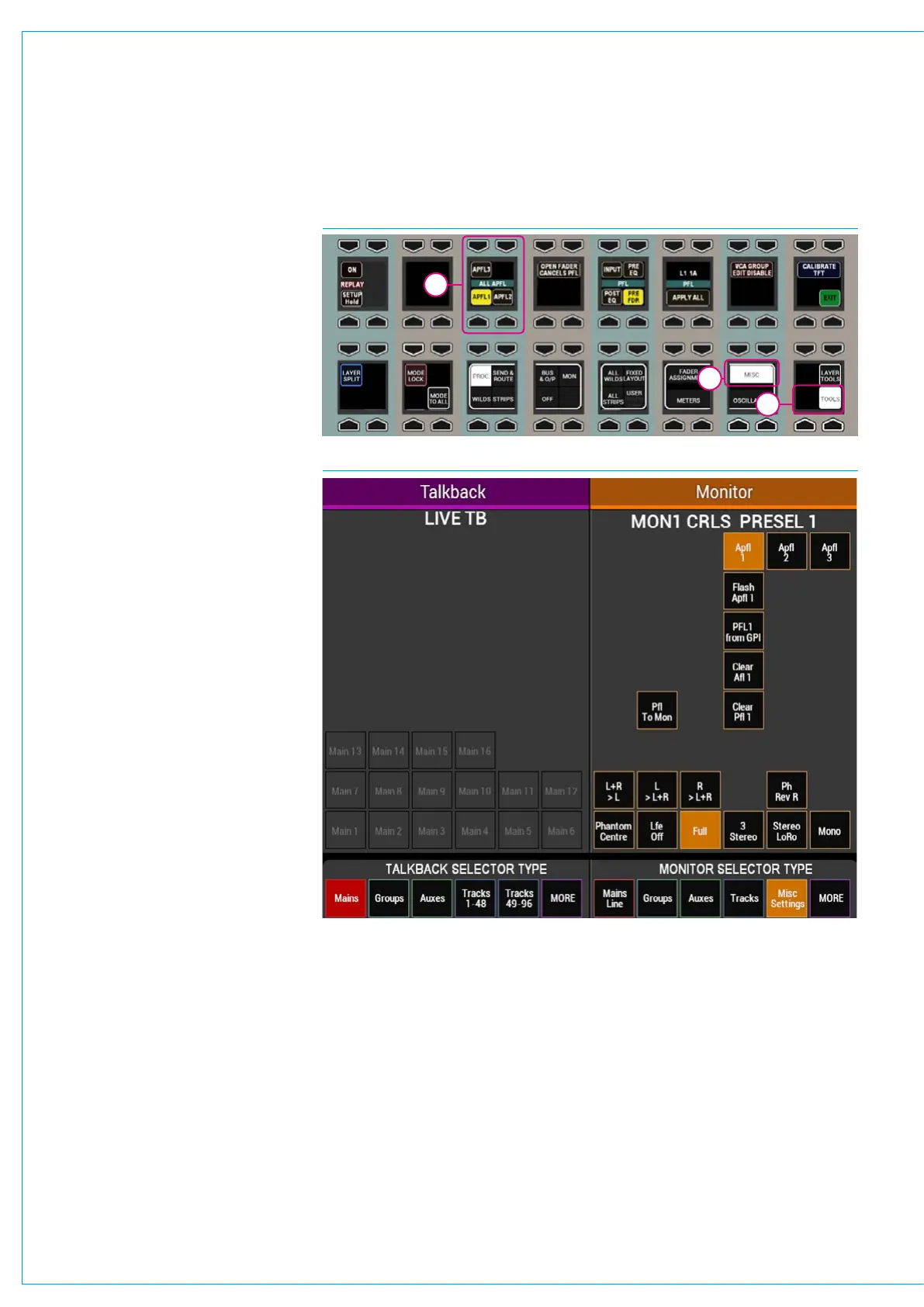
Select ‘Misc Settings’ from the monitor
selector type menu at the bottom of the
TFT screen to bring up monitor options
and choose APFL 1, 2 or 3. Use the
control cell at the bottom left of the
monitor mode panel to switch between
Main Mon 1 and 2 and set their APFL
system as required.
The ‘Flash APFL’ option for each APFL
system instructs the APFL indicator in
the broadcast facilities panel to flash or
to illuminate steadily when any AFL or
PFL is active in the relevant user section.
If the option is selected, the indicator will
flash. If it is deselected, the indicator will
illuminate steadily. This allows two APFL
systems on the same surface to have
separate indicators, see Fig 8.
The ‘Clear AFL’ and ‘Clear PFL’ buttons
clear AFL and PFL respectively for each
APFL system, unless the PFL has been
triggered by a GPI, see below for more
information.
Note that if a path is moved to another
fader on the surface or to another
user split, the path’s AFL or PFL status
will move along with the path, feeding
the APFL system that has been set for
that user split.
Patch AFL, PFL and APFL buses
As well as injecting into the main monitors,
AFL, PFL and APFL systems are also
available to patch to output ports. APFL
systems are available in monitor source
lists, post their level controls and in meter
lists, pre their level controls.
PFL via GPI
PFLs can be remotely activated via GPI.
GPI-PFL selections are input port or input
Alias based, firing the PFL of whichever
path the input is patched to.
See “GPIO” on page 170 for details on
patching GPIs to surface functions.
If a channel’s PFL has been activated
via a GPI, the EXT light next to the fader
lights up green to indicate that control is
being applied externally.
FIG 7 - APFL SELECTION FOR MULTIPLE USERS
FIG 8 - APFL INDICATOR OPTIONS
It is not possible to deactivate a GPI PFL
from the desk, this can only be achieved
by deactivating the GPI Opto itself.
If the PFL is only activated via
GPI, the APFL clear button in the
Broadcast Facilities panel will not
light up.
In Monitor Mode, with ‘Misc Settings’, as
shown above, there are ‘PFL from GPI’
enable buttons for each APFL bus.
These can be used to quickly regain
control of any channels which are set to
have their PFL activated via GPI.
For example for APFL 1, if a GPI has
activated a channel PFL and you wish to
deactivate the PFL from the control room,
simply touch ‘PFL 1 from GPI’.
Note that until this is reactivated the GPI
PFL for all channels using APFL system 1
will not work.
1
2
3



 To Next Page