124 ARTEMIS Digital Broadcast Production Console Monitoring
AFL AND PFL AND OUTPUT LISTEN
Artemis consoles have a
comprehensive multi-user AFL, PFL
and Output Listen system.
AFL
Selecting an AFL - ‘After Fader Listen’,
replaces the output of the control room
monitor with the post fader audio of the
path being AFLd. AFL provides a ‘non-
destructive solo’- Only the control room
monitor output is affected, no paths are
cut, and mixes to all other buses and
outputs are unaffected, allowing users
to quality-check selected paths whilst
maintaining all mixes.
Whilst in AFL mode, the control room
monitor selection display will indicate as
AFL. When all AFLs are switched off,
or globally cancelled, the monitoring will
revert to outputting its previously selected
source.
PFL
PFL - ‘Pre Fader Listen’ is sent by default
to a dedicated PFL/RTB LS output
(RTB is ‘Reverse talkback’ which allows
for signals to be mixed with PFL for
listening on the PFL/RTB output e.g for
use with producer / director hot-mics).
Multiple paths can be PFLd or AFLd at
the same time, creating a summed mix of
pre or post fader path solos.
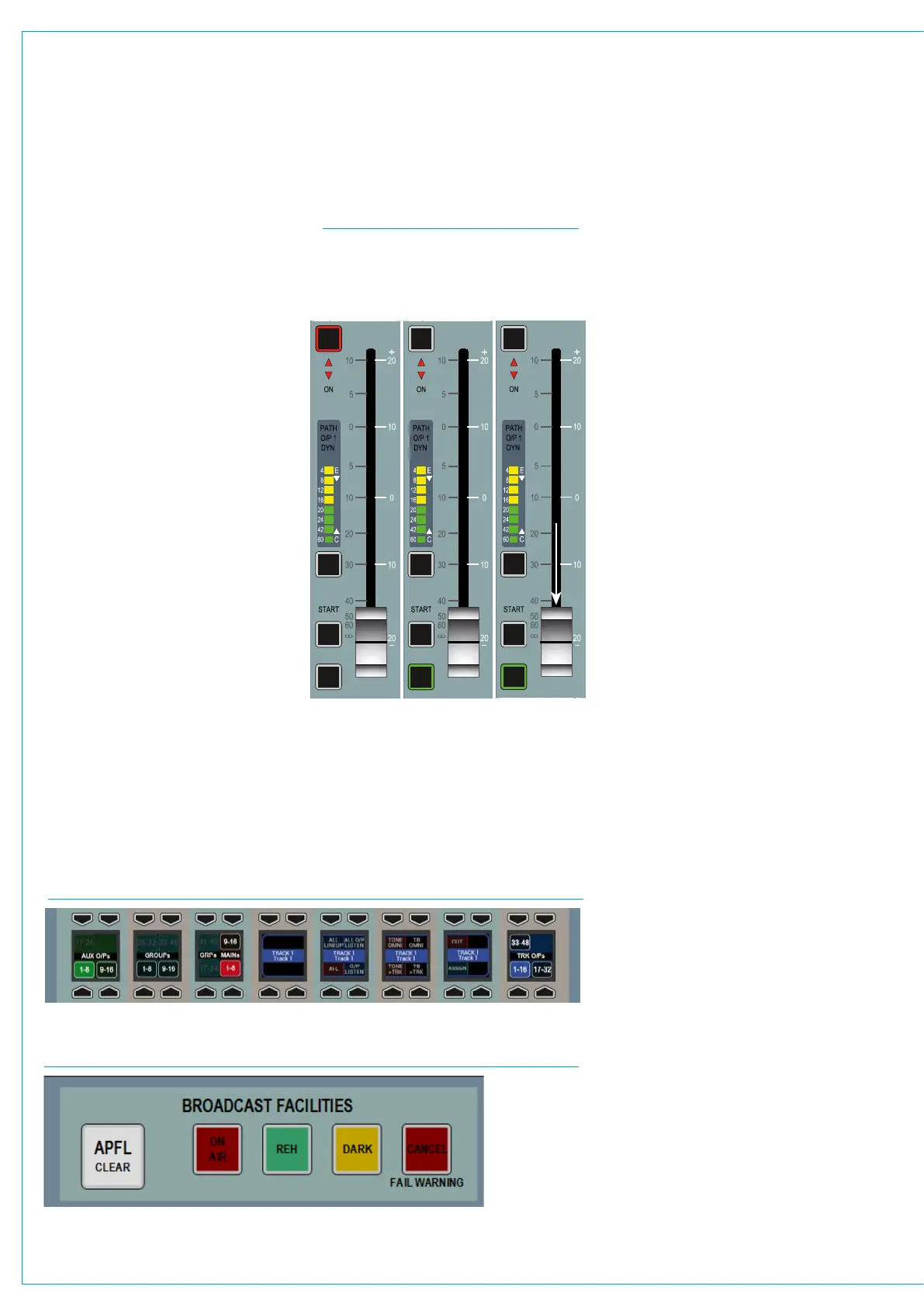
FIG 1 - FADER AFL & PFL CONTROLS
FIG 2 - ACCESSING AFL AND PFL FOR OUTPUT BUSES
FIG 3 - APFL INDICATOR / CLEAR BUTTON ON BROADCAST FACILITIES PANEL
Output Listen (OPL)
Mains, Tracks, Auxs and Direct Outputs
all have an OUTPUT LISTEN option. Like
AFL, this provides a non-destructive solo,
but output listen takes the feed after the
addition of output delay, directly before the
feed leaves the console.
Access from faders
When a path is attached to a fader, AFL
and PFL can be accessed using the AFL
and PFL buttons. Both are either latching
if tapped briefly, or momentary if held.
By default, PFL is automatically cancelled
when a fader is opened e.g if a fader
reaches ∞ whilst PFL is activated, PFL will
be deactivated when the fader reaches
-90dB.
This feature can be disabled by turning off
the OPEN FADER CANCELS PFL button
within the TOOLS>MISC menu.
PFL can also be activated using the fader
overpress feature: Move the fader down to
its lowest position, then push it down past
the normal backstop position and PFL
activates for that fader. See Fig 1.
This is a momentary setting so as soon as
you release the fader, PFL is deactivated.
If you wish to disable this feature, navigate
to ‘Show Settings’, then select ‘Misc
Settings’ from the left hand button menu
and click DISABLE for the PFL overpress
option.
Access bus AFL, PFL and OPL
When in Outputs mode, any bus can
be brought into focus in the button cell
row by pushing down on the output’s
rotary control. Once an output is in focus
options appear in the button cell row for
activating PFL and AFL (or OutPut Listen)
for the currently assigned path. See Fig 2.
Access AFL in Contribution Mode
When in Contribution mode any Auxiliary,
Track or Group bus can be AFLd by
switching ON on the AFL Selected Aux,
Track and/or Group slider and pressing
the required Bus on the screen.
Note that when another bus is selected
the previous bus AFL is turned off. When
used in conjunction with the ‘AUX SEND
LEVELS’ option the user can listen to the
bus whilst adjusting the levels being sent
to it. See ”Contribution Mode” on page
101 for details.
Latching or
momentary AFL
using the AFL
button.
Latching or
momentary PFL
using the PFL
button.
Overpress (push
the fader lower
than the normal
backstop) to
activate PFL.
AFL
PFL
DIR
TB
ISO
AFL
PFL
DIR
TB
ISO
AFL
PFL
DIR
TB
ISO



 To Next Page