CALREC Putting Sound in the Picture 167
It is strongly recommended that the
Artemis console is locked to the
same external sync source as all the
external equipment connected to
Calrec digital IO to prevent audible
interruptions to audio data.
Artemis can run on its own
synchronisation clock if no external source
is provided and there are switchable
sample rate converters on all AES3 and
SDI digital inputs to adjust the sample rate
of the incoming signal to match that of the
console if required.
If the console cannot receive the same
sync source as the connected equipment,
it is important to check the SRC’s are
switched in on the inputs of the equipment
fed by Artemis outputs.
General rules of good practise dictate
that all equipment in a facility are locked
to the same house reference. For
systems where multiple Apollo and
Artemis consoles are connected together
via a Hydra2 network, this becomes of
paramount importance.
Each console and any standalone
router racks on the same Hydra2
network must all be connected
and locked to the same derived
reference source to ensure the
online status of the associated IO.
Each console has external sync input
connectors at the top of the front of their
processing rack. Four inputs are provided
on BNC connectors.
To select or change the console
synchronisation settings, the main
application must be in technician mode
(Select the Tech page, click on technician
at the top of the screen and enter a valid
user name and password. Whilst in Tech
mode, the Tech page selector icon should
flash).
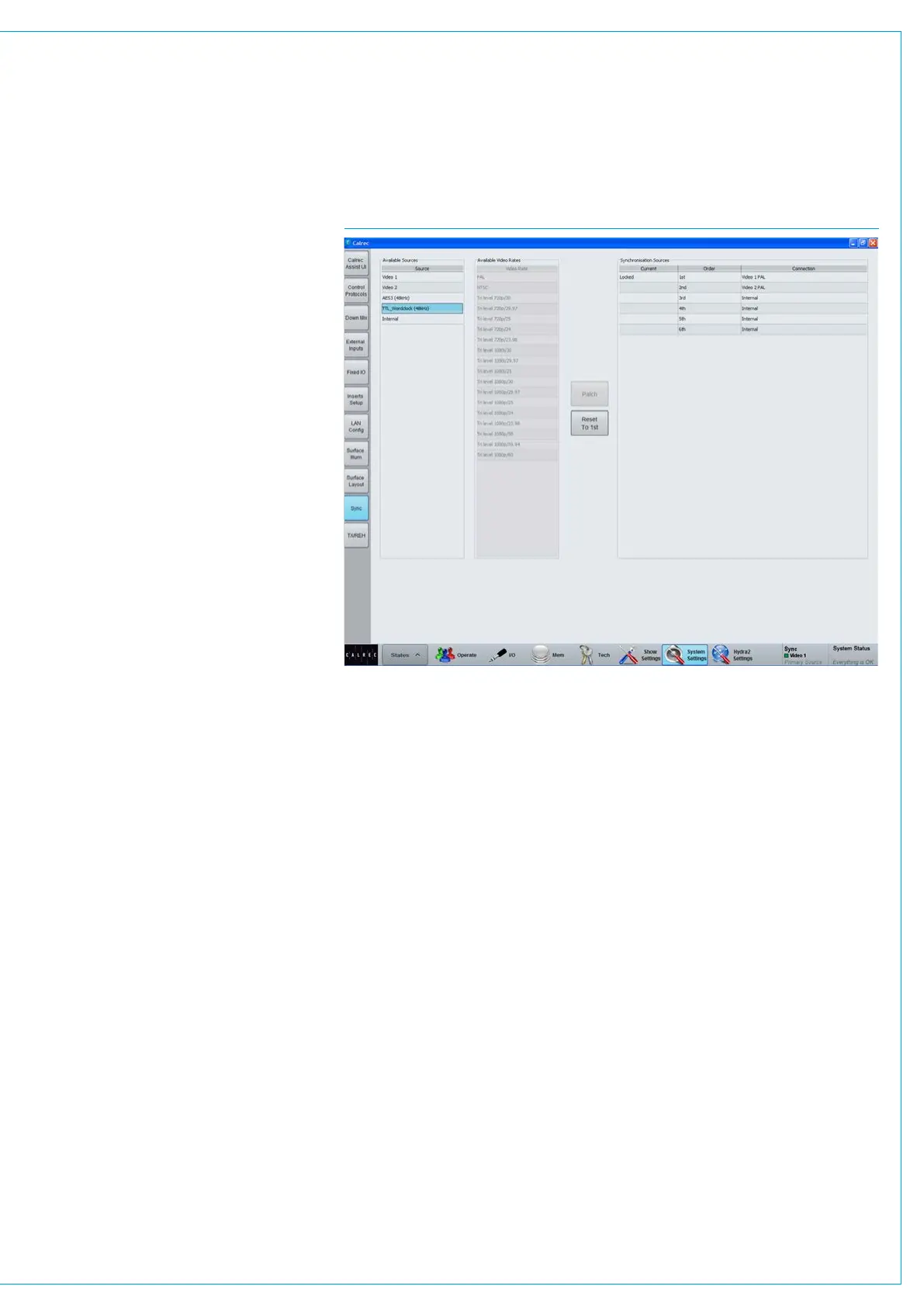
Sync settings are on the >System
Settings>Sync page, as shown in Fig 1.
If not in tech mode, the settings cannot be
changed.
The available sync sources are displayed
on the left. The selected sync sources are
displayed in a list on the right.
Only one sync source can be active at
any given time and this is displayed as
‘Locked’ by the main application.
On boot up or reset, the system will
attempt to sync to the 1st source, at the
top of the selected sync sources list. If
it cannot lock to this source it will move
down the list one at a time until a source is
found that can be locked to.
The last item in the selected sources list
cannot be changed, this is fixed as internal
to ensure that if no suitable external sync
can be found that the console will run on
its own reference clock.
If the system is not locked to the highest
priority source, clicking ‘Reset to 1st’ will
cause it to retry, again moving down the
list until a source is found that can be
locked to.
FIG 1 - MAIN APPLICATION, SYSTEM SETTINGS>SYNC
The connectors on the rack are labelled
for the format required on each. There is
an input for TTL Wordclock, one for AES
digital audio reference as well as two
video inputs. Both video inputs can take
analogue or digital video in PAL, NTSC or
a variety of HD / Tri-level formats.
When selecting video as a sync source,
the video format is selected for each
instance of ‘video’ input.
The current sync source is shown
to the right hand side of the main
application menu bar at all times.
Synchronisation at different sample
rates
Hydra2 runs at 48kHz irrespective of
whether the consoles and I/O boxes are
running at 96kHz or not. It simply uses 2
samples per 96kHz signal.
Hydra2 always runs at 48kHz, the system
will still require a 48kHz sync if using its
AES3 or Wordclock inputs, even if all
consoles and I/O are operating at 96kHz.
SYNCHRONISATION SOURCES



 To Next Page