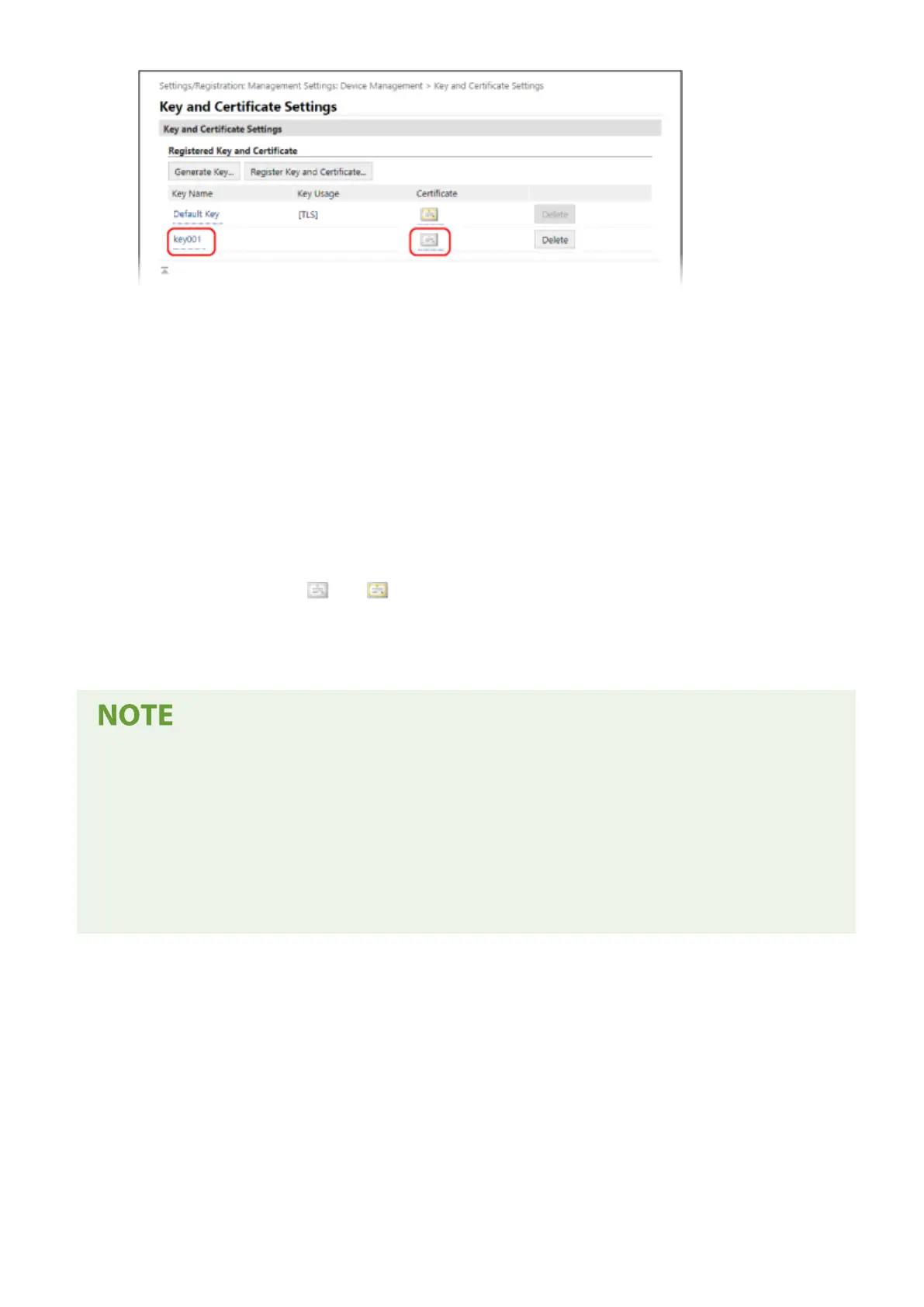
➠ The [Ke
y and Certicate Signing Request (CSR) Details] screen is displayed.
5
Click [Register Certicate].
6
In [Specify File], click [Browse], and specify the le of the certicate issued b
y the
certicate authority.
7
Click [Register].
➠ The icon of the certicate displayed in [Register
ed Key and Certicate] on the [Key and Certicate Settings]
screen changes from [
] to [ ].
8
Log out from Remote UI.
Viewing and Verifying Detailed Information of a Registered Certicate
● Click the key name (or certicate icon) in [Registered Key and Certicate] on the [Key and Certicate Settings]
screen to display the certicate details.
● On the certicate details screen, click [Verify Certicate] to verify that the certicate is valid.
When the Key and Certicate Cannot Be Deleted
● You cannot delete a key and certicate being used. Disable the function being used, or delete these after
switching to another key and certicate.
Security
162



 To Next Page