Setting IPv4 Addresses
95LW-016
The machine
's IPv4 address can either be assigned automatically using DHCP or entered manually.
By default, the IPv4 address is set automatically when connected to a wired or wireless LAN, but you can set it or
change it manually according to your usage environment and purpose.
This section describes how to congure the settings using the operation panel.
You can also set the IPv4 address using Remote UI from a computer after it has been set on the machine.
Managing
the Machine fr
om a Computer (Remote UI)(P. 178)
Administrator privileges are required. The machine must be restarted to apply the settings.
1
On the operation panel, select [Menu] in the [Home] screen, and press
. [Home]
Scr
een(P. 81)
2
Press [Preferences]
[Network] [TCP/IP Settings] [IPv4 Settings]
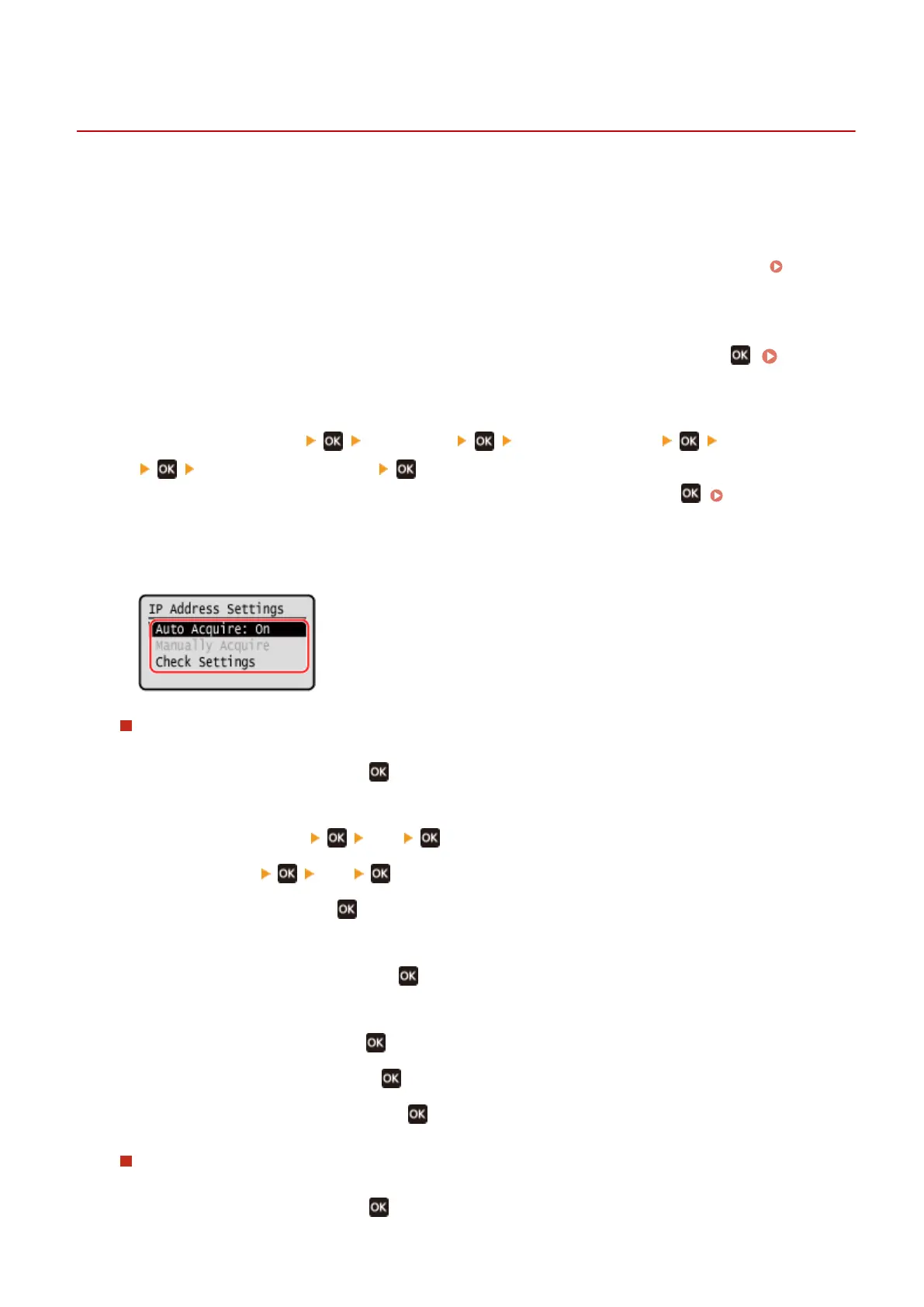
[IP Address Settings] .
If the login screen appears, enter the System Manager ID and PIN, and then press . System Manager
ID and PIN(P
. 4)
3
Set the IP address.
When Manually Setting the IP Address
1
Select [Auto Acquire] and press
.
➠ The [Auto Acquir
e] screen is displayed.
2
Press [Select Protocol]
[Off] .
3
Press [Auto IP] [Off] .
4
Select [<Apply>] and press .
➠ The [IP Addr
ess Settings] screen is displayed.
5
Select [Manually Acquire] and press
.
➠ The IP addr
ess input screen is displayed.
6
Enter the IP address and press
.
7
Enter the subnet mask and press .
8
Enter the gateway address and press .
When Assigning an IP Address Automatically
1
Select [Auto Acquire] and press
.
Setting Up
50








 To Next Page