Setting the Paper Size and Type for the Paper Drawer
95LW-02C
By default, the paper size and type of the paper dr
awer are set to A4 and Plain 2. When paper of a different size or type
is loaded, change the paper settings.
This section describes how to congure the settings using the operation panel.
You can also congure the settings using Remote UI from a computer.
Managing the Machine from a Computer
(Remote UI)
(P. 178)
1
On the operation panel, select [Menu] in the [Home] screen, and press
. [Home]
Scr
een(P. 81)
2
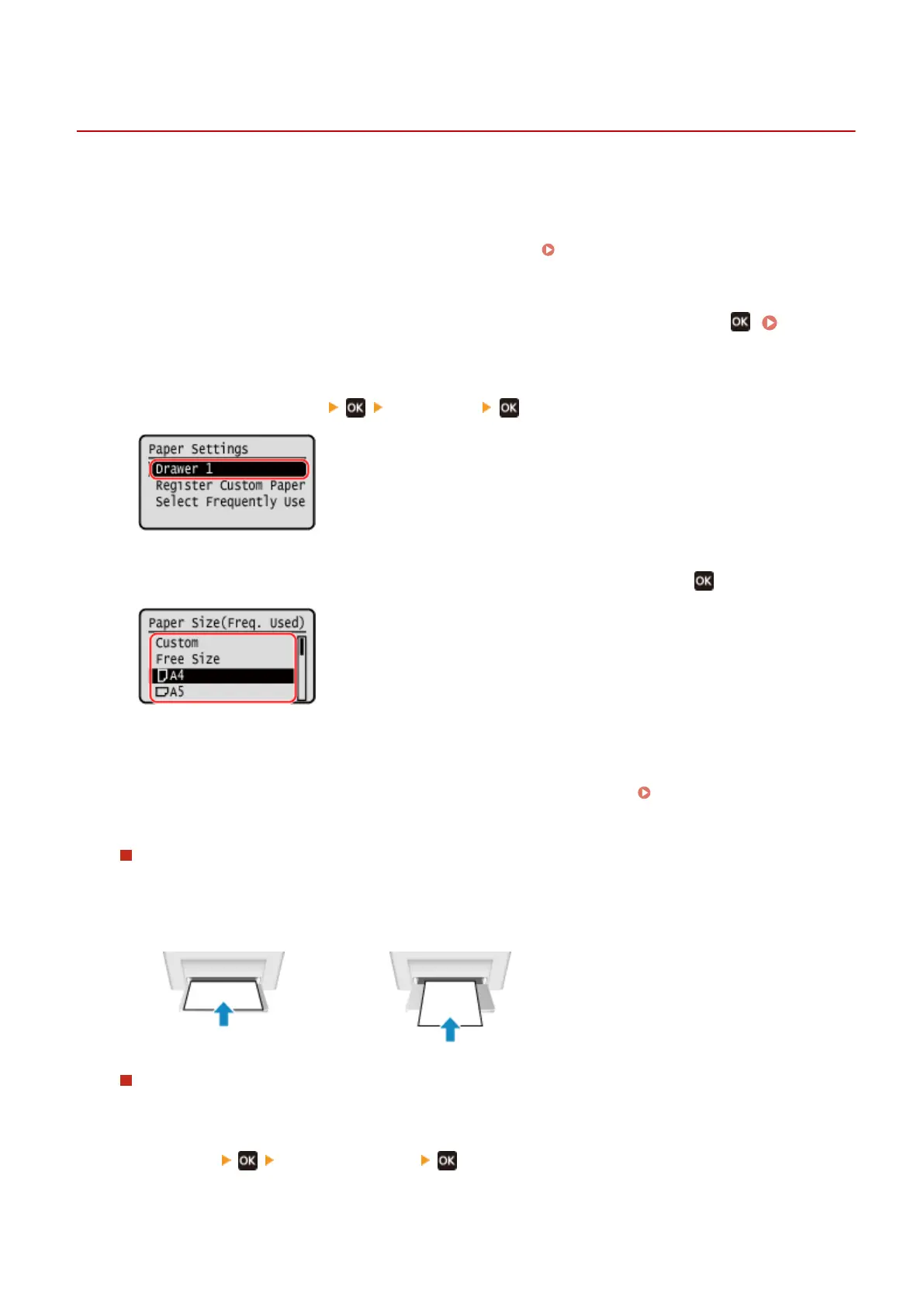
Press [Paper Settings]
[Drawer 1] .
3
Select the size of the paper loaded in the paper drawer, and press .
● Y
ou can scroll the screen to view paper sizes (such as envelopes) not displayed on the screen.
● If you frequently need to change the paper to be loaded, set to [Free Size]; this will reduce the number of
steps required to change the setting each time. You can also display an error message when the setting in
the printer driver is signicantly different from the size of the loaded paper.
[Action When Free Paper Size
Mismatch]
(P. 231)
When A5 Size Paper Is Loaded
When paper is loaded in the landscape orientation, select [A5]. When paper is loaded in the portr
ait
orientation, select [A5R].
Landscape orientation (A5)
Portrait orientation (A5R)
When Non-standard Size (Custom Size) Paper Is Loaded
1
Press [Custom].
2
Press [X]
enter the value in [X] .
Basic Operations
95








 To Next Page