Reserved Copying
1-32
1
Introduction to the Copying Functions
2
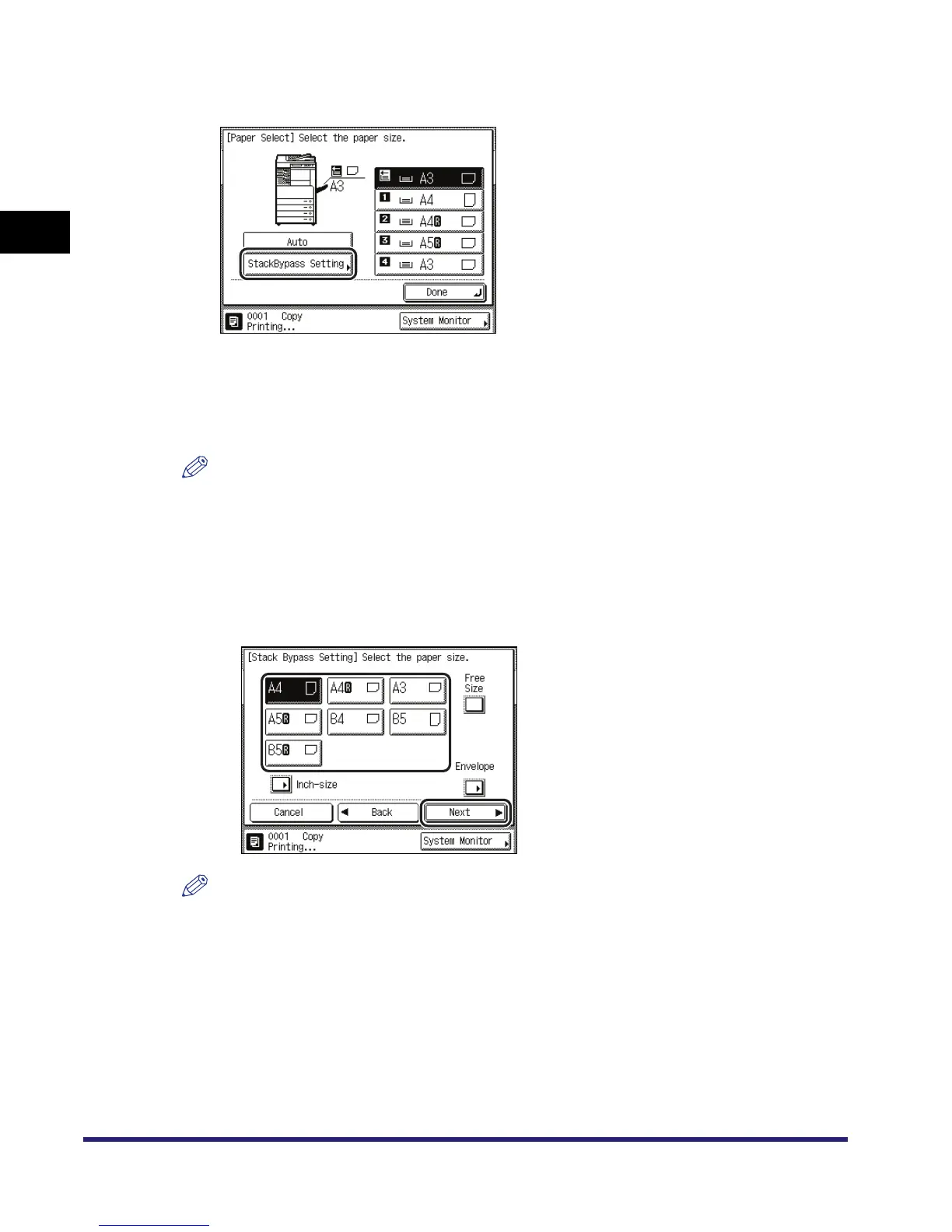
Press [Paper Select] ➞ [StackBypass Setting].
Normally, when reserved copying is not being set, the Stack Bypass Setting screen is
automatically displayed when paper is loaded into the stack bypass.
3
Select the desired paper size.
NOTE
•
If you select [Envelope], [Tracing Paper], [Transparency], or [Labels], make sure that you do not
specify any Finisher modes (Collate, Group, or Staple).
•
If Stack Bypass Standard Settings in Common Settings (from the Additional Functions screen) is
set to 'On', [StackBypass Setting] is grayed out. (See Chapter 4, "Customizing Settings," in the
Reference Guide.)
● If you want to select a standard paper size:
❑ Select the desired paper size ➞ press [Next].
NOTE
To select an inch paper size, press [Inch-size].



 To Next Page