EasyManua.ls Logo

Canon MV430 - Page 114

Canon MV430
152 pages
Print Icon
To Next Page IconTo Next Page
To Previous Page IconTo Previous Page
Loading...
Using
a
Memory
Card
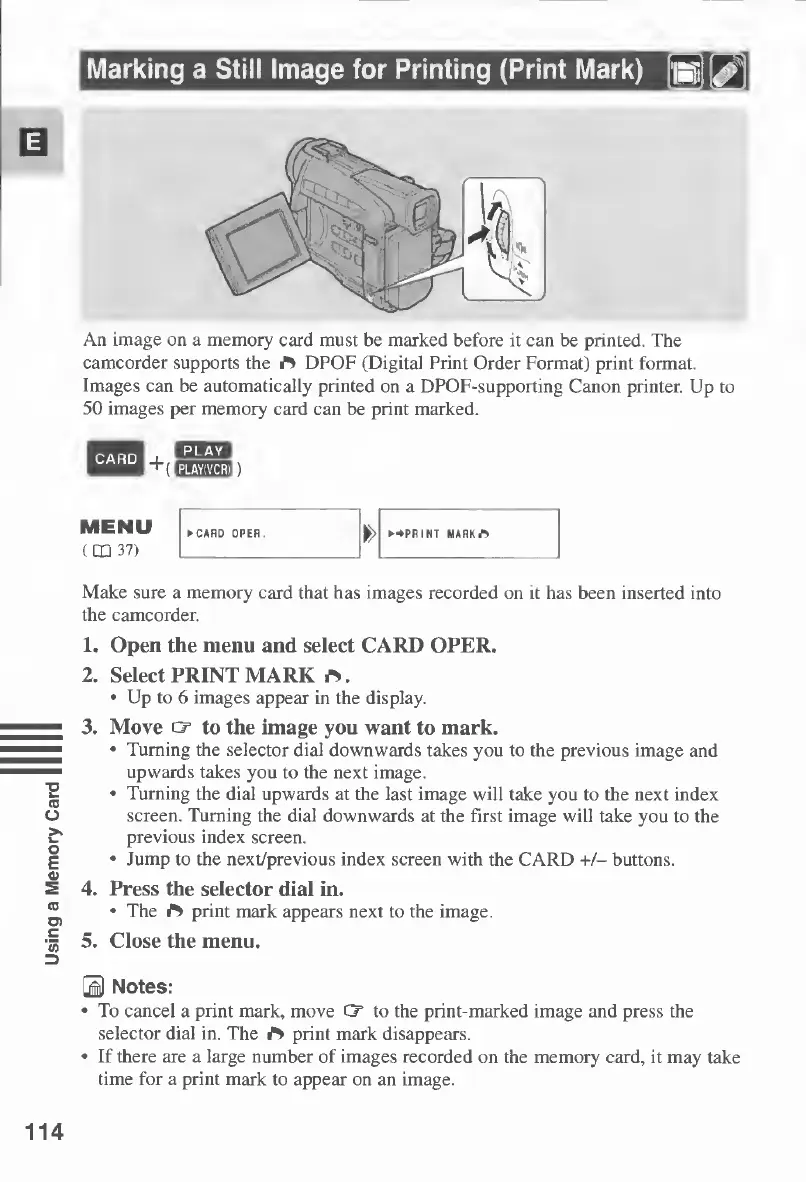
An
image
on
a
memory
card
must
be
marked
before
it
can
be
printed.
The
camcorder
supports
the
DPOF
(Digital
Print
Order
Format)
print
format.
Images
can
be
automatically
printed
on
a
DPOF-supporting
Canon
printer.
Up
to
50
images
per
memory
card
can
be
print
marked.
Make
sure
a
memory
card
that
has
images
recorded
on
it
has
been
inserted
into
the
camcorder.
1.
Open
the
menu
and
select
CARD
OPER.
2.
Select
PRINT
MARK
.
Up
to
6
images
appear
in
the
display.
3.
Move
c
T
to
the
image
you
want
to
mark.
Turning
the
selector
dial
downwards
takes
you
to
the
previous
image
and
upwards
takes
you
to
the
next
image.
Turning
the
dial
upwards
at
the
last
image
will
take
you
to
the
next
index
screen.
Turning
the
dial
downwards
at
the
first
image
will
take
you
to
the
previous
index
screen.
Jump
to
the
next/previous
index
screen
with
the
CARD
+/-
buttons.
4.
Press
the
selector
dial
in.
The
print
mark
appears
next
to
the
image.
5.
Close
the
menu.
0
Notes:
To
cancel
a
print
mark,
move
Ct
to
the
print-marked
image
and
press
the
selector
dial
in.
The
^
print
mark
disappears.
If
there
are
a
large
number
of
images
recorded
on
the
memory
card,
it
may
take
time
for
a
print
mark
to
appear
on
an
image.
114

Table of Contents

Other manuals for Canon MV430

Related product manuals