EasyManua.ls Logo

Canon MV430 - Editing; Editing to a VCR.78

Canon MV430
152 pages
Print Icon
To Next Page IconTo Next Page
To Previous Page IconTo Previous Page
Loading...
Editing
Editing
to
a
VCR
By
connecting
the
camcorder
to
a
VCR,
you
can
edit
your
recordings
in
order
to
remove
unwanted
scenes
or
combine
different
shots
to
create
your
own
video
productions.
Preparations
1.
Connect
the
camcorder
to
the
VCR.
See
“Connections
for
Playback
on
a
TV
Screen”
on
p.
30.
2.
Prepare
the
TV
and
VCR.
Turn
on
the
TV
and
set
the
TV/VIDEO
selector
to
VIDEO.
Turn
on
the
VCR,
and
set
its
input
selector
to
LINE.
Load
a
blank
cassette,
and
put
the
VCR
in
record
pause
mode.
See
your
TV
and
VCR
instruction
manuals
for
details.
3.
Turn
the
camcorder’s
POWER
switch
to
PLAY
(MV430i:
PLAY
(VCR)),
and
move
the
camcorder’s
TAPE/CARD
switch
to
TAPE.
4.
L
oad
your
recorded
cassette.
|
Editing
ora
1.
F
ind
a
point
on
your
recorded
cassette
slightly
before
the
section
you
want
to
copy.
2.
Start
to
play
it
back
while
you
monitor
the
picture
on
the
TV.
3.
Start
recording
on
the
VCR
as
soon
as
the
section
you
want
to
copy
appears
on
the
screen.
4.
Pause
the
VCR
at
the
end
of
the
section
you
want
to
copy,
then
stop
playback
on
the
camcorder.
5.
R
epeat
steps
1
to
4
until
your
edited
recording
is
complete.
0
Note:
The
quality
of
the
edited
tape
will
be
slightly
lower
than
that
of
the
original.
It
(LANC)
terminal
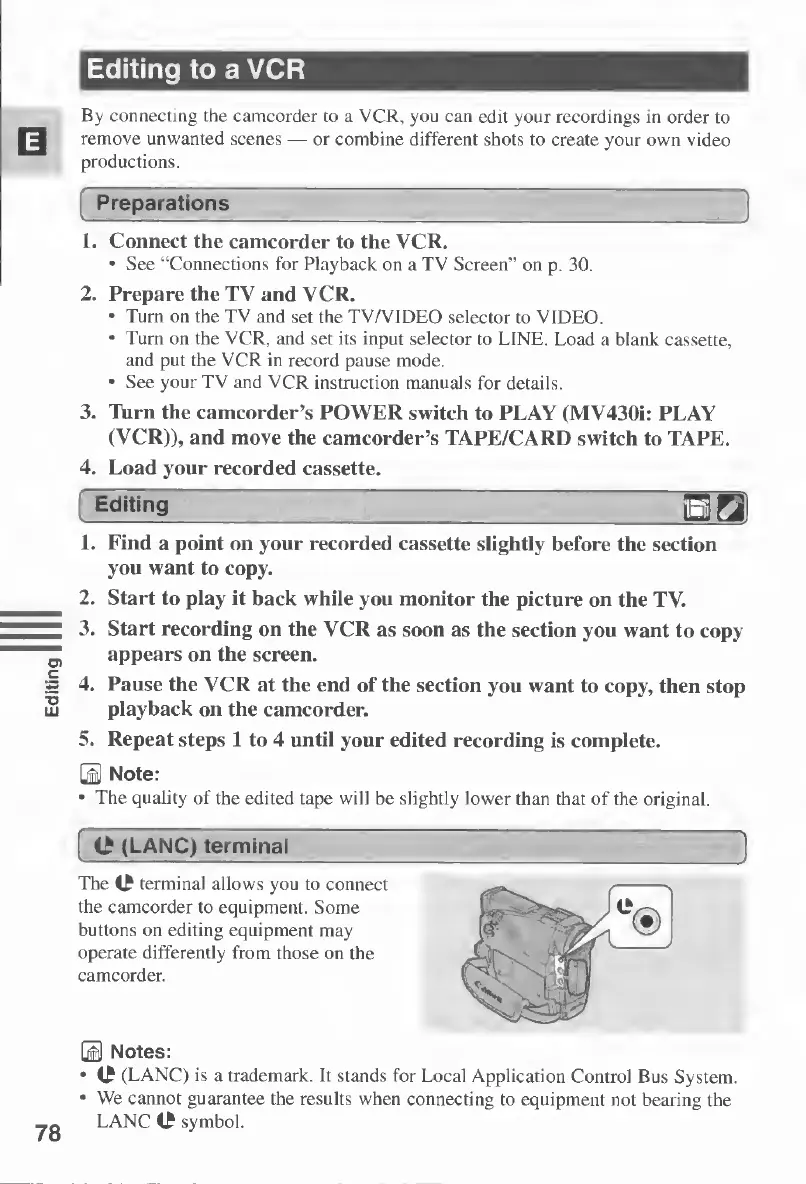
TheC
terminal
allows
you
to
connect
the
camcorder
to
equipment.
Some
buttons
on
editing
equipment
may
operate
differently
from
those
on
the
camcorder.
0
Notes:
it
(LANC)
is
a
trademark.
It
stands
for
Local
Application
Control
Bus
System.
We
cannot
guarantee
the
results
when
connecting
to
equipment
not
bearing
the
LANC
It
symbol.

Table of Contents

Other manuals for Canon MV430

Related product manuals