EasyManua.ls Logo

Canon MV430 - Setting the White Balance.71

Canon MV430
152 pages
Print Icon
To Next Page IconTo Next Page
To Previous Page IconTo Previous Page
Loading...
Setting
the
White
Balance
The
camcorder’s
auto
white
balance
system
compensates
for
a
wide
range
of
lighting
conditions.
Although
slight
variations
are
unavoidable,
colours
will
appear
natural
in
virtually
every
situation.
In
some
cases,
you
will
get
better
results
by
setting
the
white
balance
yourself,
or
using
one
of
the
two
preset
modes:
A
Indoor
Mode
Under
halogen
or
studio/video
lighting
Subject
is
of
one
dominant
colour
Close
ups
-M
Outdoor
mode
In
daylight,
especially
for
close-
ups
and
where
the
subject
is
of
one
dominant
colour
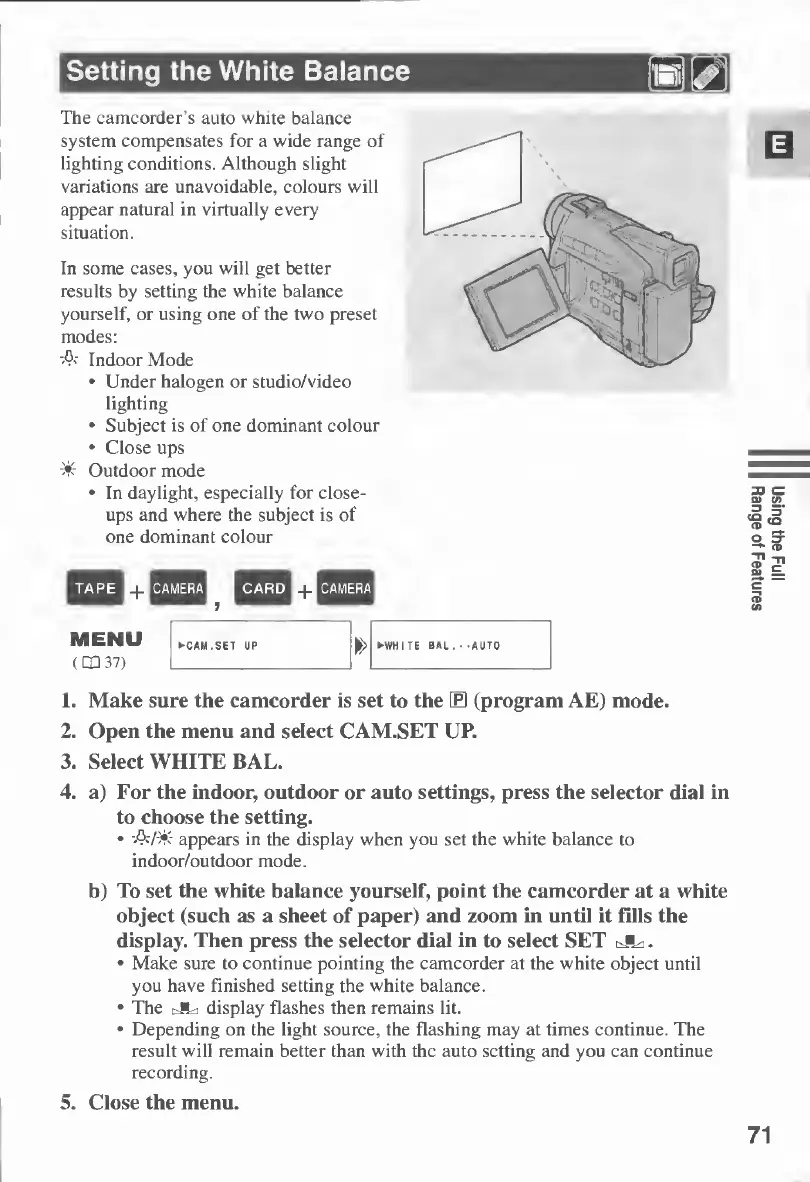
1.
Make
sure
the
camcorder
is
set
to
the
E
(program
AE)
mode.
2.
Open
the
menu
and
select
CAM.SET
UP.
3.
Select
WHITE
BAL.
4.
a)
For
the
indoor,
outdoor
or
auto
settings,
press
the
selector
dial
in
to
choose
the
setting.
A/-&-
appears
in
the
display
when
you
set
the
white
balance
to
indoor/outdoor
mode.
b)
To
set
the
white
balance
yourself,
point
the
camcorder
at
a
white
object
(such
as
a
sheet
of
paper)
and
zoom
in
until
it
fills
the
display.
Then
press
the
selector
dial
in
to
select
SET
tJL
*.
Make
sure
to
continue
pointing
the
camcorder
at
the
white
object
until
you
have
finished
setting
the
white
balance.
The
cJta
display
flashes
then
remains
lit.
Depending
on
the
light
source,
the
flashing
may
at
times
continue.
The
result
will
remain
better
than
with
the
auto
setting
and
you
can
continue
recording.
5.
Close
the
menu.
71
Using
the
Full
Range
of
Features

Table of Contents

Other manuals for Canon MV430

Related product manuals