EasyManua.ls Logo

Canon MV430 - Page 50

Canon MV430
152 pages
Print Icon
To Next Page IconTo Next Page
To Previous Page IconTo Previous Page
Loading...
Using
the
Full
Range
of
Features
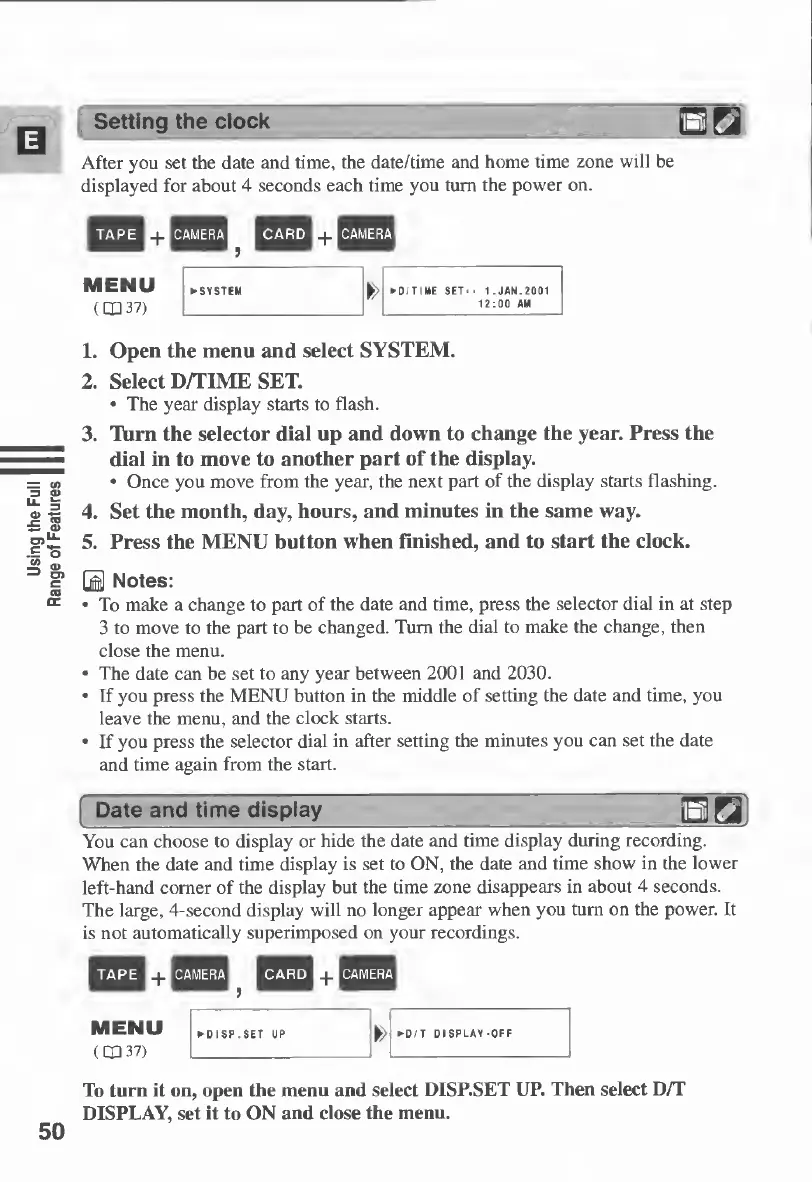
After
you
set
the
date
and
time,
the
date/time
and
home
time
zone
will
be
displayed
for
about
4
seconds
each
time
you
turn
the
power
on.
+
MENU
(CP
37)
L
Open
the
menu
and
select
SYSTEM.
2.
Select
D/TIME
SET.
•
The
year
display
starts
to
flash.
3.
T\irn
the
selector
dial
up
and
down
to
change
the
year.
Press
the
dial
in
to
move
to
another
part
of
the
display.
•
Once
you
move
from
the
year,
the
next
part
of
the
display
starts
flashing.
4.
Set
the
month,
day,
hours,
and
minutes
in
the
same
way.
5.
Press
the
MENU
button
when
finished,
and
to
start
the
clock.
B
Notes:
•
To
make
a
change
to
part
of
the
date
and
time,
press
the
selector
dial
in
at
step
3
to
move
to
the
part
to
be
changed.
Turn
the
dial
to
make
the
change,
then
close
the
menu.
â– 
The
date
can
be
set
to
any
year
between
2001
and
2030.
•
Tf
you
press
the
MENU
button
in
the
middle
of
setting
the
date
and
time,
you
leave
the
menu,
and
the
clock
starts.
•
If
you
press
the
selector
dial
in
after
setting
the
minutes
you
can
set
the
date
and
time
again
from
the
start.
|
Date
and
time
display
_
BB.
You
can
choose
to
display
or
hide
the
date
and
time
display
during
recording.
When
the
date
and
time
display
is
set
to
ON,
the
date
and
time
show
in
the
lower
left-hand
comer
of
the
display
but
the
time
zone
disappears
in
about
4
seconds.
The
large,
4-second
display
will
no
longer
appear
when
you
turn
on
the
power.
It
is
not
automatically
superimposed
on
your
recordings.
MENU
(CP
37)
50
To
turn
it
on,
open
the
menu
and
select
DISP.SET
UP.
Then
select
D/T
DISPLAY,
set
it
to
ON
and
close
the
menu.

Table of Contents

Other manuals for Canon MV430

Related product manuals