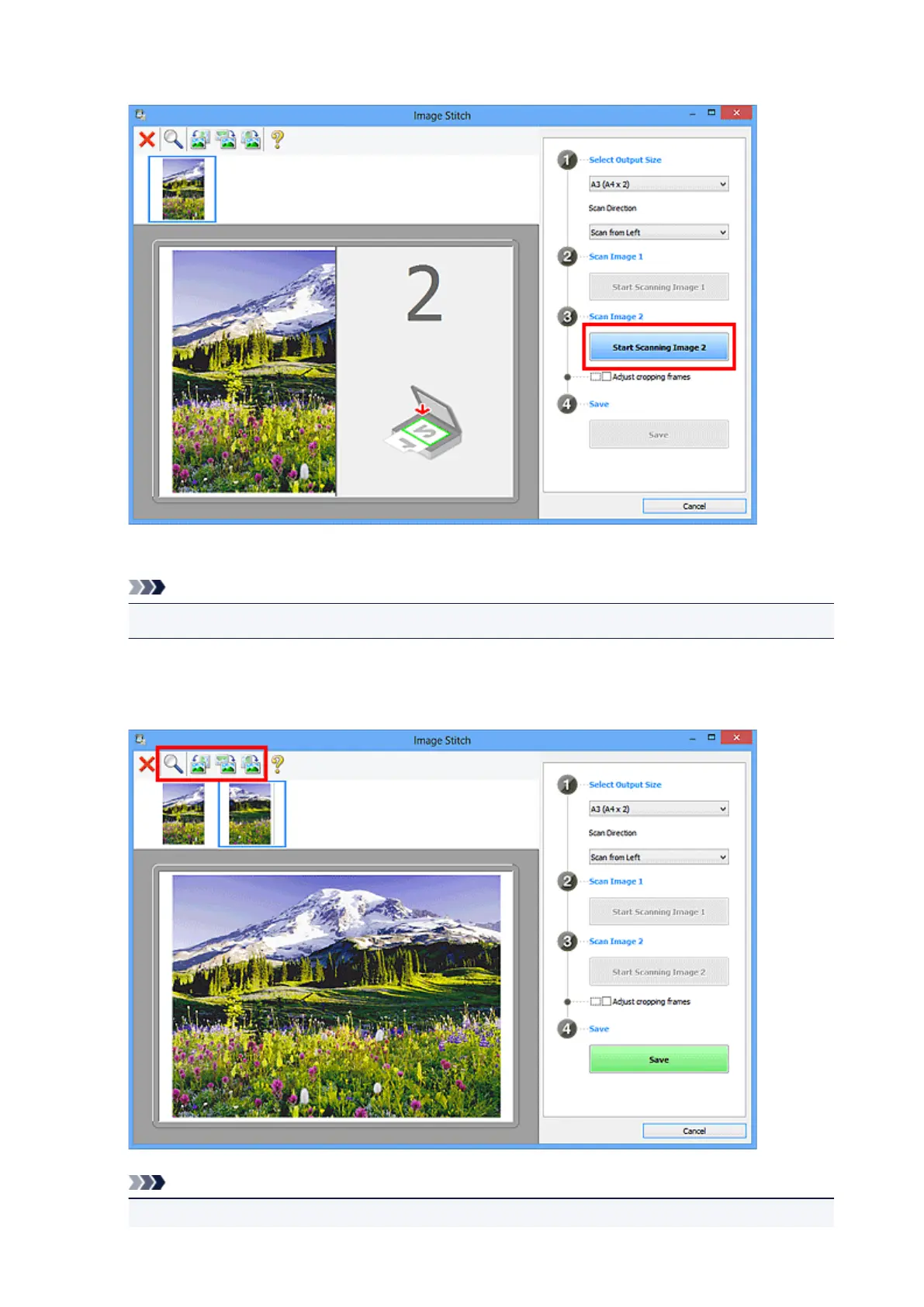
9. Click Start Scanning Image 2.
The second item is scanned and appears in 2.
Note
• Click Cancel to cancel the scan.
10.
Adjust the scanned images as required.
Use the Toolbar to rotate or zoom in/out, or drag the images to adjust their positions.
Note
•
Select the Adjust cropping frames checkbox to specify the area to be saved.
428













 To Next Page