The Certificate screen appears.
6. Click Install Certificate.
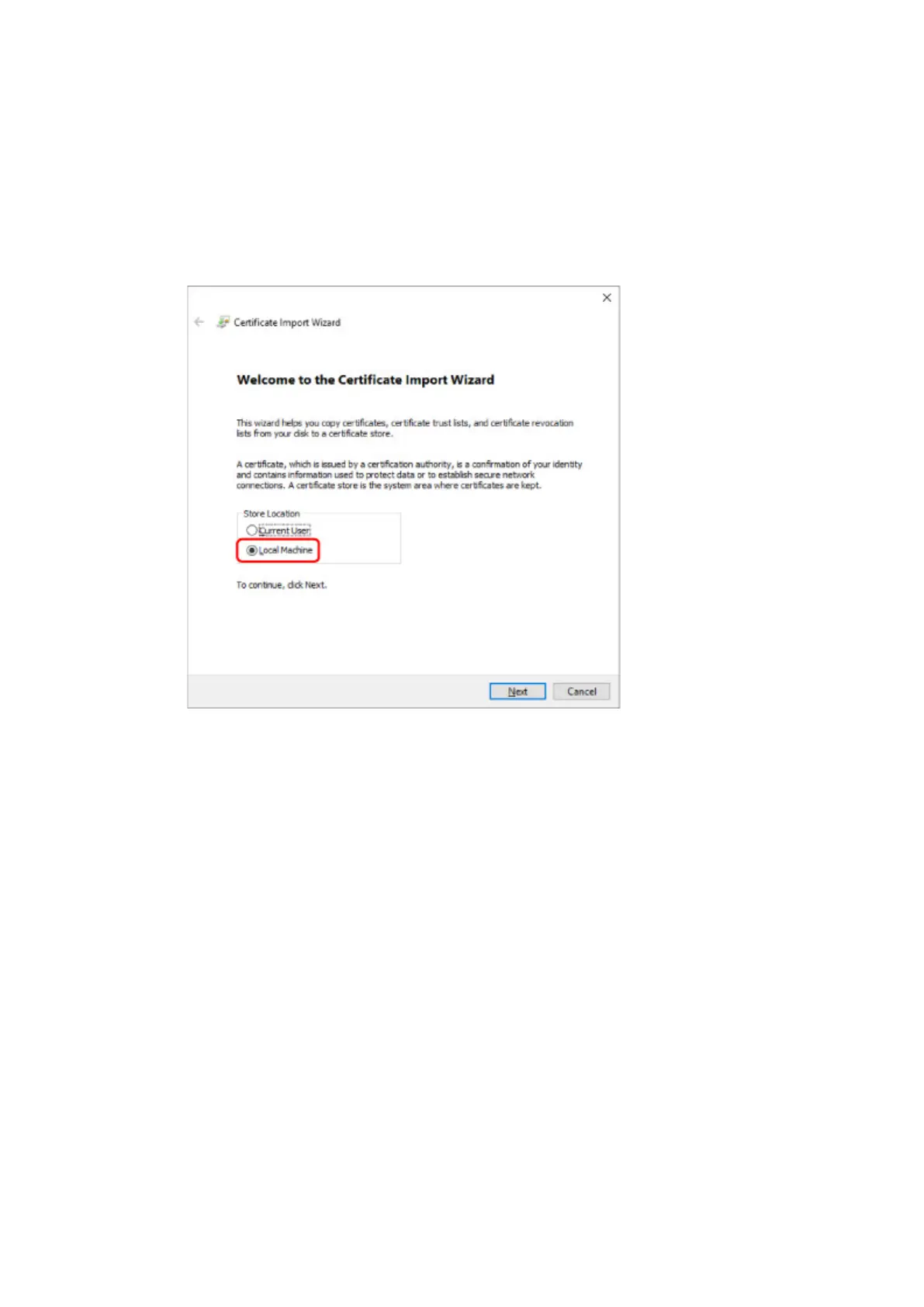
The Certificate Import Wizard screen appears.
7. Select Local Machine.
1.
Select Local Machine on the startup screen of Certificate Import Wizard.
2.
Click Next.
3. Click Yes on the displayed screen.
8.
Select Place all certificates in the following store on the Certificate Store screen.
9.
Select Trusted Root Certificate Authorities.
1.
Click Browse to open the Select Certificate Store screen.
2.
Select Trusted Root Certificate Authorities from the list and click OK.
3.
Click Next on the Certificate Store screen.
10. Click Finish.
When the Completing the Certificate Import Wizard screen appears, check the settings and click
Finish.
For Windows 7
The procedure below describes how to import a root certificate in Windows 7.
294



 To Next Page