5. Tap Yes.
The identifier (SSID) for wireless direct appears.
The device detects the printer by the identifier (SSID).
Note
•
If you tap Details and tap Yes, the following items appear.
•
Security setting
•
Password
• Printer's name which appears on a Wi-Fi Direct compatible device
The password is required when connecting a device to the printer. Depending on the device
you are using, no password is required.
When you connect a Wi-Fi Direct compatible device to the printer, select the device name
displayed on the touch screen from your device.
•
The identifier (SSID) and the security setting are specified automatically. To update them, see
below.
Changing Direct Connection Setting
6.
Tap OK.
The wireless direct is enabled and a device can be connected to the printer wirelessly.
Connecting Smartphone/Tablet to Printer
1.
Turn on wireless communication on your device.
Enable "Wi-Fi" on your device's "Setting" menu.
For more on turning on wireless communication, see your device's instruction manual.
2.
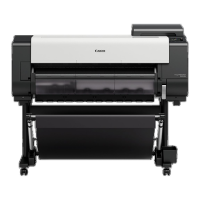
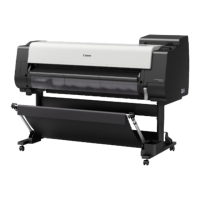
Select "DIRECT-XXXX-TX-3000" ("X" represents alphanumeric characters) from list
displayed on device.
Note
•
If "DIRECT-XXXX-TX-3000" does not appear on the list, wireless direct is not enabled.
See Changing Printer Setting to enable wireless direct.
3. Enter password.
Your device is connected to the printer.
Note
•
Check the password for the wireless direct.
Check by one of the following methods.
•
Display on the touch screen.
616


 To Next Page