Using Operation Panel
1. Make sure printer is turned on.
2. Flick HOME screen and tap Job management.
Menu Operations
3.
Tap Print job.
4.
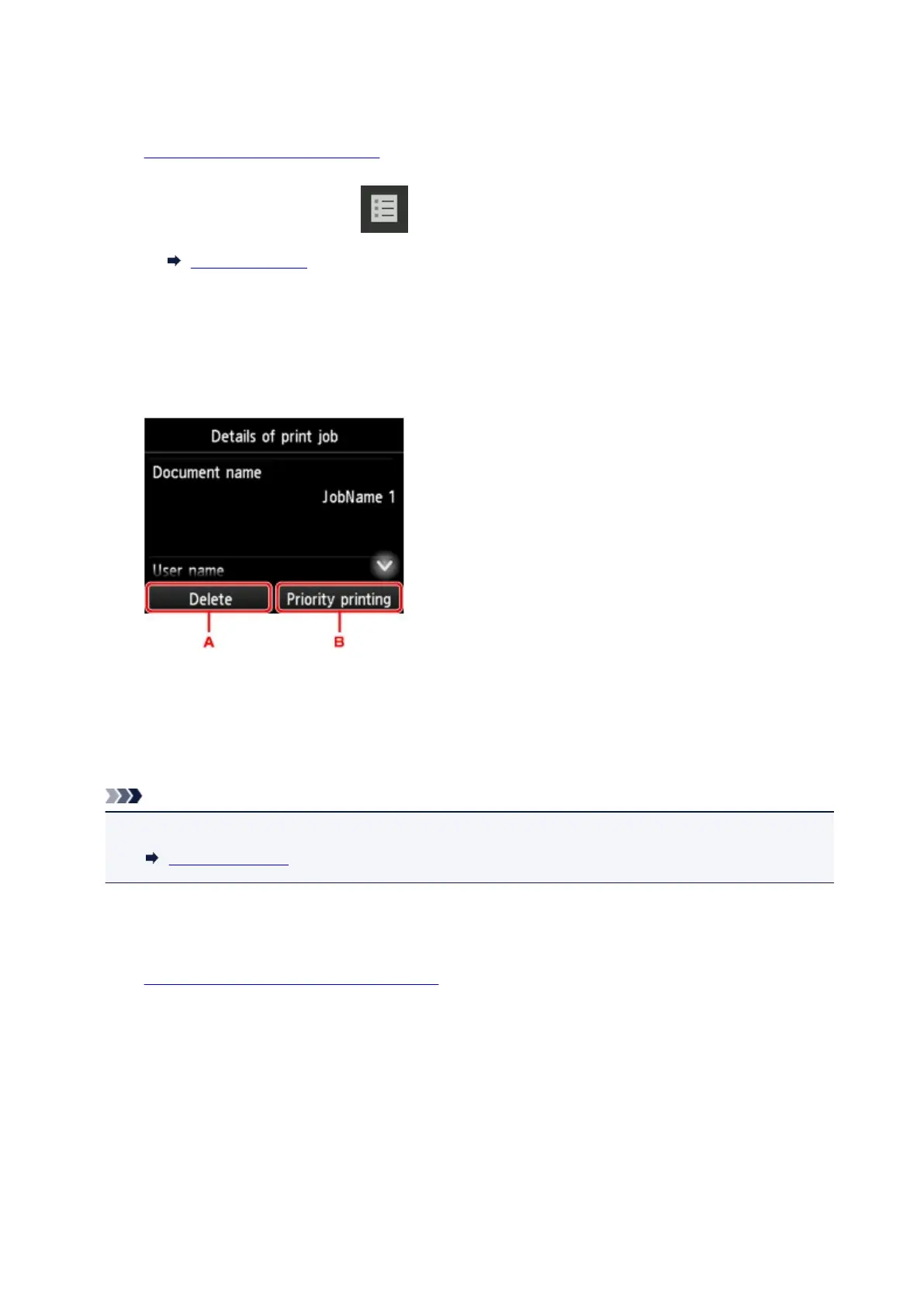
Tap data to delete or perform preempt printing.
The screen below appears.
A.
Tap to delete data.
B. Tap to perform preempt printing.
5.
Check message that is displayed and tap Yes.
Note
• Select Delete all print jobs on Job management to delete all jobs in the job queue
Job management
Using Remote UI
1. Display printer status on web browser.
2. On Menu page, select Job management.
3. Select Print job.
The print job list appears.
4. Select print job and select Delete or Prioritize.
670


 To Next Page