ECG100+ - ECG200+ - ECG100S - ECG200S
7. EXECUTION OF AN EXAM
7.6. Identifying urgent ECGs (STAT)
The acquired examinations can be identified as “urgent”, for example for flagging as such in Cardioline
WebApp or in an archive.
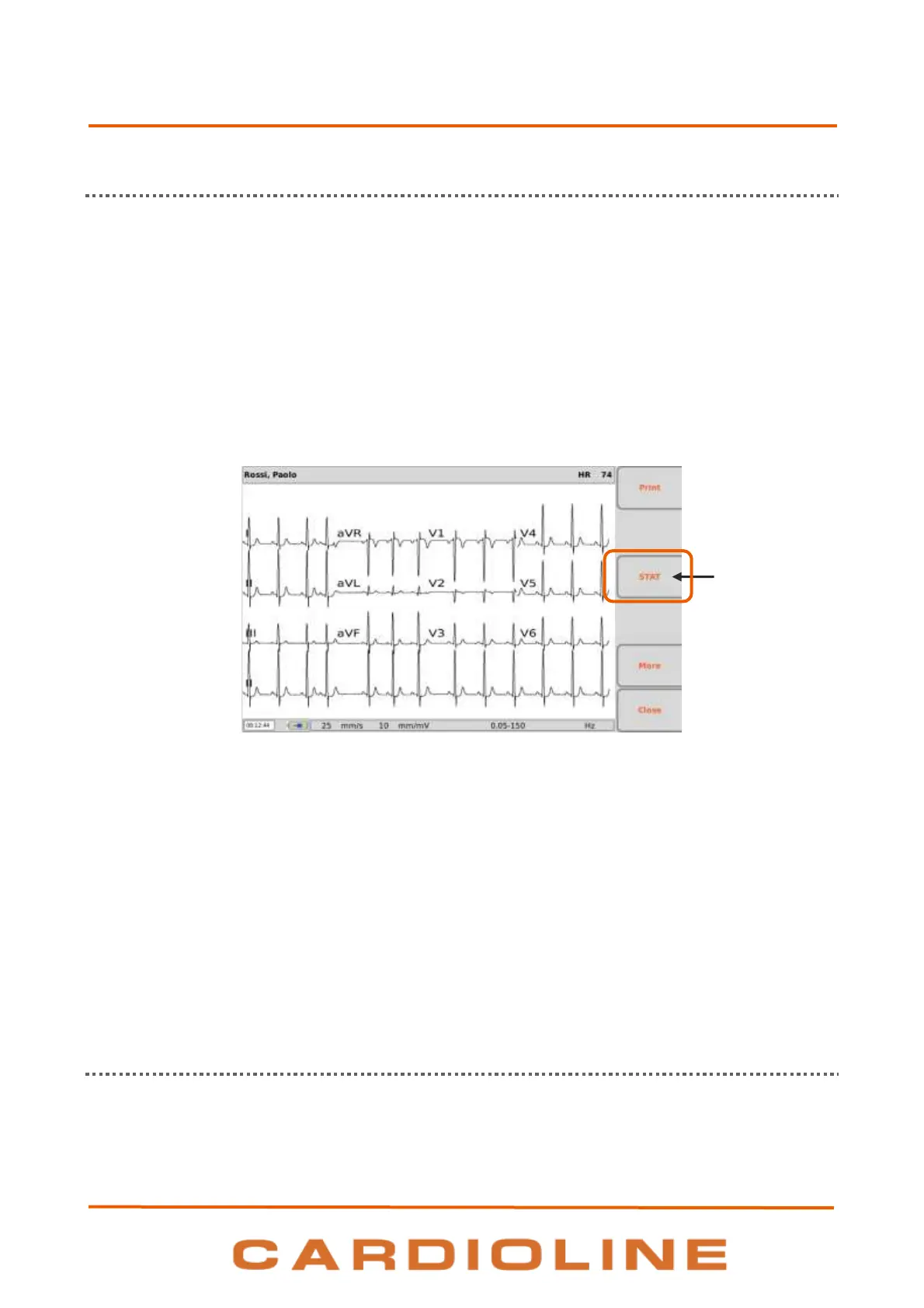
Once the ECG has been acquired it can be given the “urgent” status by pressing the F3 function key (STAT).
When this key is pressed, the corresponding label and the patient name filed turn red and the acquired ECG
is given the "urgent" status. Pressing the key again activates/deactivates the "urgent" status.
If the automatic saving option is enabled, the examination is re-saved automatically every time the "urgent"
status is modified (namely every time the F3 key (STAT) is pressed). If on the other hand the automatic
saving option is not enabled, the examination must be saved manually at each modification by pressing the
F2 key (Save).
If an ECG must be acquired urgently, it can be started without entering the patient's data, but simply by
pressing the AUTO key on the real time display screen.
The acquired examination can then be printed, saved or transmitted as is without patient data, or the
patient's data can be associated to it at the end of acquisition by pressing the ID hot key.
NOTE: The word stat is an abbreviation of the Latin word statim, which has the meaning
"instantly/immediately".
NOTE: if STAT is selected for an exam activating its “urgent” status, the status is maintained for all the
subsequent exams acquired for the same patient ID.
NOTE: To transmit the ECG as urgent, it must be sent after having modified the status.
7.7. Printing an ECG
As described in Par. 7.5.1, if the automatic printing option is enabled, the ECG is printed automatically at the
end of acquisition. It is always possible to print or reprint the ECG using the F1 function key (Print).




 To Next Page