ECG100+ - ECG200+ - ECG100S - ECG200S
10. CONNECTIVITY, RECEIVING WORK LISTS AND TRANSMITTING ECG EXAMS
The type A USB port can be used to transfer data from the electrocardiograph to a USB memory stick
inserted in the port (as described in par.10.2.1) and for technical assistance.
The mini-USB port can be connected to a computer, as described in Par.10.2.2.
10.2.1. Connection to a computer
To connect the electrocardiograph to a computer, connect a USB cable to the USB connector of the device
(B) and to a USB connector on the computer. Then make sure the device is on.
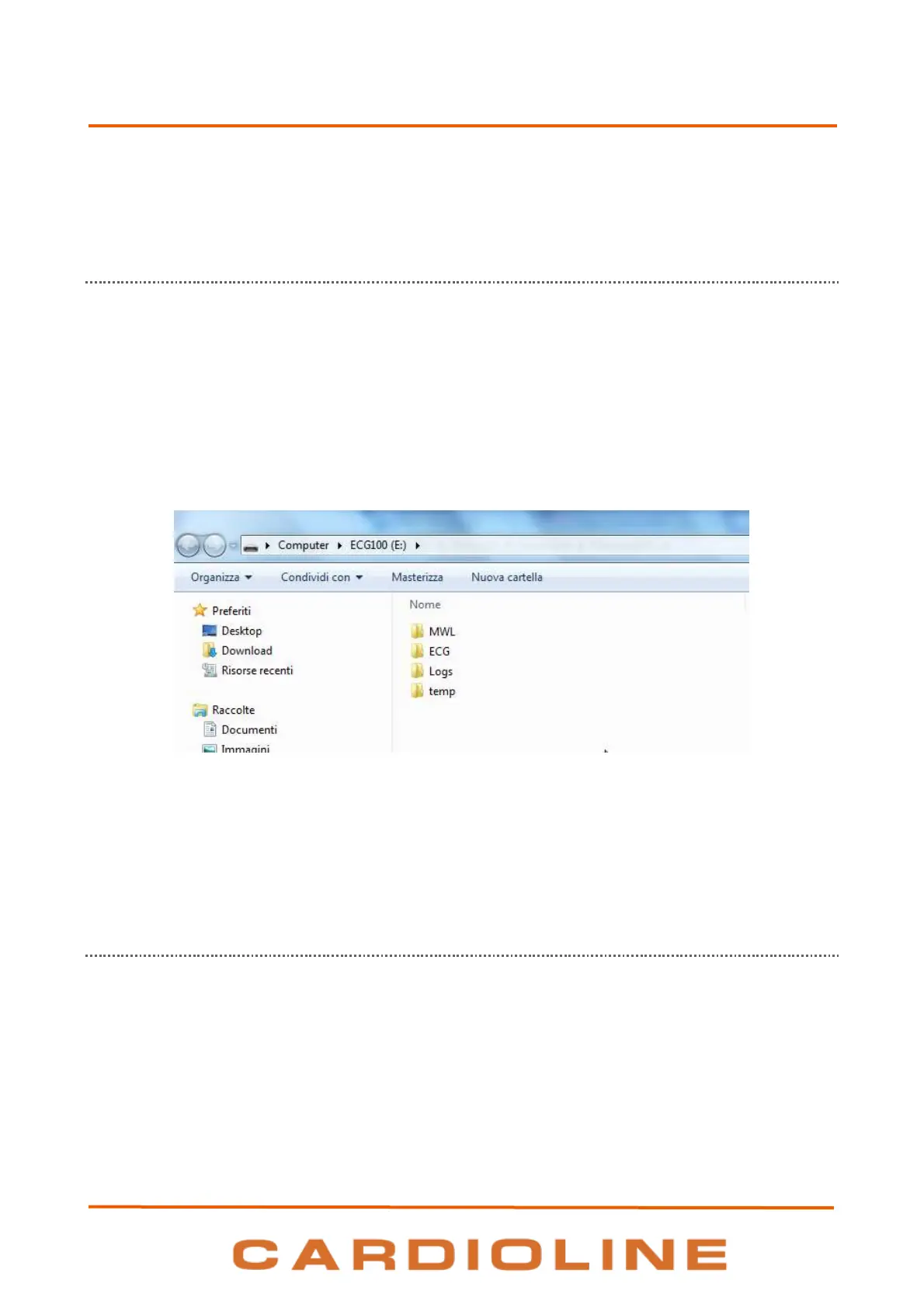
Once the electrocardiograph is connected and switched on, it will appear as a device in the folder "This PC"
of the computer. Double-clicking the icon opens the folder of the electrocardiograph, consisting of three
sub-folders: one containing saved ECG examinations, one with downloaded work lists and one with log files.
The latter is read-only and can only be used for troubleshooting.
The user can copy the ECG files on the computer or cancel them. Similarly the user can copy on the
computers or cancel the work lists files.
The ECG examinations are saved in SCP format files, the name of which includes the main information of the
examination:
{TYPE}{STAT}{XMT}{PRT}_{PAT_ID}_{PAT_LAST}_{PAT_FIRST}_{ACQ_DT}_
{SCP_GENDER_CODE}_{DOB}_{AGE}{SCP_AGE_UNIT_CODE}_{LOCATION}_{ACCESSION_NUMBER}
10.2.2. Transfer data to a USB memory stick
ECG records in SCPECG and PDF format can be saved in a USB memory stick inserted in the type A USB port.
In order to do this, you can use the LINK hot key, that is enabled at the end of an automatic ECG acquisition
to export only the current exam file (as described in par.7.5.1) or in the ECG Archive screen to export all the
files (as described in par.8.3).
Data is saved in the memory stick in a folder. The folder name begins with the token “ExpECGxxx” followed
by the timestamp of the operation



 To Next Page