CS 3500 User and Installation Guide (9H4853)_Ed07 9
Toolba r O verview
2 Acquisition Step: Displays the current step in the acquisition process.
3 Acquisition Catalog Toolbar: Enables you to select the acquisition mode.
4 Image Toolbar: Enables you to select and manage 3D images.
5 Progress Bar: Indicates the status of the image acquisition process.
6 3D Model Display Screen: Displays the 3D model created from the scan.
7 Navigation Bar: Enables you to move forward or backward in the acquisition process.
8 Video Preview Screen: Displays live video of the scan of the patient’s teeth, as well as the
alignment guide, when enabled.
9 Settings Toolbar: Enables you to export files, set preferences, and access system information
and online help.
10 Acquisition Feedback Indicator: Indicates if the acquisition is successful or if it failed; or if the
CS 3500 was not steady.
Acquisition Catalog Toolbar
The acquisition catalog toolbar enables you to select the acquisition mode.
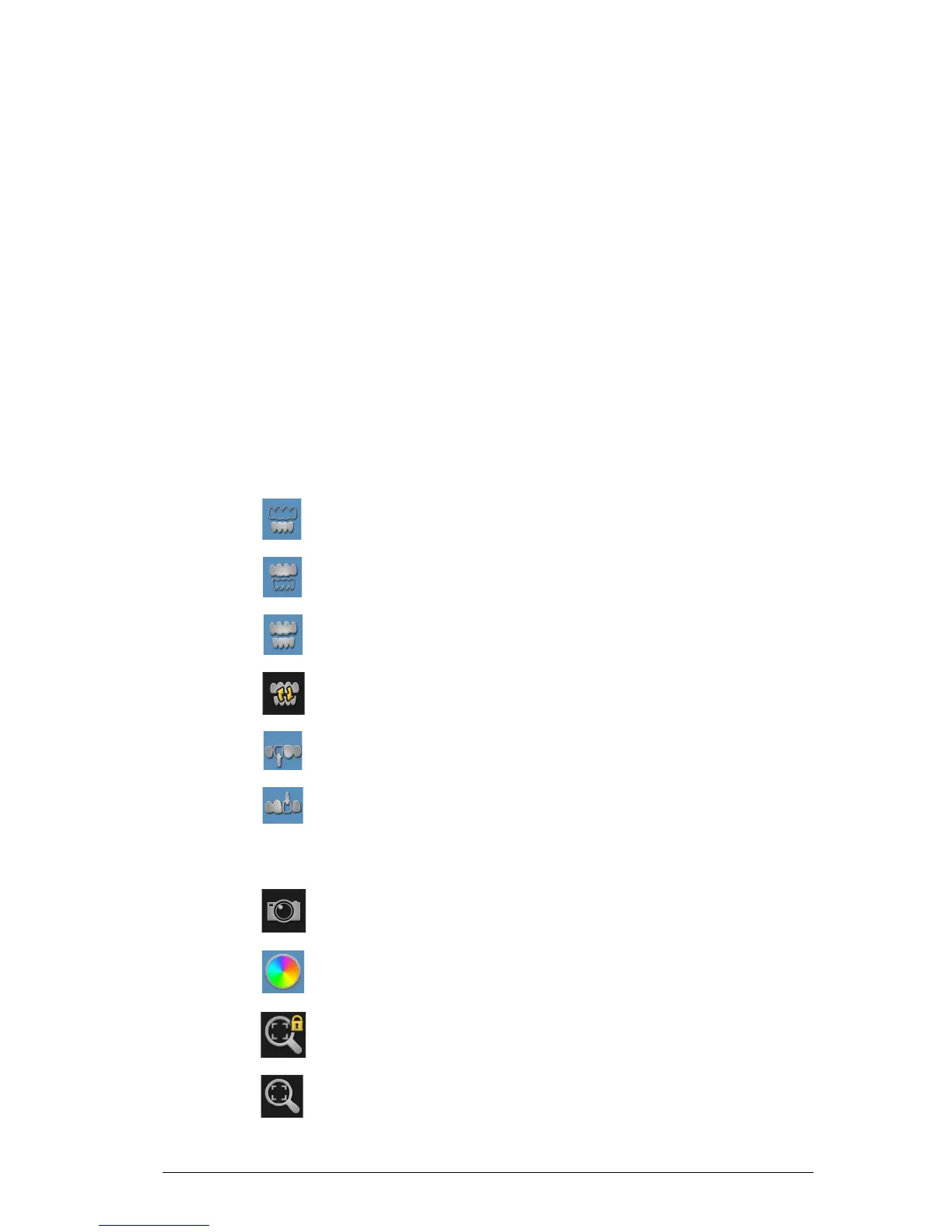
Lower Jaw button: Acquires a 3D image of the lower jaw.
Upper Jaw button: Acquires a 3D image of the upper jaw.
Buccal Bite Registration button: Acquires a 3D image of the bite.
Switch button: Changes the acquisition mode from upper to lower or vice versa,
if you accidentally scan teeth on the wrong jaw.
Lower Jaw button: Acquires a 3D image of the scan body in the lower implant
jaw when making an implant acquisition.
Upper Jaw button: Acquires a 3D image of the scan body in the upper implant
jaw when making an implant acquisition.
Image Toolbar
The image toolbar enables you to select and manage images.
Intraoral Image button: Enables you to select two-dimensional intraoral images.
True Color button: Displays the 3D model in the actual color of the patient’s
hard and soft tissues.
Freeze button: Prevents the 3D model from being resized and rotated.
Zoom Fit button: Scales the 3D model to the best size to fit the display region.






 To Next Page