CS 3500 User and Installation Guide (9H4853)_Ed07 11
Settings Toolbar
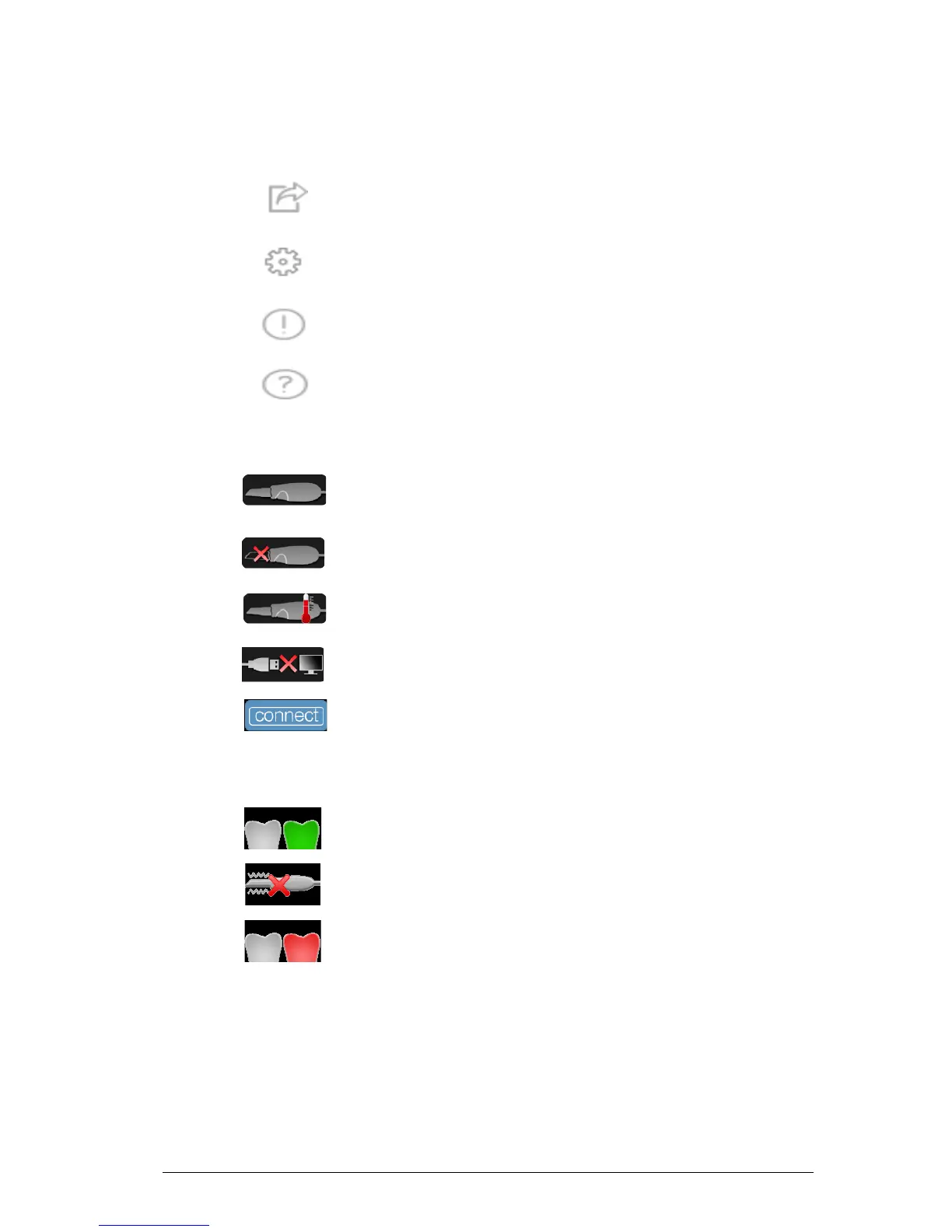
The settings toolbar enables you to export files, set preferences, and access system
information and online help.
Export button: Enables you to access the folder to which you want to export the
image file. Use the export function if you want to save the acquired images for
later use.
Preference Setting button: Accesses the Preferences dialog box.
About button: Accesses system information, including the firmware and
software version, and CS 3500 serial number.
Help button: Accesses the online help.
CS 3500 Status Icons
The CS 3500 status icons display the current status of the CS 3500.
Inactive icon: Indicates the CS 3500 is in the holder or in sleep mode.
No Tip icon: Indicates the CS 3500 does not have a tip.
Overheating icon: Indicates the CS 3500 is overheating. If this icon is
displayed, place the CS 3500 in the holder for 5 to 10 minutes. The CS 3500
will become inactive and cool down.
Not Connected icon: Indicates the CS 3500 is not connected.
Connect icon: Click to connect the CS 3500 with the Acquisition software.
Note: The Connect icon is displayed when you float the cursor over the Not
Connected icon.
Acquisition Feedback Status Bar
The acquisition feedback status bar enables you to see if the acquisition is successful.
Acquisition successful icon: Indicates the image was acquired successfully.
Acquisition failed due to movement icon: Indicates the CS 3500 was not
stable. Reacquire the image.
Acquisition failed icon: Indicates that there is not enough overlap between the
last image and the newest image. Reacquire the image, being sure to overlap
with the previous tooth by approximately 30%.






 To Next Page