72 Chapter 8 Acquiring a 3D Model for Implants
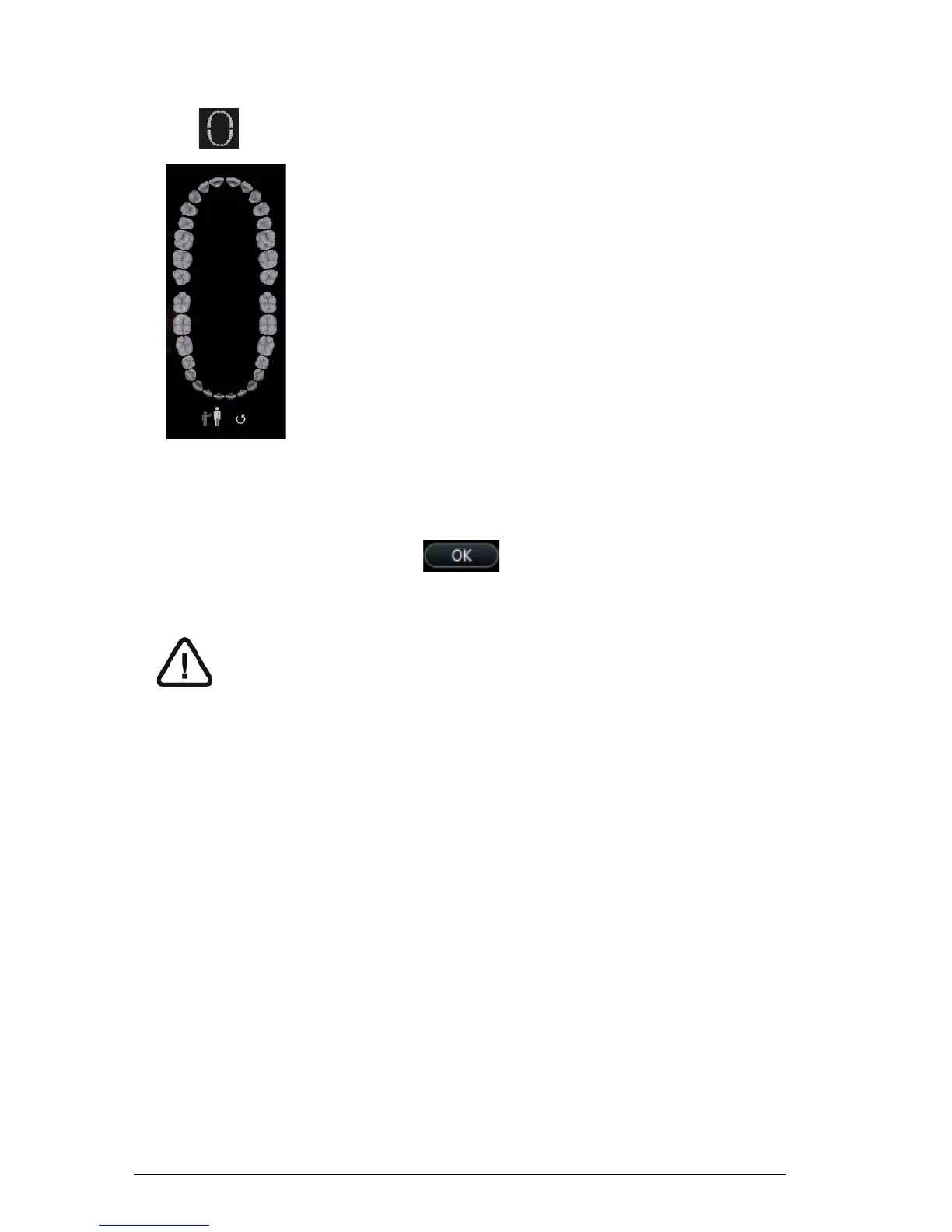
10 Click . The arch diagram is displayed.
11 Click the Adult or Child icon to display the appropriate arch.
12 Select the teeth on the arch that were acquired for the 3D model, including those on the upper
and lower jaw.
13 When satisfied with the 3D model, click to send the 3D model to the imaging
software.
Important: To view your 3D models, use the CS Mesh Viewer that was installed
on your desktop. For instructions on using the mesh viewer, click the ? button in
the CS Mesh Viewer interface. If you are sending the DCM file to a lab, ask the lab
to download the CS Mesh Viewer from the following link:
http://sas-origin.onstreammedia.com/origin/carestreamhealthinc/CSMeshView
er/CSMeshViewer.zip






 To Next Page