47
GB
INSTALLATION
RX DC X-RAY UNIT
10.2 Setting the X-ray head in combination mode
This procedure can only be activated within THREE MINUTES of the radiographic unit being turned on.
Remove the collimator from the X-ray head, turn on the radiographic unit then turn the collimator microswitch on and
o at least 6 consecutive times. The head will emit a beep that conrms it has switched to combination mode.
If the procedure is unsuccessful, turn o the X-ray head, wait a few seconds and start again.
10.3 Send the recognition signal from the handheld unit to the X-ray head
Turn on the handheld and go to menu T02. This menu is accessed by pressing keys + . Scroll the
menu with key until P08 appears. Press + to access the technical menu and press key until T02
is displayed. Press key to open the menu and confirm association.
If association has been successfully completed the radio field icon should appear on the control
handheld with the word READY. If this is not the case (Error "EE") , repeat the operation.
At the end of the matching procedure check on P03 that the rmware versions of the handheld unit, X-ray head and
basic board are aligned and correspond to those of the selected update package.
10.4 Inspections and modications of Wi-Fi parameters on RX unit
If the device loses too easily the wireless signal, it may be that the fault is not the settings but, rather, there are other
wireless networks present that unfortunately cause interference problems.
If you use a Windows operating system, to nd the channels used by other wireless networks, just download a simple
free program called Acrylic WiFi.
DOWNLOAD: https://www.acrylicwi.com/en/downloads/download-wi-scanner-windows/
After installing this program, click on the voice called “AP channels in 2.4GHz”, to see which channels are used by the
dierent wireless networks.
You can easily understand which channels are less used by looking at the number that identies each wireless channel;
in the same way the overlapping of the most saturated wireless channel can be checked (if you cannot see the AP
channels in 2.4GHz you will have to press on the menu in the upper right, represented with three horizontal lines, and
activate the Advanced Mode function).
How to nd the best Wi-Fi channel?
To solve connection problems you have to nd a better Wi-Fi channel.
The modem router, in fact, to properly communicate with several devices present, must necessarily use one of the 13
channels belonging to the 2.4 GHz band.
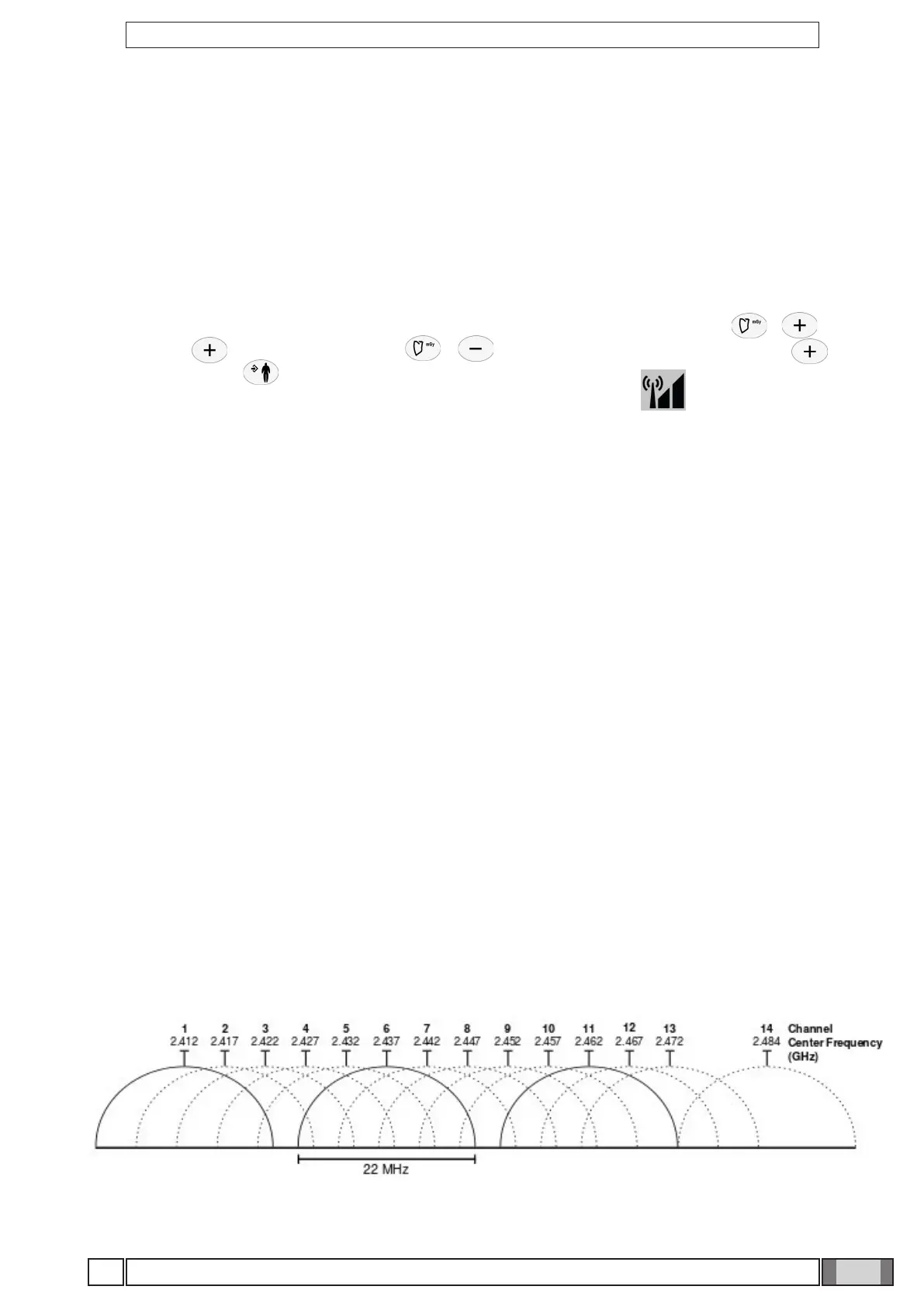
The channels belonging to the 2.4 GHz band are not all spaced from each other, as you can see from the following
image, and consequently, very often, they overlap each other causing interferences.
The signal of each channel overlaps with the 4 on the right and with the 4 on the left. Set on the device a
specic channel (i.e.:1, 6, 11 or 2, 7, 12 or 3, 8, 13).


 To Next Page