54
GB
INSTALLATION
RX DC X-RAY UNIT
12. FIRMWARE UPDATE PROCEDURE
Check on the Extranet the presence of a more updated Firmware version compared to the one of the X-ray device (it
can be displayed in the P03 menu of the handheld device). See "Firmware" section, download the .zip le.
Download also the RXDC Updater software.
The update procedure consists of the two following steps:
1. Firmware transfer towards the X-ray device.
Use a PC connected to the device via a WiFi network.
This step can require from 2' to 4' to be completed, depending on WiFi signal quality.
2. Update of X-ray device rmware.
The rmwares of all the boards of the device are updated.
This step can require from 5' (with wireless handheld unit) to 15' (with wired handheld unit) to be completed.
To start the update procedure:
1. Select technical menu T08 of the handheld unit and press “SIZE” to conrm. The display shows “UPD”.
2. Hold key “SIZE” pressed on the handheld unit to activate the update procedure (a conrmation beep sound will
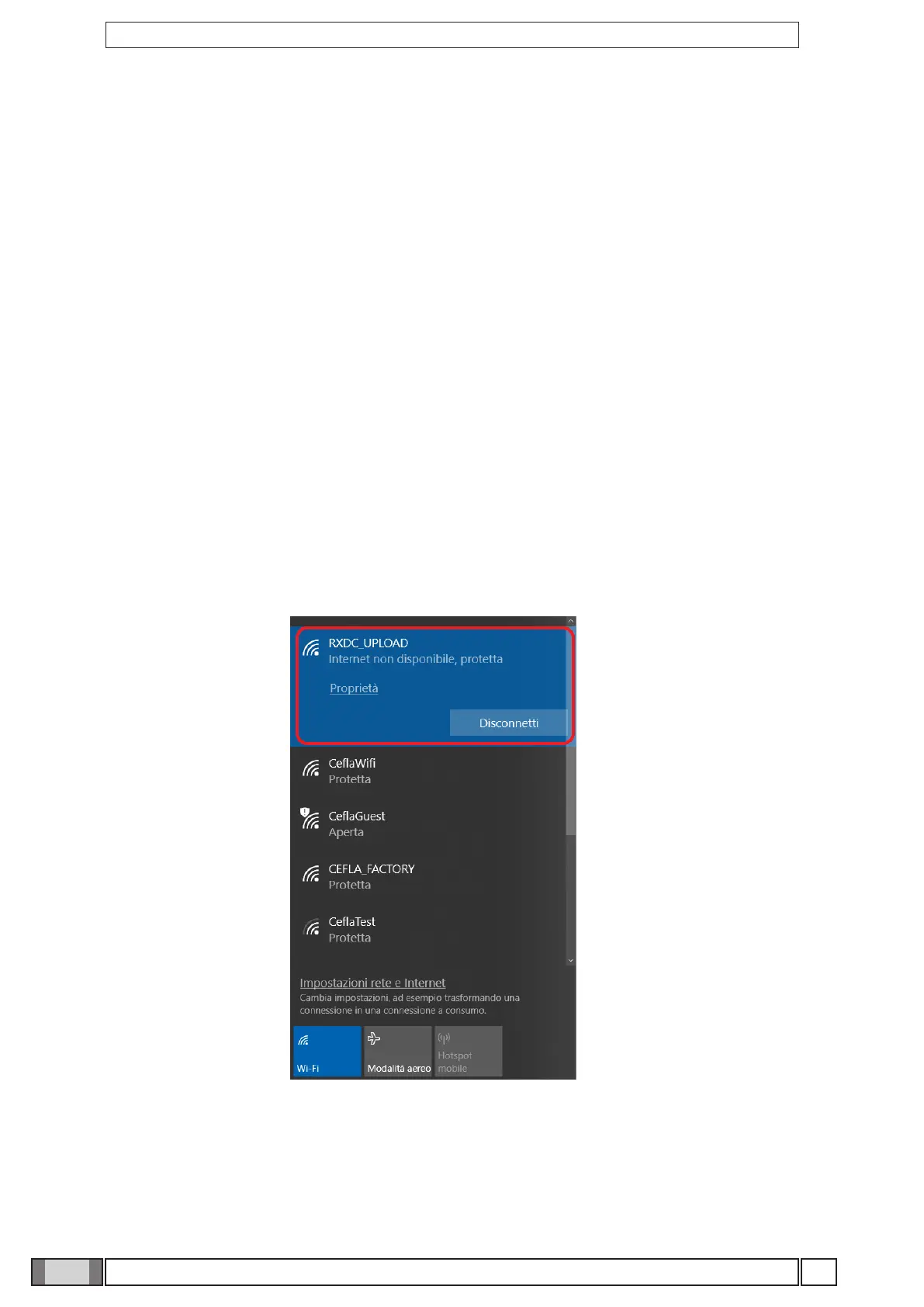
be emitted). The device activates an ad hoc WiFi network called “RXDC_UPLOAD”.
3. Connect the PC to the “RXDC_UPLOAD” WI-FI network, and enter password “1234567890”.
4. Launch the “RXDC Updater” application


 To Next Page