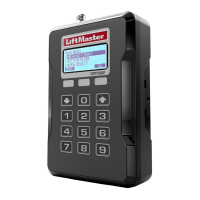
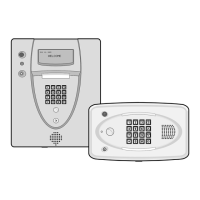
11
INTRODUCTION PRE-INSTALL NETWORKINSTALL ACCESS CONTROL
2
Internet Service
CAPXL / CAPXLV MUST be configured with the proper network settings to operate.
NETWORK
Internet service provider:
WIRELESS
Wi-Fi
®
Network Name:
Wi-Fi
®
Password:
WIRED
Automatic IP addressing: DHCP (preferred setting)
OR
Static IP Addressing: (NOTE: Write down the following for future reference: IP, Netmask, Gateway, Primary,
Secondary, Server Port)
A subscription with Phone.com, a SIP provider, is required to make video calls. Sign up through myQ
®
Business™ after a
CAPXL / CAPXLV is added to a Facility. For all other type of phone calls, LiftMaster does not guarantee and support calling
performance if using an alternate SIP provider. If another SIP provider is being used, the following information will be
required:
• SIP Username • Outbound Proxy (Opt.)
• SIP Password • SIP Authorization ID (Opt.)
• SIP Domain • Stun Server (Opt.)
• Server Port
Does customer already have a phone.com account?
If yes, Phone.com account email address.
If yes, phone.com account password.
If customer does not have a phone.com account.
Use the portal on the CAPXL / CAPXLV screen to register a new account.
CP# for CAPXL / CAPXLV (TE2-XX-XXXX):
(Located on the CP label on top of the Control Board bracket and on the display when powered up)
3
Phone Service
1
Setup a myQ
®
Business
™
Account
NOTE: If you have an existing myQ
®
account, your myQ
®
Business
™
account will have the
same password. Go to: myQBusiness.com and login.
1. If you do not have a myQ
®
Business™ account, call LiftMaster Customer Care at
800.323.2276 to activate a myQ
®
Business™ account.
2. You will get a welcome email from LiftMaster. Accept the invitation and register or login to your account.
3. Setup the facility, select a subscription plan, add residents, and credentials
(refer to the available Help in myQ
®
Business™).
4. Continue with the installation of the CAPXL / CAPXLV in this manual.
The following services are required for CAPXL / CAPXLV to fully function


 To Next Page