19
INTRODUCTION PRE-INSTALL NETWORKINSTALL ACCESS CONTROL
Gate Access (Wireless)
The CAPXL / CAPXLV can communicate wirelessly to LiftMaster
®
UL325 gate operators to send open commands, monitor gate position,
and send email notifi cations if an error occurs in the operator (email notifi cations are confi gured in myQ
®
Business™). Up to 8 gate
operators can be paired with the CAPXL / CAPXLV - one for each primary and auxiliary relay. If using dual gates, program the CAPXL /
CAPXLV to the primary operator.
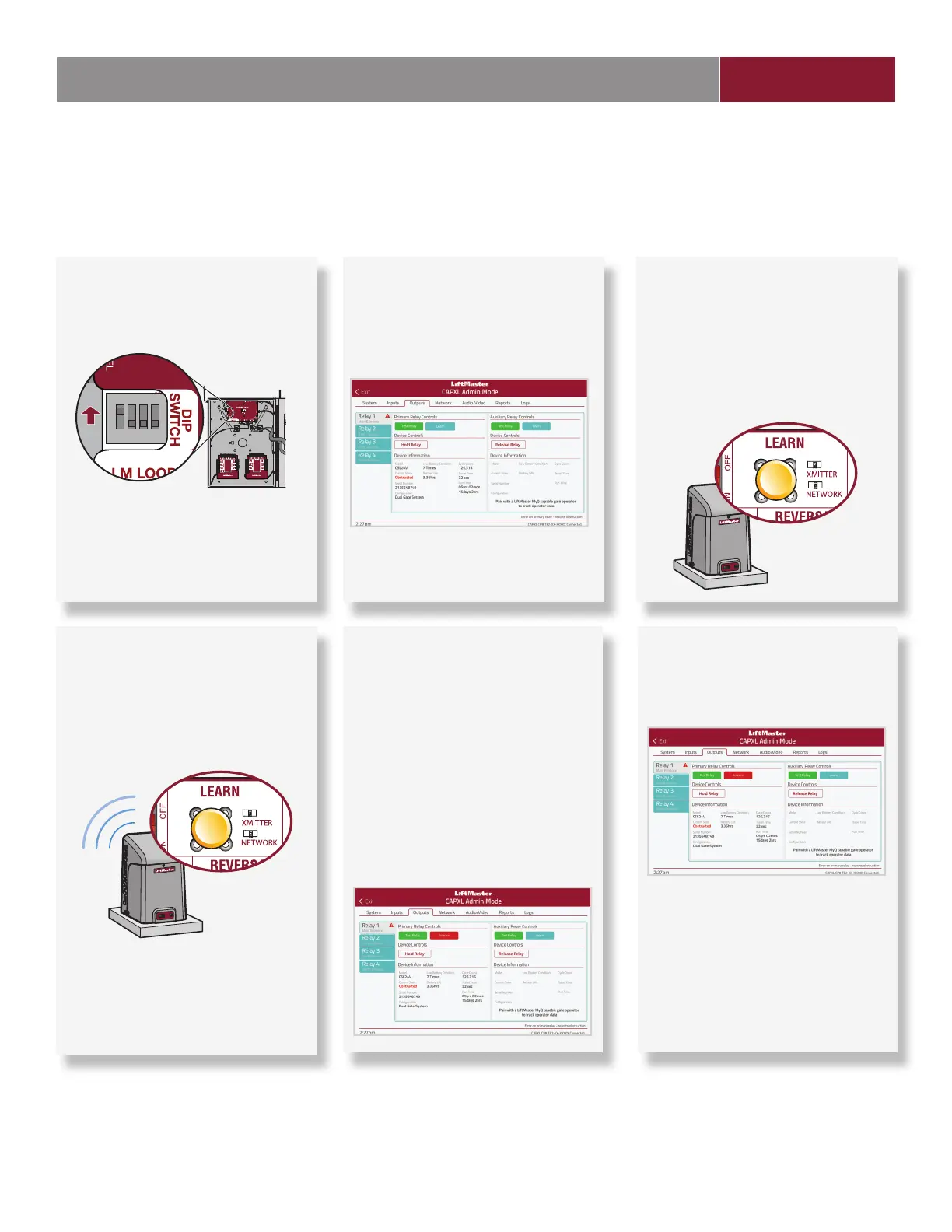
1 Enter Admin Mode
Flip dipswitch #1 to the ON position to
enter Admin Mode.
NOTE: For new installations press
the login button without entering
information in the Admin Username
and Admin Password fi elds.
2 Select Outputs and Relay
Select the Outputs tab. Then select the
desired relay on the left-hand side (1
through 4).
3 Press LEARN button on gate
operator
Press and release the LEARN button
on the primary operator. The green
XMITTER LED will light. NOTE: The
operator will time out of programming
mode after 180 seconds.
4 Press LEARN button on gate
operator again
Press and release the LEARN button
again on the primary operator. The
yellow NETWORK LED will light.
5 Select LEARN on display
Select the LEARN button on the
display and the Learn button will go
from blue to red. The gate operator
and the CAPXL / CAPXLV will beep
once and the NETWORK LED on the
gate operator will turn off indicating
programming is successful.
NOTE: 4 beeps/blinks indicate you
are not programming to the primary
operator. Reattempt programming
from the other operator.
6 Validate
Validate functionality by selecting
Test Relay on the CAPXL / CAPXLV
display.
ON
Visit myQBusiness.com for more information on how to set up doors for wireless linking.


 To Next Page